
Connecting Your Portable PC to a Second Monitor: A Step-by-step Guide
Are you tired of using your portable computer in cramped spaces, dreaming of having more screen real estate to boost your productivity? Look no further! In this article, we’ll show you how to connect your portable PC to a second monitor, making it easier than ever to enjoy the benefits of a desktop setup.
What You Need to Know Before We Begin
Before diving into the nitty-gritty details, let’s cover some essential ground. To connect your portable PC to a second monitor, you’ll need:
- A second monitor (preferably with HDMI connectivity)
- An HDMI cable
- A computer with an available HDMI port
Understanding Your Computer’s Hardware
Before we proceed, it’s crucial to understand the hardware inside your portable PC. If you’re not tech-savvy, don’t worry – we’ve got you covered!
- Check if your computer has an HDMI port (it might be a newer model or a refurbished one)
- Look for other connectivity options like USB-C/Thunderbolt 3
- Ensure your computer is running the latest operating system
Connecting Your Computer to a Second Monitor
Now that we’ve covered the basics, let’s get started!
Step 1: Check if Your Computer Has an Hdmi Port
Before attempting to connect your second monitor, ensure your portable PC has an available HDMI port. If it doesn’t, don’t worry – we’ll cover alternative solutions later.
- Locate the HDMI port on your computer (usually found on the sides or back)
- Ensure the port is not occupied by another device
Step 2: Connect Your Second Monitor
Now that you’ve confirmed your computer has an available HDMI port, it’s time to connect your second monitor!
- Insert one end of the HDMI cable into the computer’s HDMI port
- Connect the other end of the HDMI cable to your second monitor’s HDMI input
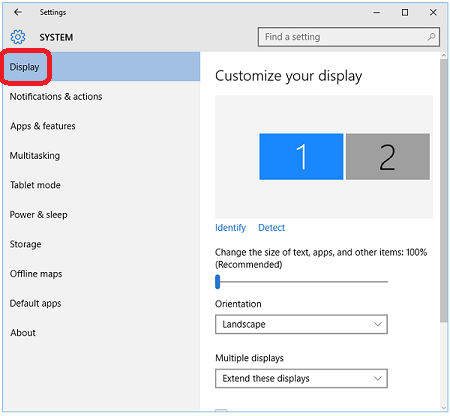
Step 3: Configure Your Computer For Dual Monitor Use
To make the most out of your dual-monitor setup, you’ll need to configure your computer.
- Open your computer’s display settings (usually found in the Control Panel or Settings app)
- Select the “Extend desktop to this display” option
- Choose the resolution and refresh rate for your second monitor
Troubleshooting Common Issues
Don’t worry if things don’t go as smoothly as expected. We’ve got some troubleshooting tips to help you resolve common issues:
- Ensure the HDMI cable is securely connected to both devices
- Update your computer’s drivers to the latest version
- Try restarting your computer and monitor
Connecting Your Computer to a Second Monitor: Alternative Solutions
If your portable PC doesn’t have an available HDMI port, there are alternative solutions to consider.
Using Usb-c/thunderbolt 3 Adapters
If you’re using a newer laptop with a USB-C/Thunderbolt 3 port, you can use an adapter to connect your second monitor via HDMI.
- Purchase a USB-C/Thunderbolt 3 to HDMI adapter
- Connect the adapter to your computer’s USB-C/Thunderbolt 3 port
- Use an HDMI cable to connect your second monitor
Utilizing Displayport Adapters
If you’re using a computer with a DisplayPort, you can use an adapter to connect your second monitor via HDMI.
- Purchase a DisplayPort to HDMI adapter
- Connect the adapter to your computer’s DisplayPort
- Use an HDMI cable to connect your second monitor
Connecting Your Mac to a Second Monitor: A Step-by-step Guide
If you’re using a Mac, connecting a second monitor is a straightforward process. Follow these steps:
- Ensure your Mac has an available HDMI port
- Connect the HDMI cable to your Mac’s HDMI port and the other end to your second monitor
- Configure your Mac for dual-monitor use by going to System Preferences > Displays
Conclusion
Connecting your portable PC to a second monitor is easier than ever! With these simple steps, you’ll be enjoying the benefits of a desktop setup in no time.
Frequently Asked Questions (FAQs)
- Q: What Are The Advantages of Using a Second Monitor?
A: A second monitor can boost productivity by providing more screen real estate for multitasking. - Q: Can I Use Any Hdmi Cable to Connect my Second Monitor?
A: While most HDMI cables will work, it’s essential to use a high-quality cable that meets your specific needs (e.G., 4K resolution). - Q: Will Using an Adapter Affect The Quality of my Video Output?
A: Generally speaking, adapters should not significantly impact the quality of your video output. However, keep in mind that some adapters might compromise image quality. - Q: How do I Configure my Computer For Dual-monitor Use?
A: Configure your computer’s display settings to extend desktop to the second monitor and choose a suitable resolution and refresh rate. - Q: Can I Connect Multiple Monitors Using Different Ports (e.G., Hdmi, Displayport)?
A: Yes, you can connect multiple monitors using different ports as long as they are compatible with each other.
By following these simple steps and troubleshooting common issues, you’ll be well on your way to enjoying the benefits of a dual-monitor setup. Happy computing!


