
The Ultimate Guide to Accented Capital Letters: A Step-by-step Tutorial
Are you tired of struggling to type accented capital letters on your computer? Do you find yourself searching the internet for ways to access these special characters? Look no further! In this comprehensive guide, we’ll show you how to easily type accented capital letters on Windows, Mac, Word, PowerPoint, and even on your smartphone or tablet.
Why is it Important to Learn How to Type Accented Capital Letters?
In today’s digital age, communication is key. Whether you’re writing emails, social media posts, or articles, being able to type accented capital letters can make a big difference in conveying your message effectively. Accented capital letters are used in many languages, including French, Spanish, German, and Italian, among others.
How to Type Accented Capital Letters on Windows
If you’re using a Windows computer, there are several ways to access accented capital letters:
- Method 1: Using The Num Lock Key
- Press the Num Lock key to activate the numerical keypad.
- Press the Alt key and type the corresponding code for the accented capital letter you want to type. For example, to type à, press Alt + 0192.
- Release the Alt key, and the accented capital letter will appear.
- Method 2: Using The Character Map
- Click on Start and type “Character Map” in the search bar.
- Open the Character Map window and select the font you want to use.
- Scroll through the list of characters until you find the accented capital letter you want to type.
- Double-click on the character to insert it into your document.
How to Type Accented Capital Letters on Mac
If you’re using a Mac, there are several ways to access accented capital letters:
- Method 1: Using The Option Key
- Press the Option key and the Shift key at the same time.
- Type the letter “a” (or any other vowel) and then press the Option key again.
- The corresponding accented capital letter will appear.
- Method 2: Using The Character Viewer
- Click on Apple Menu and select System Preferences.
- Click on Keyboard and then click on the Keyboard tab.
- Select “Show character viewer” from the dropdown menu.
- Scroll through the list of characters until you find the accented capital letter you want to type.
- Double-click on the character to insert it into your document.
How to Type Accented Capital Letters on Word
If you’re using Microsoft Word, there are several ways to access accented capital letters:
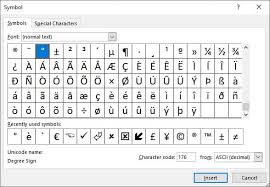
- Method 1: Using The Insert Symbol Feature
- Click on the “Insert” tab in the top menu bar.
- Select “Symbol” from the dropdown menu.
- Scroll through the list of symbols until you find the accented capital letter you want to type.
- Double-click on the character to insert it into your document.
- Method 2: Using The Autocorrect Feature
- Click on the “File” tab in the top menu bar.
- Select “Options” from the dropdown menu.
- Click on the “Proofing” tab and select the “AutoCorrect Options” button.
- In the AutoCorrect window, type the accented capital letter you want to use and click “Add”.
How to Type Accented Capital Letters on Powerpoint
If you’re using Microsoft PowerPoint, the process is similar to Word:
- Method 1: Using The Insert Symbol Feature
- Click on the “Insert” tab in the top menu bar.
- Select “Symbol” from the dropdown menu.
- Scroll through the list of symbols until you find the accented capital letter you want to type.
- Double-click on the character to insert it into your document.
- Method 2: Using The Autocorrect Feature
- Click on the “File” tab in the top menu bar.
- Select “Options” from the dropdown menu.
- Click on the “Proofing” tab and select the “AutoCorrect Options” button.
- In the AutoCorrect window, type the accented capital letter you want to use and click “Add”.
How to Type Accented Capital Letters on Smartphones And Tablets
If you’re using a smartphone or tablet, there are several ways to access accented capital letters:
- Method 1: Using The Keyboard
- Open the keyboard app and select the accented capital letter from the list of symbols.
- Tap on the character to insert it into your document.
- Method 2: Using The Character Map Feature
- Click on the “Settings” icon and select “Keyboard”.
- Scroll through the list of characters until you find the accented capital letter you want to type.
- Tap on the character to insert it into your document.
Conclusion
Typing accented capital letters is a breeze once you know the right techniques. Whether you’re using Windows, Mac, Word, PowerPoint, or even your smartphone or tablet, there are several ways to access these special characters. We hope this comprehensive guide has been helpful in teaching you how to type accented capital letters with ease.
Faqs
Q: How do I insert an accented capital letter into my document?
A: To insert an accented capital letter, follow the steps outlined in each section of this guide.
Q: Can I use a keyboard shortcut to type accented capital letters?
A: Yes, some keyboard shortcuts can be used to access accented capital letters. Check the guide for specific instructions.
Q: How do I type accented capital letters on my smartphone or tablet?
A: Follow the steps outlined in the “How to Type Accented Capital Letters on Smartphones and Tablets” section of this guide.


