
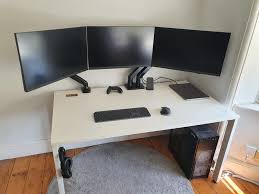
How to Connect Three Monitors to Your Pc: A Step-by-step Guide
Are you tired of switching between multiple monitors on your desk? Do you want to increase your productivity and multitasking capabilities? Connecting three monitors to your PC is a great solution, but it can be overwhelming if you’re not familiar with the process. In this article, we’ll guide you through the step-by-step process of connecting three monitors to your desktop or laptop PC.
Benefits of Connecting Three Monitors
Connecting multiple monitors to your PC offers several benefits, including:
- Increased productivity: With more screen real estate, you can have multiple windows and applications open at the same time.
- Improved multitasking: You can switch between tasks without having to constantly switch between windows.
- Enhanced visual experience: Multiple monitors provide a wider viewing area, making it easier to view high-resolution images and videos.
Choosing The Right Cables
To connect three monitors to your PC, you’ll need:
- Three video cables (HDMI, DisplayPort, or DVI)
- A computer with multiple video output ports
- Monitors that support multi-monitor configurations
The type of cable you choose will depend on the capabilities of your computer and monitors. Here are some popular options:
- HDMI: Supports resolutions up to 4K at 60Hz.
- DisplayPort: Supports resolutions up to 8K at 75Hz.
- DVI: Supports resolutions up to Full HD.
Step-by-step Guide
Here’s a step-by-step guide on how to connect three monitors to your PC:
- Gather Your Equipment: Collect all the necessary cables, monitors, and your computer.
- Identify Your Computer’s Video Output Ports: Check your computer’s ports to determine which ones are available for connection.
- Choose The Right Cables: Select the correct video cables that match the output ports on your computer and the input ports on your monitors.
- Connect The First Monitor: Connect the first monitor to your computer using one of the video cables.
- Connect The Second Monitor: Repeat step 4 for the second monitor, making sure it’s connected to a different port than the first monitor.
- Connect The Third Monitor: For the third monitor, you’ll need an adapter or a separate cable to connect it to your computer. This may require using multiple cables and adapters.
Configuring Your Monitors
Once all three monitors are connected, configure them according to your preferences:
- Set up the display settings on each monitor to match the desired resolution and orientation.
- Adjust the monitor layout to suit your needs, such as mirroring or extending your desktop.
- Configure any additional features, like dual-monitor support.
Operating System-specific Instructions
The steps above are general guidelines. Here’s a brief overview of how to configure your monitors on different operating systems:
Windows
- Right-click on the desktop and select Display Settings.
- Click on Multiple Displays and choose the desired layout (e.G., Extend, duplicate, or mirror).
- Adjust the resolution and orientation for each monitor as needed.
Macos
- Click on the Apple logo in the top left corner of your screen and select System Preferences.
- Choose Displays from the list.
- Select the desired layout (e.G., Extend, duplicate, or mirror).
- Adjust the resolution and orientation for each monitor as needed.
Mobile Devices
For mobile devices, follow these steps:
- Connect your device to a display using an adapter or cable.
- Configure the display settings in your device’s Settings app.
Troubleshooting Tips
Common issues when connecting multiple monitors include:
- No video signal on one or more monitors
- Monitors not recognized by the operating system
- Display settings not applied correctly
To troubleshoot, try:
- Checking cable connections and ensuring they’re securely connected
- Adjusting display settings to match the recommended resolutions for your monitors
- Restarting your computer and monitors to ensure a fresh connection
Conclusion
Connecting three monitors to your PC is a great way to boost productivity and multitasking capabilities. By following this step-by-step guide, you’ll be able to successfully connect multiple monitors to your desktop or laptop PC.
Faqs
- What Are The Benefits of Connecting Multiple Monitors?
Connecting multiple monitors increases productivity, improves multitasking, and enhances visual experiences. - Which Cable Should I Use For my Monitor Connection?
Choose a cable that matches the output port on your computer and the input port on your monitor (e.G., HDMI, DisplayPort, or DVI). - How do I Configure my Monitors For Optimal Performance?
Set up display settings to match desired resolutions and orientations, adjust layout preferences, and configure additional features. - Are There Any Specific Instructions For Connecting Multiple Monitors to a Macbook?
Use Apple’s Sidecar feature or an adapter like Apple TV to connect a monitor wirelessly or through HDMI. - Can I Use Multiple Monitors With my Laptop?
Yes, but you’ll need adapters or cables to extend your laptop’s video capabilities. - How do I Troubleshoot Display Issues When Connecting Multiple Monitors?
Restart devices, adjust display settings, and ensure secure connections between devices. - Are There Any Recommended Software Applications For Managing Multi-monitor Setups?
Consider using software like DisplayFusion or UltraMon to customize your monitor layout and adjust settings. - Can I Connect Multiple Monitors to a PC Running Windows 10?
Yes, follow the steps outlined in this guide to successfully connect three monitors to your PC.


