
How to Delete Your Shopify Account
If you are no longer using Shopify or need to close down your online store, you may want to consider deleting your account. This process involves several steps that can help ensure a smooth transition.
Reasons For Deleting a Shopify Account
There are various reasons why you might want to delete your Shopify account, including:
- You have decided to move to another e-commerce platform
- Your online store is not generating enough sales or experiencing other issues
- You need to cancel your subscription and stop paying monthly fees
Consequences of Deleting a Shopify Account
When deleting your Shopify account, you can expect the following consequences:
- Balance Debit: If you have an outstanding balance on your account, it will be deducted from your payment method.
- Financial Product Cancellation: Any financial products associated with your shop, such as Shopify Balance or Shopify Capital, will be cancelled.
- Access to The Control Panel: You’ll no longer have access to your control panel and won’t be able to manage your store.
Step-by-step Guide to Deleting a Shopify Account
To delete your Shopify account, follow these steps:
- Log in to Your Control Panel: Access your Shopify control panel using your email and password.
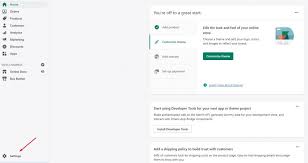
- Go to Settings: Click on the “Settings” icon (represented by a gear) located at the bottom left corner of the screen.
- Click on “Disattiva Shop”: Select the option to deactivate your shop.
- Choose Your Reason: Select the reason for deactivating your shop from the dropdown menu.
- Confirm Deactivation: Confirm that you want to deactivate your shop.
Reactivating a Shopify Account
If you decide to start selling again within a certain timeframe (typically 2 years), you can reactivate your Shopify account by following these steps:
- Log in to Your Control Panel: Access your Shopify control panel using your email and password.
- Go to Settings: Click on the “Settings” icon (represented by a gear) located at the bottom left corner of the screen.
- Click on “Reattiva Shop”: Select the option to reactivate your shop.
Suspending a Shopify Account
If you need to take a break from selling or make significant changes to your shop, you can suspend your account by following these steps:
- Log in to Your Control Panel: Access your Shopify control panel using your email and password.
- Go to Settings: Click on the “Settings” icon (represented by a gear) located at the bottom left corner of the screen.
- Click on “Sospensione Shop”: Select the option to suspend your shop.
- Choose Your Reason: Select the reason for suspending your shop from the dropdown menu.
Consequences of Suspending a Shopify Account
When you suspend your Shopify account, here’s what you can expect:
- No Subscription Fees: You won’t be charged any monthly fees while your account is suspended.
- Access to The Control Panel: You’ll still have access to your control panel and can manage your shop.
- Frozen Account: Your account will be frozen, meaning you won’t be able to make any changes or receive emails.
Reactivating a Suspended Shopify Account
To reactivate your suspended Shopify account, follow these steps:
- Log in to Your Control Panel: Access your Shopify control panel using your email and password.
- Go to Settings: Click on the “Settings” icon (represented by a gear) located at the bottom left corner of the screen.
- Click on “Riattiva Shop”: Select the option to reactivate your shop.
Conclusion
Deleting or suspending your Shopify account can be a complex process, but it’s necessary if you need to close down your online store or take a break from selling. Make sure to follow these steps carefully to avoid any issues with your account. If you’re unsure about anything, don’t hesitate to reach out to Shopify support for assistance.
Frequently Asked Questions
- Q: What Happens When I Delete my Shopify Account?
A: When you delete your Shopify account, your balance will be deducted from your payment method, and any financial products associated with your shop will be cancelled. - Q: Can I Reactivate my Shopify Account if I Decide to Start Selling Again?
A: Yes, you can reactivate your Shopify account within a certain timeframe (typically 2 years) by following the steps outlined above. - Q: What Happens After The Cancellation Period?
A: If you don’t reactivate your account within the cancellation period, Shopify will gradually delete parts of your store’s blueprint.


