
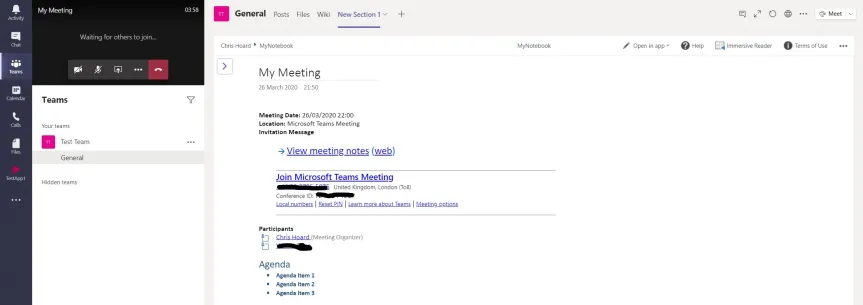
How to Create a Meeting on Microsoft Teams: A Step-by-step Guide
Are you struggling to create a meeting on Microsoft Teams? Do not worry, we are here to help! In this article, we will guide you through the process of creating a meeting on Teams using the desktop client for Windows and Mac, the app for smartphone and tablet (Android and iOS/iPadOS), and the Web version.
Prerequisites
Before creating a meeting on Teams, it is essential to have a Microsoft account. If you do not have one, create an account first. Additionally, if you want to create a meeting with external guests, make sure they have a Microsoft account or can join as a guest.
Creating a Meeting on The Desktop Client For PC
To create a meeting on Teams using the desktop client for Windows and Mac:
- Sign in: Open the Teams app and sign in with your Microsoft account.
- Initiate a Meeting: Click on the “Meetings” tab and select either “Meet now” (for an immediate meeting) or “Schedule a meeting” (for a future meeting).
- Choose a Meeting Type: If you choose to meet now, click on the “Join” button to start the meeting. If you schedule a meeting, enter a name for the meeting, choose a date and time, and select the participants.
- Add Details: Click on the “Add details” button to add more information about the meeting, such as location or agenda.
Creating a Meeting on Teams With a Link
If you want to create a meeting link without creating an event, click on the three dots in the top right corner of the window and select “Get link to meeting.” This will give you a unique link that you can share with others to join the meeting.
Creating a Meeting on Teams With External Guests
To add external guests to your meeting:
- Share The Link: Share the meeting link with the external guest via email or messaging app.
- Add Them as Participants: Add the external guest as a participant in the meeting by clicking on the “Participants” tab and selecting the “Add guest” option.
Creating a Meeting on Teams Using The App For Smartphone And Tablet
To create a meeting on Teams using the app for smartphone and tablet (Android and iOS/iPadOS):
- Sign in: Open the Teams app and sign in with your Microsoft account.
- Tap on The Calendar Icon: Tap on the calendar icon to open the schedule view.
- Create a New Event: Create a new event by tapping on the “New event” button.
- Add Meeting Details: Add meeting details, such as name, date, time, and participants.
Creating a Meeting on Teams Using The Web Version
To create a meeting on Teams using the web version:
- Sign in: Sign in to your Microsoft account on the web version of Teams.
- Click on The Calendar Icon: Click on the calendar icon to open the schedule view.
- Create a New Event: Create a new event by clicking on the “New event” button.
- Add Meeting Details: Add meeting details, such as name, date, time, and participants.
Creating a Meeting on Teams Using Outlook
To create a meeting on Teams using Outlook:
- Sign in: Open Outlook and sign in with your Microsoft account.
- Click on The Calendar Icon: Click on the calendar icon to open the schedule view.
- Create a New Event: Create a new event by clicking on the “New event” button.
- Add Meeting Details: Add meeting details, such as name, date, time, and participants.
Frequently Asked Questions (FAQs)
- Q: Do I Need to Have a Microsoft Account to Create a Meeting on Teams?
A: Yes, you need to have a Microsoft account to create a meeting on Teams. - Q: Can I Add External Guests to my Meeting on Teams?
A: Yes, you can add external guests to your meeting on Teams by sharing the meeting link with them and adding them as participants. - Q: How do I Share The Meeting Link With Others?
A: You can share the meeting link with others via email or messaging app. - Q: Can I Create a Meeting on Teams Without Installing Any Software?
A: Yes, you can create a meeting on Teams using the web version of the service.
Conclusion
Creating a meeting on Microsoft Teams is a straightforward process that can be completed in just a few steps. Whether you’re using the desktop client for Windows and Mac, the app for smartphone and tablet (Android and iOS/iPadOS), or the web version, you’ll find it easy to create a meeting with others and collaborate effectively.


