
How to Deactivate or Delete Your Facebook Account: A Step-by-step Guide
Are you thinking of taking a break from Facebook, but not sure what to do? Or perhaps you’ve decided it’s time to delete your account altogether? In this article, we’ll guide you through the process of deactivating or deleting your Facebook account, both temporarily and permanently.
Understanding The Difference Between Deactivation And Deletion
Before we dive into the steps, let’s clarify the difference between deactivating and deleting your Facebook account. When you deactivate your account, it’s a temporary measure that allows you to take a break from Facebook without losing access to your data. On the other hand, deleting your account is a permanent action that erases all your data and closes your profile.
Deactivating Your Facebook Account
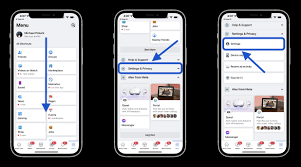
If you want to temporarily deactivate your Facebook account, follow these steps:
Using Your Smartphone or Tablet:
- Open the Facebook app on your smartphone or tablet.
- Tap on the menu icon (☰) and select “Settings” and then “Privacy.”
- Scroll down to “Access and Control” and tap on “Deactivation and Elimination.”
- Select the option to deactivate your account.
- Follow the prompts to confirm your decision.
Using Your Computer:
- Go to Facebook.Com and log in to your account.
- Click on the menu icon (≡) next to your profile picture and select “Settings” and then “Privacy.”
- Scroll down to “Your Information on Facebook” and click on “Deactivation and Elimination.”
- Select the option to deactivate your account.
- Follow the prompts to confirm your decision.
Deleting Your Facebook Account
If you’ve decided to delete your Facebook account permanently, follow these steps:
Using Your Smartphone or Tablet:
- Open the Facebook app on your smartphone or tablet.
- Tap on the menu icon (☰) and select “Settings” and then “Privacy.”
- Scroll down to “Access and Control” and tap on “Deactivation and Elimination.”
- Select the option to delete your account.
- Follow the prompts to confirm your decision.
Using Your Computer:
- Go to Facebook.Com and log in to your account.
- Click on the menu icon (≡) next to your profile picture and select “Settings” and then “Privacy.”
- Scroll down to “Your Information on Facebook” and click on “Deactivation and Elimination.”
- Select the option to delete your account.
- Follow the prompts to confirm your decision.
Tips For Deleting Your Account
- Before deleting your account, make sure you have a backup of your data by following these steps:
- Go to Settings > Account Settings > Security and Login > Download a copy of your Facebook data.
- Choose which types of data you want to include in the backup (e.G., Posts, messages, photos).
- If you’re unable to access your account due to a lost password, follow the instructions on this page to recover it.
Deactivating or Deleting Facebook Messenger
If you want to stop receiving messages from friends and family on Facebook Messenger, you can deactivate or delete your account. To do so:
Using Your Smartphone or Tablet:
- Open the Facebook app on your smartphone or tablet.
- Tap on the menu icon (☰) and select “Settings” and then “Messenger.”
- Toggle off the switch to disable active status.
Using Your Computer:
- Go to Messenger.Com and log in to your account.
- Click on the menu icon (≡) next to your profile picture and select “Preferences.”
- Toggle off the switch to disable active status.
Deactivating or Deleting Facebook Dating
If you want to delete your Facebook Dating profile, follow these steps:
Using Your Smartphone:
- Open the Facebook app on your smartphone.
- Tap on the menu icon (☰) and select “Dating.”
- Tap on the three dots (⋯) next to your profile picture.
- Select “General” and then toggle off the switch to disable your profile.
Conclusion
Deactivating or deleting your Facebook account can be a complex process, but with this guide, you should have a clear understanding of what to do. Remember to backup your data before taking any action, and consider deactivating temporarily if you’re unsure about permanently deleting your account.
Frequently Asked Questions (FAQs)
- What Happens When I Deactivate my Facebook Account?
- When you deactivate your account, it’s a temporary measure that allows you to take a break from Facebook without losing access to your data.
- Can I Reactivate my Facebook Account After Deactivating It?
- Yes, you can reactivate your account by following the same steps as deactivating it.
- Will Deleting my Facebook Account Delete my Messenger And Dating Profiles Too?
- No, deleting your Facebook account will not automatically delete your Messenger or Dating profiles. You’ll need to deactivate or delete those separately.
- How do I Recover my Lost Password if I Want to Delete my Account?
- Follow the instructions on this page to recover your password and access your account.
We hope this guide has been helpful in answering any questions you may have about deactivating or deleting your Facebook account.


