
Restoring Windows 11: A Step-by-step Guide
Are you experiencing issues with your Windows 11 installation? Perhaps you’ve encountered problems that require a fresh start. In this article, we’ll guide you through the process of restoring Windows 11 to its factory settings, keeping or losing personal files, and using alternative methods like USB recovery.
Why Restore Windows 11?
Before diving into the restoration process, let’s discuss why you might want to restore your operating system. Windows 11 can sometimes experience issues that require a reset. Perhaps you’ve installed an application that’s causing problems, or you’ve encountered errors during software updates. Restoring Windows 11 can help resolve these issues and get your computer running smoothly again.
Method 1: Restoring Windows 11 to Factory Settings
To restore Windows 11 to its factory settings, follow these steps:
- Click on The Start Button: Located at the bottom left corner of your screen, click on the Start button.
- Select Settings: From the menu that appears, select the “Settings” option.
- Go to System > Recovery: Click on the “System” icon, followed by “Recovery”.
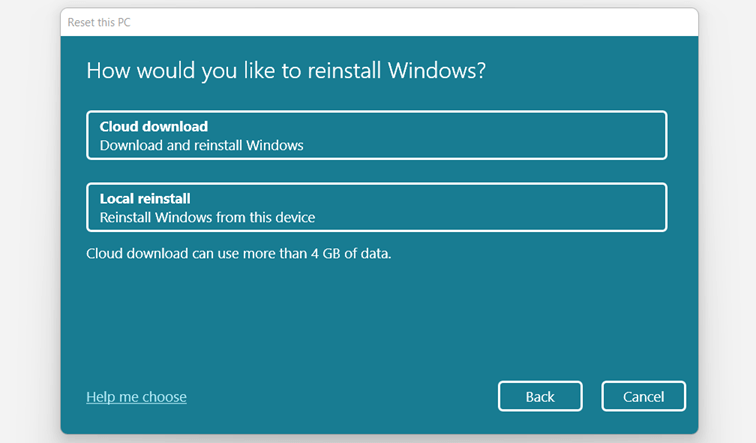
- Choose “Reset This Pc”: Select the “Reset this PC” option and choose whether you want to keep or delete your personal files.
- Confirm The Action: Review the consequences of restoring Windows 11 and click on “Reset”.
Method 2: Restoring Windows 11 Without Losing Personal Files
If you don’t want to lose your personal files, you can restore Windows 11 while keeping them intact:
- Click on The Start Button: Located at the bottom left corner of your screen, click on the Start button.
- Select Settings: From the menu that appears, select the “Settings” option.
- Go to System > Recovery: Click on the “System” icon, followed by “Recovery”.
- Choose “Keep my Files”: Select the “Keep my files” option and confirm your choice.
Method 3: Restoring Windows 11 Using a Usb Drive
You can also restore Windows 11 using a USB drive:
- Create a Recovery Drive: Go to the Control Panel, click on the Recovery icon, and follow the prompts to create a recovery drive.
- Boot From The Usb Drive: Insert the USB drive into your computer’s USB port and restart it. Your computer should now boot from the USB drive.
Method 4: Restoring Windows 11 Using System Image Backup
You can also restore Windows 11 using a system image backup:
- Create a System Image: Go to the Control Panel, click on the Recovery icon, and follow the prompts to create a system image.
- Restore From The System Image: Restart your computer and boot from the system image.
Restoring Windows 11 Using The Command Prompt
If you’re comfortable with using the command prompt, you can restore Windows 11 by running the following commands:
- Open The Command Prompt: Press the Windows key + R to open the Run dialog box. Type “cmd” and press Enter.
- Type The Following Commands: Type the following commands one by one and press Enter after each command:
Bash

Rstrui.Exe - Follow The Prompts: Follow the prompts to complete the restoration process.
Restoring Windows 11 Using a System Image Backup
You can also restore Windows 11 using a system image backup:
- Open The Control Panel: Go to the Start menu and click on the Control Panel icon.
- Click on Recovery: From the Control Panel, click on the “Recovery” icon.
- Select “Create Image of System”: Choose “Create image of system” from the options.
- Follow The Prompts: Follow the prompts to create a system image.
Conclusion
Restoring Windows 11 can be a complex process, but with these step-by-step guides, you should be able to resolve any issues that are affecting your operating system. Remember to choose the right method for your specific situation, and don’t hesitate to seek help if needed.
Frequently Asked Questions (FAQs)
- What is The Difference Between Restoring Windows 11 And Reinstalling It?
Restoring Windows 11 will keep your personal files intact, while reinstalling it will delete them. - Can I Restore Windows 11 Using a Usb Drive?
Yes, you can restore Windows 11 using a USB drive by creating a recovery drive and booting from it. - How do I Create a System Image Backup of Windows 11?
To create a system image backup, go to the Control Panel, click on Recovery, and select “Create image of system”. - Can I Restore Windows 11 Using The Command Prompt?
Yes, you can restore Windows 11 using the Command Prompt by running therstrui.Execommand. - Will Restoring Windows 11 Delete All my Personal Files?
No, if you choose to keep your personal files during the restoration process, they will be preserved. - Can I Use a System Image Backup to Restore Windows 11?
Yes, you can use a system image backup to restore Windows 11 by following the prompts and selecting the correct option. - How Long Does it Take to Restore Windows 11 Using a Usb Drive?
The time it takes to restore Windows 11 using a USB drive will depend on your computer’s specifications and internet connection speed. - Will Restoring Windows 11 Affect Any Installed Applications or Drivers?
Yes, the restoration process may affect any installed applications or drivers that were not removed during the process.


