
How to Fix Audio Issues on Your Pc: A Step-by-step Guide
Are you tired of dealing with audio problems on your PC? Look no further! In this article, we’ll walk you through the steps to fix common audio issues on Windows and Mac.
Understanding Audio Problems
Before we dive into the solutions, it’s essential to understand what causes audio problems. Sometimes, it’s as simple as adjusting the volume or updating drivers. Other times, more complex issues may arise, such as faulty hardware or software conflicts.
Windows Audio Issues: A Detailed Guide
Step 1: Check The Volume Level
The first thing to check is the volume level. Ensure that the volume is turned up and not muted. You can do this by clicking on the speaker icon in the system tray and adjusting the volume slider.
Why It Matters: If You’re Listening to Audio Through Headphones or Speakers, Making Sure The Volume is Correct Will Prevent Issues Like Audio Not Playing or Being Too Quiet.
Step 2: Restore Peripheral Audio
If controlling the volume level doesn’t resolve the issue, try restoring peripheral audio. To do this:
- Right-click on the speaker icon in the system tray.
- Select “Open Sound settings.”
- In the Sound window, click on the “Playback” tab.
- Select the default device (usually the speakers or headphones).
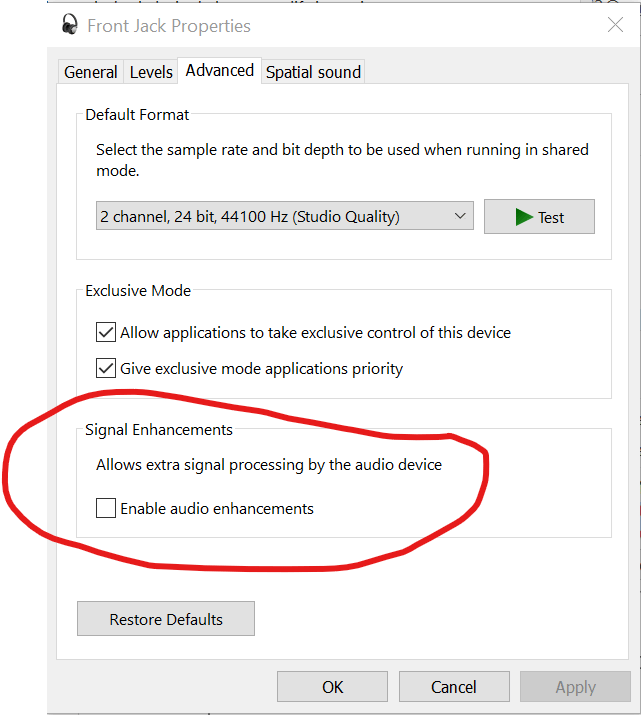
- Click on the “Properties” button.
Why It Matters: Restoring Peripheral Audio Ensures That Your PC is Using The Correct Audio Output Device.
Step 3: Restart Audio Service
If restoring peripheral audio doesn’t resolve the issue, try restarting the audio service. To do this:
- Press the Windows key + R to open the Run dialog box.
- Type “services.Msc” and press Enter.
- In the Services window, find the “Windows Audio” service.
- Right-click on it and select “Restart.”
Why It Matters: Restarting The Audio Service Can Resolve Issues Like Audio Not Playing or Being Distorted.
Step 4: Use Windows Troubleshooter
If restarting the audio service doesn’t work, try using the Windows troubleshooter. To do this:
- Press the Windows key + S to open the Search bar.
- Type “troubleshoot” and select the “Troubleshooter” app.
- Follow the prompts to run the audio troubleshooter.
Why It Matters: The Windows Troubleshooter Can Identify And Resolve Common Issues With Audio Playback.
Step 5: Update Audio Drivers
If none of the above steps work, try updating your audio drivers. To do this:
- Press the Windows key + X to open the Start menu.
- Select “Device Manager.”
- In the Device Manager window, expand the “Sound, video and game controllers” section.
- Right-click on the audio device (usually the speakers or headphones) and select “Update driver.”
Why It Matters: Updating Your Audio Drivers Can Resolve Issues Like Audio Not Playing or Being Distorted.
Mac Audio Issues: A Detailed Guide
Step 1: Check Volume Level
Just like on Windows, the first thing to check is the volume level. Ensure that the volume is turned up and not muted. You can do this by clicking on the speaker icon in the menu bar and adjusting the volume slider.
Why It Matters: If You’re Listening to Audio Through Headphones or Speakers, Making Sure The Volume is Correct Will Prevent Issues Like Audio Not Playing or Being Too Quiet.
Step 2: Restart Audio System
If controlling the volume level doesn’t resolve the issue, try restarting the audio system. To do this:
- Click on the Apple logo in the top left corner of the screen.
- Select “System Preferences.”
- In the System Preferences window, click on “Sound.”
- Select the output device (usually the speakers or headphones).
- Click on the “Restart” button.
Why It Matters: Restarting The Audio System Ensures That Your Mac is Using The Correct Audio Output Device.
Step 3: Reset Pram
If restarting the audio system doesn’t resolve the issue, try resetting the PRAM (Parameter RAM). To do this:
- Shut down your Mac.
- Locate the following keys on your keyboard: Command + Option + P + R.
- Press these keys simultaneously and hold them for about 10 seconds.
- Release the keys.
Why It Matters: Resetting The Pram Can Resolve Issues Like Audio Not Playing or Being Distorted.
Step 4: Use Audio System Preferences
If resetting the PRAM doesn’t work, try using the Audio system preferences. To do this:
- Click on the Apple logo in the top left corner of the screen.
- Select “System Preferences.”
- In the System Preferences window, click on “Sound.”
- In the Sound window, select the output device (usually the speakers or headphones).
- Click on the “Reset” button.
Why It Matters: The Audio System Preferences Can Resolve Issues Like Audio Not Playing or Being Distorted.
Conclusion
Fixing audio issues on your PC or Mac doesn’t have to be a hassle. By following these step-by-step guides, you should be able to resolve common problems with audio playback. Remember to always check the volume level and restart the audio service before attempting more complex solutions. If you’re still having trouble, consider seeking the help of a professional.
Frequently Asked Questions (FAQs)
- Q: Why is my Audio Not Playing?
A: There could be several reasons why your audio is not playing, including incorrect volume settings or faulty hardware. - Q: How do I Update my Audio Drivers on Windows?
A: To update your audio drivers on Windows, go to the Device Manager and right-click on the audio device. Select “Update driver” and follow the prompts. - Q: How do I Reset Pram on a Mac?
A: To reset PRAM on a Mac, shut down your computer, locate the following keys: Command + Option + P + R, and press them simultaneously for about 10 seconds. - Q: Why is my Audio Playing Distorted?
A: There could be several reasons why your audio is playing distorted, including faulty hardware or software conflicts. - Q: How do I Troubleshoot Audio Issues on Windows?
A: To troubleshoot audio issues on Windows, try running the Audio troubleshooter app.
Bonus Tips
- Regularly update your operating system and audio drivers to ensure you have the latest security patches and features.
- Use a high-quality sound card or external speakers for optimal audio quality.
- Experiment with different audio settings and configurations to find what works best for you.


