
How to Create a Recovery Disc For Windows 10: A Step-by-step Guide
Are you looking for a way to create a recovery disc for your Windows 10 computer? Look no further! In this article, we will guide you through the process of creating a recovery disc for Windows 10 using a USB drive or CD/DVD.
Why Create a Recovery Disc?
Before we dive into the instructions, let’s talk about why you might want to create a recovery disc. A recovery disc is a bootable disc that contains the necessary files to restore your computer to its factory settings in case of a problem or failure. This can be especially useful if you are experiencing issues with your operating system or if you need to reinstall Windows 10.
Creating a Recovery Disc Using a Usb Drive
To create a recovery disc using a USB drive, follow these steps:
- Connect The Usb Drive: Connect the USB drive to your computer.
- Open The Start Menu: Open the Start menu by clicking on the Windows logo in the bottom left corner of the screen.
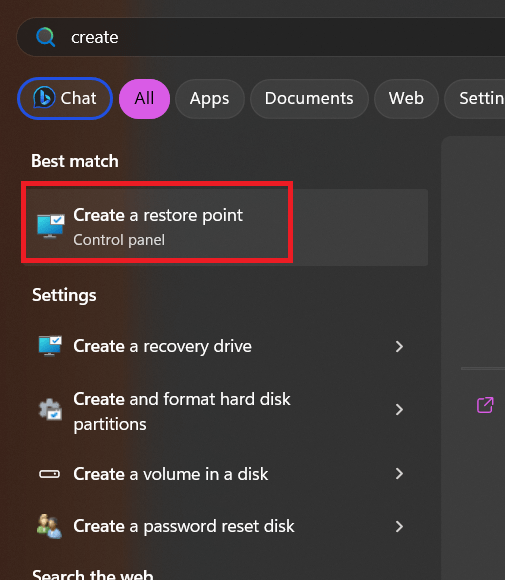
- Type “Create a Recovery Disc”: Type “create a recovery disc” in the search bar and select the option from the results.
- Select The Usb Drive: Select the USB drive as the destination for the recovery disc.
- Click on Next: Click on the “Next” button to proceed with the creation of the recovery disc.
- Wait For The Process to Complete: Wait for the process to complete, which may take several minutes depending on the size of your USB drive.
Creating a Recovery Disc Using a Cd/dvd
To create a recovery disc using a CD/DVD, follow these steps:
- Insert a Blank Cd/dvd: Insert a blank CD/DVD into your computer’s CD/DVD drive.
- Open The Start Menu: Open the Start menu by clicking on the Windows logo in the bottom left corner of the screen.
- Type “Create a Recovery Disc”: Type “create a recovery disc” in the search bar and select the option from the results.
- Select The Cd/dvd Drive: Select the CD/DVD drive as the destination for the recovery disc.
- Click on Next: Click on the “Next” button to proceed with the creation of the recovery disc.
- Wait For The Process to Complete: Wait for the process to complete, which may take several minutes depending on the size of your CD/DVD.
Using The Recovery Disc
Once you have created the recovery disc, you can use it to restore your computer to its factory settings in case of a problem or failure. To do this, follow these steps:
- Boot From The Recovery Disc: Boot your computer from the recovery disc by selecting the CD/DVD drive as the boot device.
- Follow The On-screen Instructions: Follow the on-screen instructions to restore your computer to its factory settings.
Troubleshooting
If you encounter any issues while creating or using the recovery disc, try the following:
- Restart Your Computer: Restart your computer and try again.
- Check For Conflicts: Check for conflicts between the USB drive or CD/DVD drive and other devices connected to your computer.
- Try a Different Usb Drive or Cd/dvd: Try using a different USB drive or CD/DVD to create the recovery disc.
Conclusion
Creating a recovery disc for Windows 10 is a simple process that can be completed using a USB drive or CD/DVD. By following the steps outlined in this guide, you can ensure that your computer is protected in case of a problem or failure. Remember to use the recovery disc responsibly and only when necessary.
Frequently Asked Questions
Q: What is a recovery disc?
A: A recovery disc is a bootable disc that contains the necessary files to restore your computer to its factory settings in case of a problem or failure.
Q: Why do I need a recovery disc?
A: You may need a recovery disc if you are experiencing issues with your operating system or if you need to reinstall Windows 10.
Q: Can I use a USB drive or CD/DVD to create the recovery disc?
A: Yes, you can use either a USB drive or CD/DVD to create the recovery disc.
Q: How long does it take to create the recovery disc?
A: The time it takes to create the recovery disc will depend on the size of your USB drive or CD/DVD.
Q: Can I use the recovery disc to restore my computer to its factory settings?
A: Yes, you can use the recovery disc to restore your computer to its factory settings.
Q: What if I encounter issues while creating or using the recovery disc?
A: If you encounter any issues while creating or using the recovery disc, try restarting your computer and trying again.


