
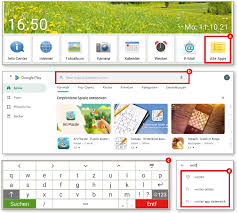
How to Activate Google Play Store on Your Android Device
Are you struggling to activate the Google Play Store on your Android device? Do you want to download and install apps, but are facing difficulties with the activation process? Look no further! In this article, we will guide you through the step-by-step process of activating the Google Play Store on your Android device.
What is Google Play Store?
The Google Play Store is a digital distribution platform for Android devices that allows users to download and install apps, games, music, movies, and e-books. It’s an essential component of any Android device, providing access to millions of apps and services.
Requirements For Activating Google Play Store
Before you start the activation process, ensure that your device meets the following requirements:
- Your device must have a stable internet connection.
- You must have a valid Google account or create one during the activation process.
- Ensure that your device’s date and time are set correctly.
Step-by-step Guide to Activating Google Play Store
To activate the Google Play Store on your Android device, follow these steps:
Step 1: Create a Google Account (If You Don’t Have One)
If you don’t have a Google account, create one by going to the Google website and following the sign-up process. This will give you access to the Google Play Store.
Step 2: Access The Google Play Store
On your Android device, locate the Google Play Store icon (a colorful triangle). Tap on it to open the app.
Step 3: Sign In With Your Google Account
If you already have a Google account, tap on the “Sign in” button at the top right corner of the screen. Enter your email address and password to sign in. If you don’t have an account, tap on the “Create a Google account” option.
Step 4: Confirm Your Identity (If Required)
In some cases, you might be required to confirm your identity by verifying it with another device connected to the same Google account. Follow the prompts to complete this step.
Step 5: Accept The Terms of Service
Once you’ve confirmed your identity, tap on the “Accept” button to accept the terms of service and privacy policies.
Common Issues And Solutions
If you’re facing difficulties activating the Google Play Store, check if:
- Your device has a stable internet connection.
- You have a valid Google account or created one during the activation process.
- Ensure that your device’s date and time are set correctly.
If none of these solutions work, refer to our troubleshooting guide on how to restore the Google Play Store.
Activating Google Play Store on Samsung Devices
If you’re using a Samsung device, follow the same steps as above. However, if you’re facing issues activating the Google Play Store on your Samsung device, try the following:
- Check if your device has the latest software update.
- Ensure that you have a valid Google account or created one during the activation process.
Activating Google Play Store on Huawei Devices
If you’re using an HUAWEI device without Google services (HMS), follow these additional steps to activate the Google Play Store:
- Download and install the Gspace app from the AppGallery.
- Create a secondary account in Gspace that emulates a system with Google services.
- Follow the prompts to configure the Gspace app.
Activating Google Play Store on Other Devices
For other devices, follow the same steps as above. If you’re facing difficulties activating the Google Play Store on your device, refer to our troubleshooting guide for assistance.
Conclusion
Activating the Google Play Store on your Android device is a straightforward process that requires a stable internet connection and a valid Google account. Follow these step-by-step instructions, and you’ll be able to access millions of apps, games, music, movies, and e-books in no time!
Frequently Asked Questions (FAQs)
- What is The Google Play Store?
The Google Play Store is a digital distribution platform for Android devices that allows users to download and install apps, games, music, movies, and e-books.
- Why Can’t I Activate The Google Play Store on my Device?
If you’re facing difficulties activating the Google Play Store, check if your device has a stable internet connection, ensure that you have a valid Google account or created one during the activation process, and verify if your device’s date and time are set correctly.
- How do I Activate The Google Play Store on my Samsung Device?
Follow the same steps as above for activating the Google Play Store on any Android device.
- Can I Use Huawei Devices Without Google Services to Access The Google Play Store?
Yes, you can use an HUAWEI device without Google services (HMS) to access the Google Play Store by following the additional steps outlined in our guide.
- What if I’m Facing Issues Activating The Google Play Store on my Device?
Refer to our troubleshooting guide for assistance with common issues and solutions.
Hope this helps!


