
How to Count Characters on Microsoft Word: A Step-by-step Guide
Are you tired of manually counting characters in your Microsoft Word documents? Look no further! In this article, we will guide you through the simple process of counting characters on Microsoft Word, whether you’re using the desktop version or the online version.
Why Count Characters on Microsoft Word?
Counting characters on Microsoft Word is an essential task for many users. Whether you’re writing a novel, creating content for your website, or simply keeping track of character counts for social media posts, this feature can be a lifesaver.
How to Count Characters on Microsoft Word (Desktop Version)
To count characters on Microsoft Word, follow these simple steps:
- Open The Document: First, open the document that you want to count characters in. You can do this by clicking on “File” > “Open” and selecting the document from your computer.
- Select The Text: Select the text that you want to count characters for. You can do this by highlighting the text with your cursor.
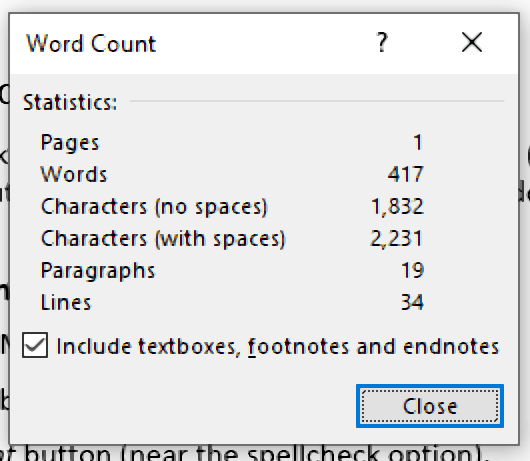
- Click on The Word Count Button: Click on the word count button, which is located in the top right corner of the screen. This will open a new window with the character count information.
- View Character Count Information: In the new window, you can view the character count information, including the number of characters without spaces and the number of characters with spaces.
How to Count Characters on Microsoft Word (Online Version)
To count characters on Microsoft Word online, follow these simple steps:
- Open Microsoft Word Online: First, open Microsoft Word online by logging in to your Microsoft account.
- Select The Document: Select the document that you want to count characters for.
- Click on The Review Tab: Click on the “Review” tab located at the top of the screen.
- Click on The Word Count Button: Click on the word count button, which is located in the “Tools” group.
- View Character Count Information: In the new window, you can view the character count information, including the number of characters without spaces and the number of characters with spaces.
How to Count Characters on Microsoft Word (Mobile Version)
To count characters on Microsoft Word mobile, follow these simple steps:
- Open Microsoft Word Mobile App: First, open the Microsoft Word mobile app on your smartphone or tablet.
- Select The Document: Select the document that you want to count characters for.
- Tap on The Review Tab: Tap on the “Review” tab located at the bottom of the screen.
- Tap on The Word Count Button: Tap on the word count button, which is located in the “Tools” group.
- View Character Count Information: In the new window, you can view the character count information, including the number of characters without spaces and the number of characters with spaces.
Tips And Variations
- To count characters for a specific portion of text, select that text and click on the word count button.
- To exclude spaces from the character count, select “Character Count (excluding spaces)” from the drop-down menu.
- To include spaces in the character count, select “Character Count (including spaces)” from the drop-down menu.
Conclusion
In conclusion, counting characters on Microsoft Word is a simple process that can be completed with just a few clicks. Whether you’re using the desktop version, online version, or mobile version, this feature is available to help you keep track of your character counts.
Frequently Asked Questions
- What is The Difference Between Character Count And Word Count?: The character count includes every individual character in the document, including spaces. The word count only includes the number of words in the document.
- How do I Exclude Spaces From The Character Count?: To exclude spaces from the character count, select “Character Count (excluding spaces)” from the drop-down menu.
- How do I Include Spaces in The Character Count?: To include spaces in the character count, select “Character Count (including spaces)” from the drop-down menu.


