
How to Change Your Default Browser: A Step-by-step Guide
Are you tired of using a browser that’s not your preferred choice? Do you want to know how to change your default browser on various devices? Look no further! In this article, we’ll guide you through the process of changing your default browser on Windows, Mac, Ubuntu, Android, and iPhone.
Why Change Your Default Browser?
Changing your default browser can be beneficial in several ways. For instance, if you’re using a browser that’s not optimized for your device, it may lead to slower performance or higher battery consumption. By changing your default browser, you can improve your overall browsing experience.
How to Change Your Default Browser on Windows 10
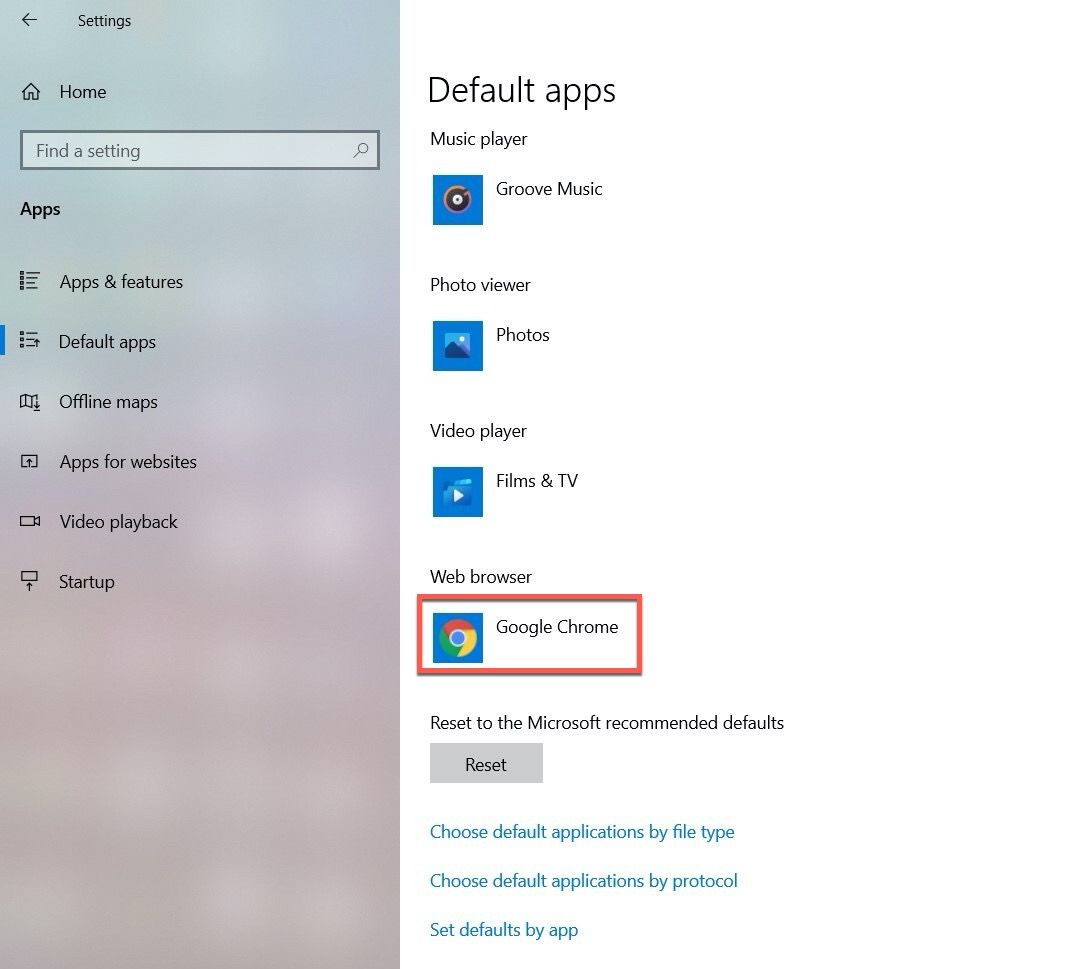
Changing your default browser on Windows 10 is a straightforward process. Here’s how:
- Click on the Start button and select the Settings icon (represented by a gear).
- In the Settings window, click on the “App” option.
- Scroll down to the “Default apps” section and click on it.
- Look for the “Browser” option and click on it.
- Select your preferred browser from the list of available browsers.
How to Change Your Default Browser on Windows 7
Changing your default browser on Windows 7 is similar to changing it on Windows 10. Here’s how:
- Click on the Start button and select the Control Panel option.
- In the Control Panel window, click on the “Programs” option.
- Select the “Default Programs” option.
- Look for the “Set your default programs” section and click on it.
- Select your preferred browser from the list of available browsers.
How to Change Your Default Browser on Mac
Changing your default browser on a Mac is also relatively easy. Here’s how:
- Click on the Apple menu and select the System Preferences option.
- In the System Preferences window, click on the “General” icon.
- Look for the “Browser” option and click on it.
- Select your preferred browser from the list of available browsers.
How to Change Your Default Browser on Ubuntu
Changing your default browser on Ubuntu is similar to changing it on Windows or Mac. Here’s how:
- Click on the Applications menu and select the Settings icon (represented by a gear).
- In the Settings window, click on the “Details” option.
- Look for the “Web browsers” section and click on it.
- Select your preferred browser from the list of available browsers.
How to Change Your Default Browser on Android
Changing your default browser on an Android device is a bit more complex than changing it on other devices. Here’s how:
- Go to the Settings app on your Android device.
- Scroll down and select the “Applications” option.
- Look for the “Browser” option and click on it.
- Select your preferred browser from the list of available browsers.
How to Change Your Default Browser on Iphone
Changing your default browser on an iPhone is relatively easy. Here’s how:
- Go to the Settings app on your iPhone.
- Scroll down and select the “Browser” option.
- Select your preferred browser from the list of available browsers.
Why Choose a Different Browser?
Choosing a different browser can be beneficial in several ways. For instance, if you’re using a browser that’s not optimized for your device, it may lead to slower performance or higher battery consumption. By choosing a different browser, you can improve your overall browsing experience.
Conclusion
Changing your default browser is a straightforward process that can be completed on various devices. Whether you’re using Windows, Mac, Ubuntu, Android, or iPhone, changing your default browser can improve your overall browsing experience. We hope this article has been helpful in guiding you through the process of changing your default browser.
Frequently Asked Questions
- Q: Why change my default browser?
A: Changing your default browser can be beneficial in several ways, including improving performance and reducing battery consumption. - Q: How do I change my default browser on Windows 10?
A: To change your default browser on Windows 10, click on the Start button and select the Settings icon. In the Settings window, click on the “App” option and then select the “Default apps” section. - Q: How do I change my default browser on Android?
A: To change your default browser on an Android device, go to the Settings app and scroll down to the “Applications” option. Look for the “Browser” option and click on it.
Recommended Browsers
If you’re looking for a new browser to try out, here are some recommendations:
- Google Chrome
- Mozilla Firefox
- Microsoft Edge
- Opera Browser
- Safari Browser
We hope this article has been helpful in guiding you through the process of changing your default browser. If you have any further questions or concerns, please don’t hesitate to contact us.
Sources:
- Microsoft Support
- Apple Support
- Ubuntu Documentation
- Android Developers
- IPhone User Guide


