
Converting Pdf to Excel: A Step-by-step Guide
Are you tired of dealing with cumbersome PDF files that refuse to convert into usable Excel spreadsheets? Look no further! In this comprehensive guide, we’ll walk you through the process of converting PDFs to Excel using various online and offline tools. By the end of this article, you’ll be well-equipped to tackle even the most complex PDF-to-Excel conversions.
Why Convert Pdf to Excel?
Before we dive into the nitty-gritty, let’s quickly address why converting PDF to Excel is a good idea in the first place. Here are some compelling reasons:
- Easy Editing: Excel offers seamless editing capabilities that allow you to manipulate data with ease.
- Familiar Interface: Excel’s user-friendly interface makes it easy to navigate and work with your data.
- Collaboration: With Excel, multiple users can collaborate on the same spreadsheet, making it ideal for team projects.
Method 1: Using Adobe Acrobat Pro
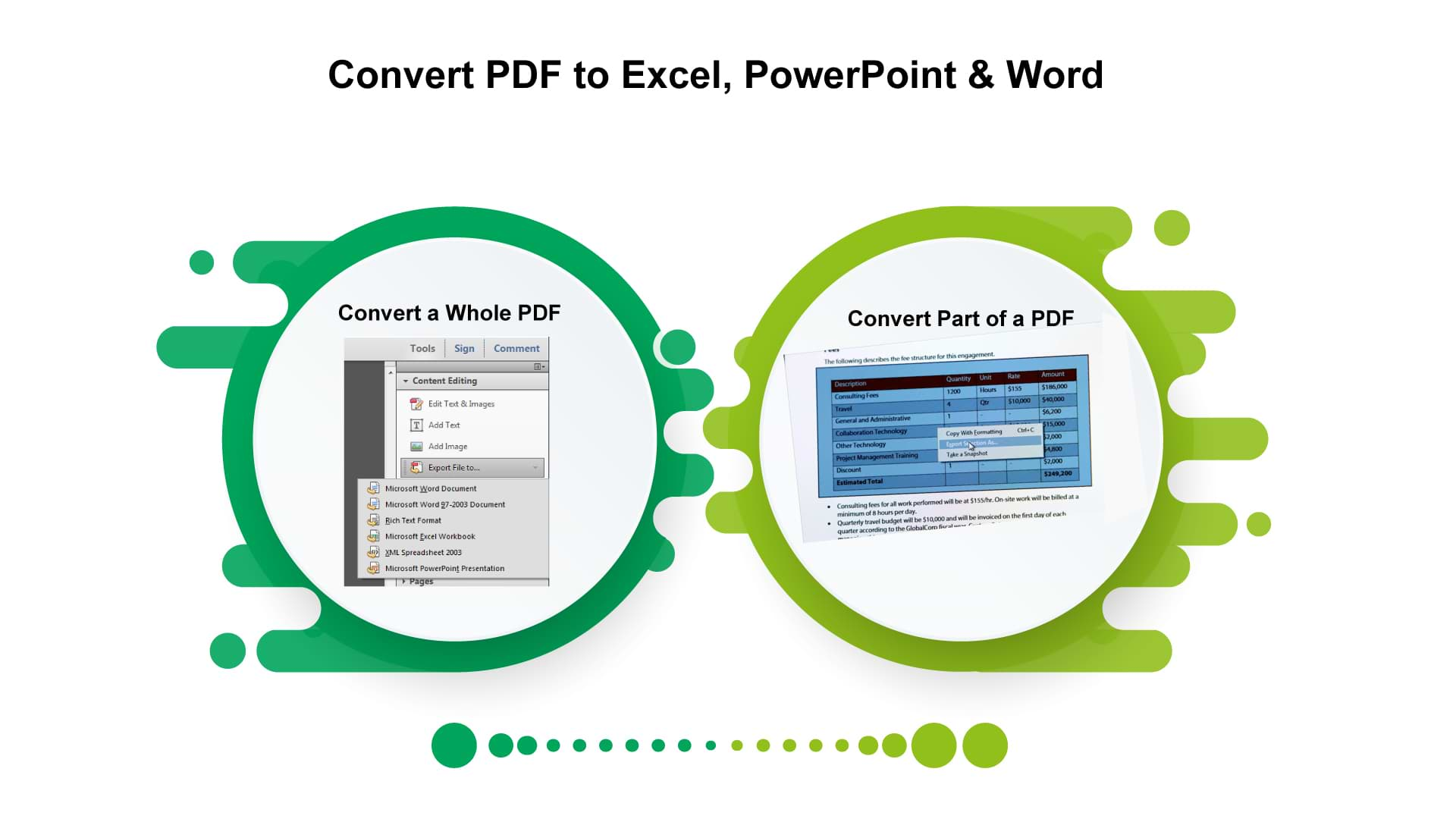
Adobe Acrobat Pro is a powerful tool that offers advanced PDF editing capabilities. If you’re already invested in the Adobe ecosystem, this might be your go-to solution.
- Step 1: Download and install Adobe Acrobat Pro from the official website.
- Step 2: Launch the software and select the “Open” option to import your PDF file.
- Step 3: Click on the “Export” button and choose the Excel format (.Xlsx or .Xls).
- Step 4: Select the folder where you want to save the exported file.
Method 2: Using Ilovepdf
ILovePDF is a free online service that allows you to convert PDFs to Excel, Word, and other formats. This method is perfect for those who prefer cloud-based solutions.
- Step 1: Visit the iLovePDF website and upload your PDF file.
- Step 2: Select the “To Excel” option from the dropdown menu.
- Step 3: Choose the desired format (xlsx or xls).
- Step 4: Click on the “Convert” button to initiate the process.
Method 3: Using Online2pdf
Online2PDF is another online service that enables you to convert PDFs to Excel, Word, and other formats. This method is ideal for those who need a hassle-free experience.
- Step 1: Visit the Online2PDF website and upload your PDF file.
- Step 2: Select the “To Excel” option from the dropdown menu.
- Step 3: Choose the desired format (xlsx or xls).
- Step 4: Click on the “Convert” button to initiate the process.
Method 4: Using Smallpdf
SmallPDF is a versatile online service that offers various PDF editing tools, including the ability to convert PDFs to Excel. This method is perfect for those who need a simple and straightforward solution.
- Step 1: Download and install the SmallPDF app on your Android or iOS device.
- Step 2: Launch the app and select the “Convert” option.
- Step 3: Choose the PDF file you want to convert from your device’s storage.
- Step 4: Select the Excel format (xlsx or xls).
- Step 5: Click on the “Convert” button to initiate the process.
Method 5: Using Other Online Services
There are several other online services that enable you to convert PDFs to Excel, such as PDF.Co and PDFCrowd. These services may offer additional features and capabilities, but be sure to review their terms of use before uploading your files.
Conclusion
Converting PDFs to Excel is a breeze with the right tools. Whether you prefer offline solutions like Adobe Acrobat Pro or online services like iLovePDF, there’s an option for everyone. Remember to always check the compatibility and limitations of each method before proceeding. Happy converting!
Frequently Asked Questions (FAQs)
- Q: Can I Convert Multiple Pdf Files at Once?
A: Yes, many online services allow you to upload and convert multiple PDF files simultaneously. - Q: What if my Pdf File Contains Sensitive Information?
A: Be cautious when uploading sensitive data to online services. Consider using offline solutions or encrypted tools for added security. - Q: Can I Edit The Converted Excel File Directly in Adobe Acrobat Pro?
A: Yes, Adobe Acrobat Pro offers advanced editing capabilities that allow you to modify the converted Excel file directly within the software. - Q: Are There Any Free Online Services That Can Convert Pdfs to Excel?
A: Yes, several online services offer free conversions, including iLovePDF and Online2PDF. - Q: Can I Use These Methods on my Mobile Device?
A: Yes, many of the online services mentioned above have mobile apps or optimized websites for effortless conversion on-the-go.
By following this comprehensive guide, you’ll be well-equipped to tackle even the most complex PDF-to-Excel conversions. Happy converting!


