
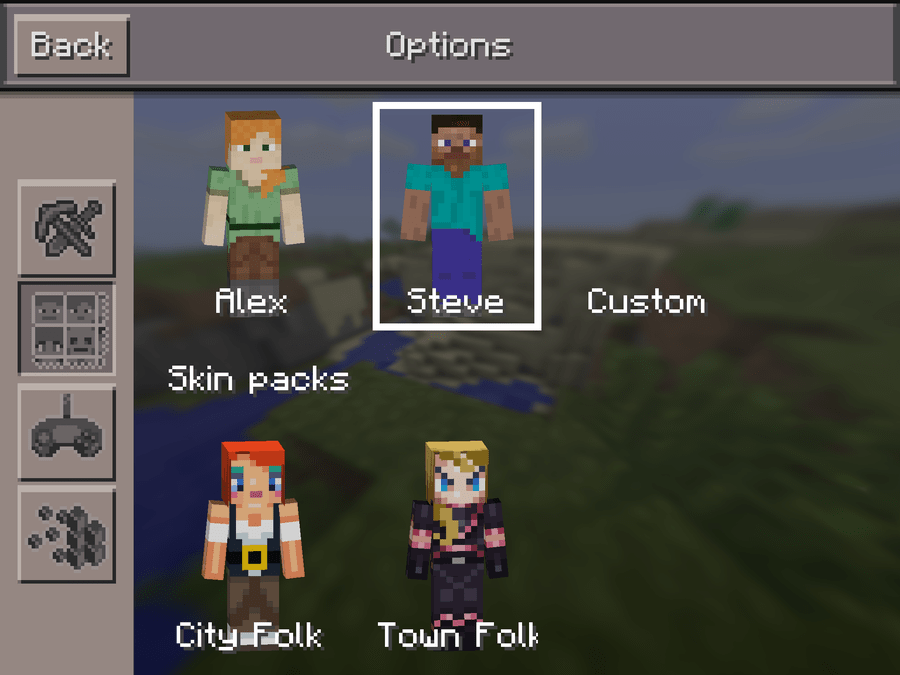
How to Change Your Skin on Minecraft: A Step-by-step Guide
Are you tired of playing Minecraft with the default skin? Do you want to personalize your character and make them stand out from the crowd? Look no further! In this article, we will guide you through the process of changing your skin on Minecraft, whether you’re using the Java Edition or the Bedrock Edition.
Why Change Your Skin on Minecraft?
Changing your skin on Minecraft can be a fun and creative way to express yourself. You can choose from thousands of different skins available online, each with its own unique design and style. By changing your skin, you can:
- Stand out from other players and make your character more recognizable
- Personalize your gaming experience and make it feel more like yours
- Show off your personality and sense of humor through your chosen skin
Changing Your Skin on Minecraft Java Edition
If you’re using the Java Edition of Minecraft, changing your skin is a relatively simple process. Here’s how to do it:
- Launch Minecraft: Open up Minecraft and click on the “Launcher” icon.
- Select Your Profile: Choose the profile you want to use from the dropdown menu at the top left corner of the launcher.
- Click on The Skin Tab: Click on the “Skin” tab, which is located at the bottom right corner of the launcher.
- Choose a New Skin: Browse through the available skins and choose one that you like. You can also upload your own custom skin if you have it saved to your computer.
- Save Your Changes: Once you’ve chosen a new skin, click on the “Save” button to apply it.
Changing Your Skin on Minecraft Bedrock Edition
If you’re using the Bedrock Edition of Minecraft, changing your skin is also relatively simple. Here’s how to do it:
- Launch Minecraft: Open up Minecraft and click on the “Marketplace” icon.
- Select a New Skin: Browse through the available skins in the marketplace and choose one that you like.
- Click on The “Free” or “Purchase” Button: Depending on whether you want to get the skin for free or purchase it, click on the corresponding button.
- Apply Your New Skin: If you chose a new skin from the marketplace, your character will automatically apply the new skin. If you uploaded a custom skin, follow the same steps as above.
Tips And Tricks
Here are some additional tips and tricks to keep in mind when changing your skin on Minecraft:
- Save Your Old Skin: Before changing your skin, save your old one by clicking on the “Save” button.
- Experiment With Different Skins: Don’t be afraid to try out different skins and see which ones you like best.
- Use Filters: If you’re using the Bedrock Edition, use filters to narrow down your search for skins. This can make it easier to find a skin that suits your taste.
Conclusion
Changing your skin on Minecraft is a fun and easy way to personalize your character and make them stand out from the crowd. Whether you’re using the Java Edition or the Bedrock Edition, following these steps will help you change your skin in no time. Happy gaming!
Frequently Asked Questions (FAQs)
Q: How do I change my skin on Minecraft?
A: To change your skin on Minecraft, follow the same steps as above.
Q: Can I use a custom skin on Minecraft?
A: Yes, you can use a custom skin on Minecraft if you have it saved to your computer or uploaded it through the marketplace.
Q: How do I save my old skin before changing it?
A: To save your old skin, click on the “Save” button in the launcher or marketplace.
Q: Can I change my skin at any time?
A: Yes, you can change your skin at any time by following the same steps as above.
Q: How do I apply a new skin to my character?
A: To apply a new skin, click on the “Save” button in the launcher or marketplace.
Q: Can I use filters to narrow down my search for skins?
A: Yes, you can use filters to narrow down your search for skins if you’re using the Bedrock Edition.
Q: How do I purchase a skin from the marketplace?
A: To purchase a skin, click on the “Purchase” button in the marketplace and follow the payment instructions.
Q: Can I get a refund if I’m not satisfied with my new skin?
A: Yes, you can get a refund if you’re not satisfied with your new skin. Contact Minecraft support for more information.


