
Installing Programs on Macos: A Step-by-step Guide
Are you new to the world of Apple and struggling to navigate the process of installing programs on your Mac? Look no further! This article will guide you through the various ways to install software on your macOS, making it easier for you to get started.
Why Installing Programs on Macos is Different From Windows
When it comes to installing programs on macOS, there are significant differences compared to Windows. Unlike Windows, where most software installs using an .EXE or .MSI file, macOS requires a more streamlined approach. In this article, we will explore the various methods for installing software on your Mac.
Using The Mac App Store
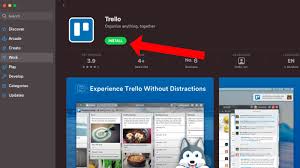
The easiest and safest way to install programs on your Mac is by using the Mac App Store. This digital shop window offers thousands of apps, games, and extensions for Safari, all carefully curated by Apple’s staff. To get started:
- Open the Mac App Store app, which can be found in the Dock or Launchpad.
- Browse through the featured apps, top-paid, or top-free sections.
- Search for specific apps using the search bar at the top of the page.
- Once you find an app you’re interested in, click on its name to access more information.
- Click the “Get” button to initiate the download and installation process.
- If prompted, enter your Apple ID password or use Touch ID for authentication.
Installing Programs From Dmg Files
Some software may not be available on the Mac App Store but can still be downloaded and installed using .DMG files. To do this:
- Download the .DMG file from the internet.
- Double-click the .DMG file to mount it as a virtual disk.
- Drag the application icon into the Applications folder.
- Click on the “x” button next to the .DMG file to eject it.
Installing Programs Without Certificates
If you encounter issues with programs installed from DMG files, don’t worry! You can still access them by following these steps:
- Open System Preferences and go to Safety and Privacy.
- Select the General tab and click on the “Authorize” button next to the application’s name.
- If prompted, enter your Apple ID password or use Touch ID for authentication.
Installing Programs in .PKG Format
Some software may come as a .PKG file, which can be installed using a procedure similar to Windows:
- Download the .PKG file from the internet.
- Double-click the .PKG file to install it.
- Follow the on-screen instructions to complete the installation process.
Using Homebrew And Macports
For developers or power users who want more control over their software installations, there are alternative methods using Homebrew and MacPorts:
- To install Homebrew, open Terminal and run the command
ruby -e "$(curl -fsSL https://Raw.Githubusercontent.Com/Homebrew/install/master/install)". - Once installed, use the
brew installcommand to install specific software. - For MacPorts, install Xcode and its command-line tools, then download the .PKG file from their website.
Accessing Installed Programs
To quickly access your installed programs:
- Add the Applications folder to your Dock by clicking on the Finder’s menu bar and selecting “Dock” > “Show Application List”.
- You can also search for apps using Spotlight by pressing
Cmd + Space.
Uninstalling Programs
When you’re ready to uninstall a program, follow these steps:
- Drag the application icon from the Applications folder into the Trash.
- Alternatively, right-click (or Control-click) on the app’s icon and select “Move to Trash”.
- If prompted, enter your Apple ID password or use Touch ID for authentication.
Conclusion
Installing programs on macOS is a straightforward process that can be done using various methods. Whether you choose the Mac App Store, DMG files, or alternative tools like Homebrew and MacPorts, we hope this guide has made it easier for you to navigate the world of software installation on your Mac.
Frequently Asked Questions (FAQs)
- Q: How do I Know if a Program is Safe to Install?
A: Always download programs from trusted sources, such as the Mac App Store or official websites. - Q: Can I Install Windows Software on my Mac?
A: Yes, you can use virtual machines like VirtualBox or Parallels to run Windows on your Mac. - Q: How do I Update my Apps?
A: Most apps will automatically update themselves; however, you can also check for updates manually by opening the App Store and clicking on “Updates”. - Q: Can I Install Macos Software on a Windows Machine?
A: No, macOS software is exclusive to Apple devices running macOS. - Q: How do I Remove an App That Won’t Uninstall Normally?
A: Try restarting your Mac in Safe Mode or using the built-in Terminal commandsudo rm -rf /Applications/<app_name>(be cautious when using this command). - Q: What is Homebrew, And How Does it Work?
A: Homebrew is a package manager for macOS that allows you to install software using Terminal commands. - Q: Can I Use Macports Alongside Homebrew?
A: Yes, both can coexist on your system; however, be aware that they may conflict with each other in some cases.
We hope this article has provided you with a comprehensive guide to installing programs on macOS!


