
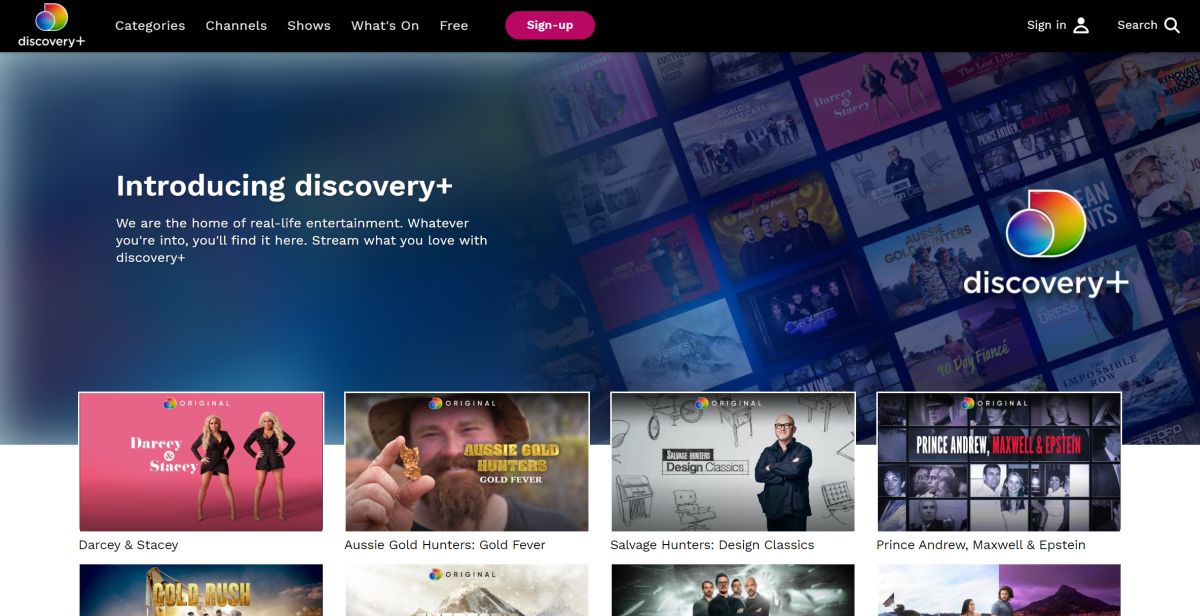
How to See Discovery+ on Your Smart TV
Are you a fan of Discovery+? Do you want to enjoy your favorite shows and documentaries on the big screen? Look no further! In this article, we will guide you through the process of installing and using Discovery+ on your Smart TV.
Introduction
Discovery+ is a popular streaming service that offers a wide range of content from various channels, including Real Time, NINE, DMAX, Animal Planet, Frisbee, K2, Yello, and many more. With its user-friendly interface and extensive library, Discovery+ has become a favorite among TV enthusiasts.
System Requirements
Before we dive into the installation process, make sure your Smart TV meets the following requirements:
- Android TV: The minimum version supported is Android 7.0.
- Samsung TV: The minimum version supported is Tizen 3.0 (2017).
- Other Tvs: Some other Smart TVs may also support Discovery+, but the procedure might vary.
Installation on Android TV
If you have an Android TV or a TV box with Android OS, follow these steps:
- Connect to Internet: Make sure your TV is connected to the internet.
- Access Play Store: Press the Home button on your remote and navigate to the Play Store icon.
- Search For Discovery+: Use the search function to find the Discovery+ app.
- Install Discovery+: Select the app and click on Install.
- Launch Discovery+: Once installed, launch the app and follow the prompts to log in or create an account.
Installation on Samsung TV
If you have a Samsung TV with Tizen OS, follow these steps:
- Connect to Internet: Make sure your TV is connected to the internet.
- Access Smart Hub: Press the Home button on your remote and navigate to the Smart Hub icon.
- Search For Discovery+: Use the search function to find the Discovery+ app.
- Install Discovery+: Select the app and click on Install.
- Launch Discovery+: Once installed, launch the app and follow the prompts to log in or create an account.
Installation on LG TV
If you have an LG TV with webOS, follow these steps:
- Access Hbbtv: Press the Home button on your remote and navigate to the HbbTV icon.
- Find Discovery+: Browse through the available channels until you find Discovery+.
- Launch Discovery+: Select the channel and follow the prompts to log in or create an account.
Alternative Options
If your Smart TV doesn’t support the above procedures, don’t worry! You can still enjoy Discovery+ on other devices:
- Amazon Fire TV Stick: This device allows you to access the Discovery+ app directly from the menu.
- Google Chromecast: This dongle enables you to stream content from your mobile device or PC to your TV.
- Apple TV: This media player allows you to access the Discovery+ app and enjoy your favorite shows on the big screen.
Conclusion
Installing and using Discovery+ on your Smart TV is a straightforward process. By following these steps, you can enjoy your favorite shows and documentaries on the big screen. Happy streaming!
Frequently Asked Questions (FAQs)
- What Are The System Requirements For Discovery+?
The minimum version supported is Android 7.0 For Android TVs, Tizen 3.0 (2017) For Samsung TVs, and other OS versions may vary. - Can I Use Discovery+ on my Non-smart Tv?
Yes, you can still enjoy Discovery+ on your non-Smart TV by using a device like Amazon Fire TV Stick or Google Chromecast. - How do I Access The Discovery+ App on my Smart Tv?
Follow the installation steps provided for your specific Smart TV brand (Android TV, Samsung TV, LG TV). - Can I Use Multiple Devices to Stream Discovery+ Content?
Yes, you can use multiple devices like mobile phones, tablets, or computers to stream Discovery+ content. - What Are The Subscription Options For Discovery+?
Discovery+ offers a monthly subscription plan starting at €3.99. - Can I Access Discovery+ on Other Platforms Like PC or Mac?
Yes, you can access Discovery+ on your PC or Mac using their official website or mobile app. - How do I Log in to my Discovery+ Account?
Follow the prompts within the app to create a new account or log in with an existing one. - Can I Change my Subscription Plan or Cancel it at Any Time?
Yes, you can manage your subscription and cancel it at any time through the Discovery+ website or mobile app.


