
How to Block Unwanted Notifications on Your Pc, Mac, Android, Iphone, And Browser
In today’s interconnected world, it’s easy to get overwhelmed by the countless notifications that flood our screens every day. While these notifications can be useful in many cases, they can also be distracting and counterproductive. In this article, we’ll explore how to block unwanted notifications on your PC, Mac, Android, iPhone, and browser.
The Problem With Notifications
Notifications are everywhere – on our computers, smartphones, tablets, and even browsers. They can come in the form of acoustic signs or visual alerts, demanding our attention and disrupting our workflow. While some notifications may be essential, many others can be intrusive and distracting.
Why Block Unwanted Notifications?
Blocking unwanted notifications can have a significant impact on your productivity and focus. By eliminating distractions, you can:
- Improve your concentration and mental clarity
- Enhance your overall well-being and reduce stress
- Increase your efficiency and get more done in less time
How to Block Unwanted Notifications on Your PC
If you’re using a Windows or Mac computer, there are several ways to block unwanted notifications. Here’s how:
Windows 11
To block all notifications from a specific app, follow these steps:
- Open the Settings app.
- Click on the “System” tab.
- Select “Notifications” from the left-hand menu.
- In the “Notifications” section, click on the three dots beside the app you want to block.
- Select “Block notifications” from the dropdown menu.
Alternatively, you can use the “Not disturbing” feature, which suspends all notifications temporarily while you focus on a specific task.
Windows 10
To block all notifications from a specific app, follow these steps:
- Click on the Start button and select the Settings icon.
- Click on the “System” tab.
- Select “Notifications & actions” from the left-hand menu.
- In the “Notifications & actions” section, click on the three dots beside the app you want to block.
- Select “Block notifications” from the dropdown menu.
You can also use the “Not disturbing” feature to suspend all notifications temporarily while you focus on a specific task.
Macos
To block all notifications from a specific app, follow these steps:
- Click on the Apple menu and select “System Preferences.”
- Select “Notifications” from the left-hand menu.
- In the “Notifications” section, click on the three dots beside the app you want to block.
- Select “Block notifications” from the dropdown menu.
Alternatively, you can use the “Do Not Disturb” feature to suspend all notifications temporarily while you focus on a specific task.
How to Block Unwanted Notifications on Your Android
If you’re using an Android device, there are several ways to block unwanted notifications. Here’s how:
- Go to Settings > Apps & notifications.
- Select the app you want to block from the list of installed apps.
- Tap the three dots beside the app’s name and select “Block notifications.”
Alternatively, you can use the “Do Not Disturb” feature to suspend all notifications temporarily while you focus on a specific task.
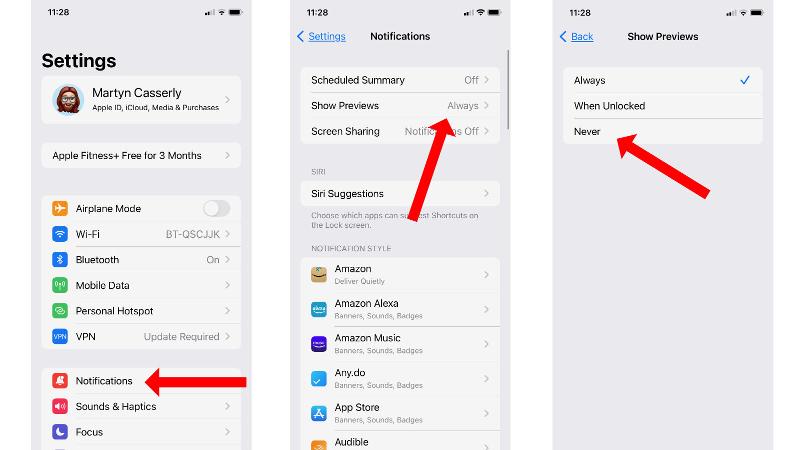
How to Block Unwanted Notifications on Your Iphone
If you’re using an iPhone, there are several ways to block unwanted notifications. Here’s how:
- Go to Settings > Notifications.
- Select the app you want to block from the list of installed apps.
- Tap the toggle switch beside the app’s name and select “Off.”
Alternatively, you can use the “Do Not Disturb” feature to suspend all notifications temporarily while you focus on a specific task.
How to Block Unwanted Notifications in Your Browser
If you’re using Google Chrome, Mozilla Firefox, Microsoft Edge, or Safari as your browser, there are several ways to block unwanted notifications. Here’s how:
Google Chrome
To block all notifications from a specific website, follow these steps:
- Click on the three dots beside the address bar.
- Select “Settings.”
- In the “Settings” page, click on “Advanced” and select “Content settings.”
- Scroll down to the “Notifications” section and toggle off the switch beside the website’s name.
Alternatively, you can use the “Block new requests” feature to block all notifications from a specific website.
Mozilla Firefox
To block all notifications from a specific website, follow these steps:
- Click on the three dots beside the address bar.
- Select “Settings.”
- In the “Settings” page, click on “Privacy & Security” and select “Permissions.”
- Scroll down to the “Notifications” section and toggle off the switch beside the website’s name.
Alternatively, you can use the “Block new requests” feature to block all notifications from a specific website.
Microsoft Edge
To block all notifications from a specific website, follow these steps:
- Click on the three dots beside the address bar.
- Select “Settings.”
- In the “Settings” page, click on “Cookies and site permissions” and select “Notifications.”
- Scroll down to the “Notifications” section and toggle off the switch beside the website’s name.
Alternatively, you can use the “Block new requests” feature to block all notifications from a specific website.
Safari
To block all notifications from a specific website, follow these steps:
- Click on Safari in the menu bar.
- Select “Preferences.”
- In the “Preferences” page, click on the “Websites” tab and select “Notifications.”
- Scroll down to the “Notifications” section and toggle off the switch beside the website’s name.
Alternatively, you can use the “Block new requests” feature to block all notifications from a specific website.
Conclusion
In conclusion, blocking unwanted notifications is an essential step in maintaining your productivity and focus. By following these simple steps on your PC, Mac, Android, iPhone, or browser, you can eliminate distractions and stay focused on what matters most.
Faqs
Q: How do I block all notifications from a specific app?
A: To block all notifications from a specific app on Windows 11, go to Settings > System > Notifications and toggle off the switch beside the app’s name. On Android, go to Settings > Apps & notifications > [App name] and toggle off the switch beside “Notifications.”
Q: How do I block notifications in Google Chrome?
A: To block all notifications from a specific website in Google Chrome, click on the three dots beside the address bar, select “Settings,” and scroll down to the “Notifications” section. Toggle off the switch beside the website’s name.
Q: Can I block notifications on multiple devices at once?
A: Yes, you can block notifications on multiple devices associated with your Apple ID using the “Full Disk Access” feature on your Mac or iPhone.
Q: Will blocking notifications affect my ability to receive important updates and alerts?
A: No, blocking notifications will not affect your ability to receive important updates and alerts. You can always configure your settings to allow specific apps or websites to send you notifications.
Q: Can I block notifications for a specific time period only?
A: Yes, you can block notifications for a specific time period using the “Do Not Disturb” feature on Android, iPhone, or Mac.
Q: How do I know if an app is sending me unwanted notifications?
A: To check if an app is sending you unwanted notifications, go to Settings > Apps & notifications and select the app’s name. Look for any suspicious or repeated notifications from that app.


