
How to Download Openoffice: A Step-by-step Guide
Are you looking for a free alternative to Microsoft Office? Look no further than OpenOffice, a popular open-source productivity suite that offers a range of features and tools to help you create, edit, and manage your documents, spreadsheets, presentations, and more. In this article, we will guide you through the process of downloading and installing OpenOffice on your computer or mobile device.
Why Choose Openoffice?
OpenOffice is a free and open-source productivity suite that offers many of the same features as Microsoft Office. With OpenOffice, you can:
- Create and edit documents, spreadsheets, presentations, and databases
- Import and export files in various formats, including Microsoft Office file types
- Collaborate with others on projects using real-time editing and commenting tools
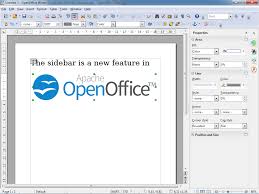
- Enjoy a user-friendly interface that’s easy to navigate
System Requirements
Before downloading OpenOffice, make sure your computer meets the minimum system requirements:
- Windows: Windows XP, 2003, 2012, 7, 8, 8.1, 10, Or 11
- RAM: 256 MB (512 MB recommended)
- Free disk space: At least 650 MB for a normal installation
- Resolution: 1024 X 768 pixels or higher with at least 16 million colors
Downloading And Installing Openoffice on Windows
To download and install OpenOffice on your Windows computer, follow these steps:
- Go to the official OpenOffice website and click on the “Download” button.
- Select the version of OpenOffice that matches your system requirements.
- Choose the language you prefer (Italian is available).
- Click on the “Download complete version (advised)” button.
- Wait for the download process to complete.
- Run the installation file and follow the prompts to install OpenOffice.
- Once installed, launch OpenOffice by double-clicking on its icon.
Downloading And Installing Openoffice on Mac
To download and install OpenOffice on your Mac computer, follow these steps:
- Go to the official OpenOffice website and click on the “Download” button.
- Select the version of OpenOffice that matches your system requirements (macOS 10.7 Or higher).
- Choose the language you prefer (Italian is available).
- Click on the “Download complete version (advised)” button.
- Wait for the download process to complete.
- Mount the DMG file and drag the OpenOffice icon to the Applications folder.
- Launch OpenOffice by double-clicking on its icon.
Downloading And Installing Openoffice on Ubuntu
To download and install OpenOffice on your Ubuntu computer, follow these steps:
- Open a Terminal window and type “sudo apt-get update”.
- Type “sudo apt-get install openoffice.Org” to install OpenOffice.
- Once installed, launch OpenOffice by searching for it in the Application menu.
Alternative Solutions For Mobile Devices
If you’re looking for alternative solutions on your mobile device, consider these options:
- AndrOpen Office: A porting of OpenOffice for Android devices
- Collaborate Office: An app that allows real-time collaboration and editing of Microsoft Office files
- WPS Office: A suite that offers a range of productivity tools, including word processing, spreadsheet, and presentation software
Conclusion
In conclusion, OpenOffice is a powerful and feature-rich open-source productivity suite that’s available for free download on Windows, Mac, and Linux operating systems. With its user-friendly interface and compatibility with Microsoft Office file types, OpenOffice is an excellent alternative to traditional office suites.
Faqs
- What Are The System Requirements For Openoffice?
- The minimum system requirements for OpenOffice are: Windows XP or later, 256 MB RAM (512 MB recommended), and at least 650 MB free disk space.
- How do I Download And Install Openoffice on my Computer?
- To download and install OpenOffice, go to the official website, select your language and system requirements, click on the “Download” button, and follow the installation prompts.
- Can I Use Openoffice For Commercial Purposes?
- Yes, OpenOffice is free and open-source software that can be used for both personal and commercial purposes.
- What Are Some Alternative Solutions to Openoffice on Mobile Devices?
- Consider using AndrOpen Office, Collaborate Office, WPS Office, or Polaris Office as alternatives to OpenOffice on your mobile device.
Final Thoughts
In today’s digital age, having access to powerful productivity tools is essential for both personal and professional use. With OpenOffice, you can enjoy a free and open-source alternative to traditional office suites that offers many of the same features and capabilities.


