
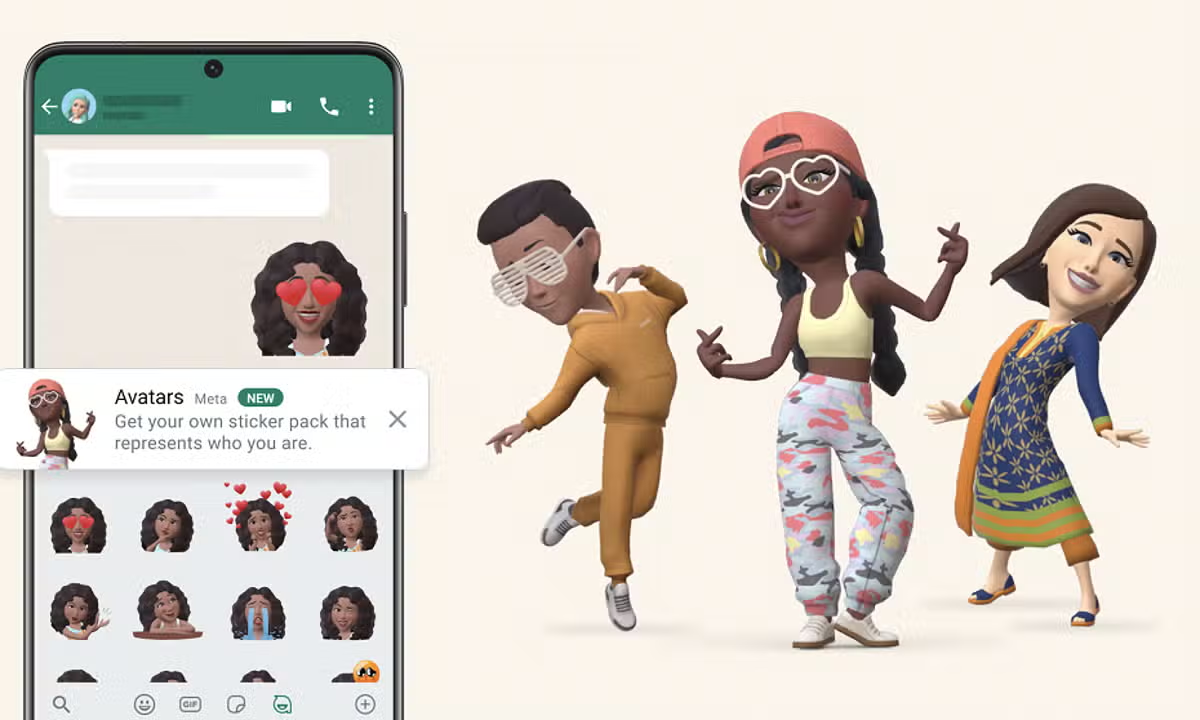
How to Create a Whatsapp Avatar: A Step-by-step Guide
Are you tired of using your current photo profile on WhatsApp? Do you want to create a digital avatar that resembles you? You’re in luck! In this article, we’ll guide you through the process of creating a WhatsApp avatar, and show you how to personalize it to your liking.
Why Create a Whatsapp Avatar?
Creating a WhatsApp avatar is a fun way to express yourself on the platform. With a digital avatar, you can show off your personality and style, without having to use a real photo. Plus, avatars are becoming increasingly popular on social media platforms, so why not join in on the fun?
Requirements: Android, Iphone, PC
To create a WhatsApp avatar, you’ll need an Android or iOS device (iPhone). If you’re using a PC, unfortunately, it’s not possible to create a WhatsApp avatar directly on your computer. However, we’ll show you some alternatives later.
Step-by-step Guide For Android:
If you’re using an Android device, follow these steps:
- Open Whatsapp: Tap on the app icon to open WhatsApp.
- Settings: Tap on the three dots in the top right corner and select “Settings”.
- Avatar: Scroll down and tap on the “Avatar” option.
- Create Your Avatar: Tap on the “Create your avatar” button.
- Start: Tap on the “Start” button to begin creating your avatar.
- Customize: Use the various options to customize your avatar, such as choosing a complexion, hair color, and style.
- Save Modifications: When you’re satisfied with your avatar, tap on the “Save modifications” button.
Tips For Personalizing Your Avatar
Want to take your avatar to the next level? Here are some tips:
- Experiment with different colors and styles to find the perfect combination that represents you.
- Use the various customization options to make your avatar look unique.
- Don’t be afraid to try out new looks and styles until you find one that suits your taste.
Step-by-step Guide For Iphone:
If you’re using an iPhone, follow these steps:
- Open Whatsapp: Tap on the app icon to open WhatsApp.
- Settings: Tap on the “Settings” option (gear icon).
- Avatar: Scroll down and tap on the “Avatar” option.
- Create Your Avatar: Tap on the “Create your avatar” button.
- Start: Tap on the “Start” button to begin creating your avatar.
- Customize: Use the various options to customize your avatar, such as choosing a complexion, hair color, and style.
- Save Modifications: When you’re satisfied with your avatar, tap on the “Save modifications” button.
Alternative For Pc: Using Face.Co
If you’re using a PC, unfortunately, WhatsApp doesn’t have an option to create avatars directly on their platform. However, there’s a workaround! You can use Face.Co, an online service that allows you to generate and customize avatars. Here’s how:
- Visit Face.Co: Open the Face.Co website in your browser.
- Choose a Template: Select a template for your avatar (male or female).
- Customize: Use the various options to customize your avatar, such as choosing a face shape, hair color, and style.
- Save Modifications: When you’re satisfied with your avatar, save it as an image file.
Using Your Avatar on Whatsapp
Now that you have your customized avatar, here’s how to use it on WhatsApp:
- Access Whatsapp Web or Desktop Client: Open the WhatsApp desktop client (for Windows or macOS) or access WhatsApp Web.
- Update Your Profile Picture: Tap on the miniature of your current profile picture and select “Change photo”.
- Choose Your Avatar: Select the avatar image you created earlier.
Conclusion
Creating a WhatsApp avatar is a fun way to express yourself on the platform. Whether you’re using an Android or iOS device, we’ve shown you how to create and customize your avatar. If you’re using a PC, there’s an alternative using Face.Co. So go ahead and give it a try!


