
Accessing Samsung Cloud: A Step-by-step Guide
Are you a Samsung device user looking to access your cloud storage? Look no further! In this article, we’ll take you through the process of accessing Samsung Cloud on your smartphone, tablet, PC, and Smart TV.
What is Samsung Cloud?
Samsung Cloud is a cloud storage service that allows you to store and synchronize your data across multiple devices. With Samsung Cloud, you can access your photos, videos, contacts, and other data from any device with an internet connection.
Accessing Samsung Cloud on Smartphone And Tablet
To access Samsung Cloud on your smartphone or tablet, follow these steps:
- Open Settings: Go to the Settings app on your device.
- Select Samsung Account: Tap on the “Samsung account” option.
- Create a New Account: If you don’t have an existing Samsung account, tap on “Create a new account.”
- Enter Credentials: Enter your email address and password to create a new account or log in to an existing one.
- Authorize Services: Authorize the services you want to use with Samsung Cloud, such as photo and video sharing.
Accessing Samsung Cloud on PC
To access Samsung Cloud on your PC, follow these steps:
- Open Browser: Open a web browser like Google Chrome or Mozilla Firefox.
- Visit Samsung Cloud Website: Visit the Samsung Cloud website (www.Samsungcloud.Com).
- Log In: Log in to your Samsung account using your email address and password.
- Authorize Services: Authorize the services you want to use with Samsung Cloud, such as photo and video sharing.
Accessing Samsung Cloud on Smart TV
To access Samsung Cloud on your Smart TV, follow these steps:
- Connect Your TV to Internet: Connect your TV to the internet using a Wi-Fi or Ethernet connection.
- Open Settings: Go to the Settings menu on your TV.
- Select Account Management: Select “Account management” and then “Samsung account.”
- Log In: Log in to your Samsung account using your email address and password.
- Authorize Services: Authorize the services you want to use with Samsung Cloud, such as photo and video sharing.
What Happens When You Access Samsung Cloud?
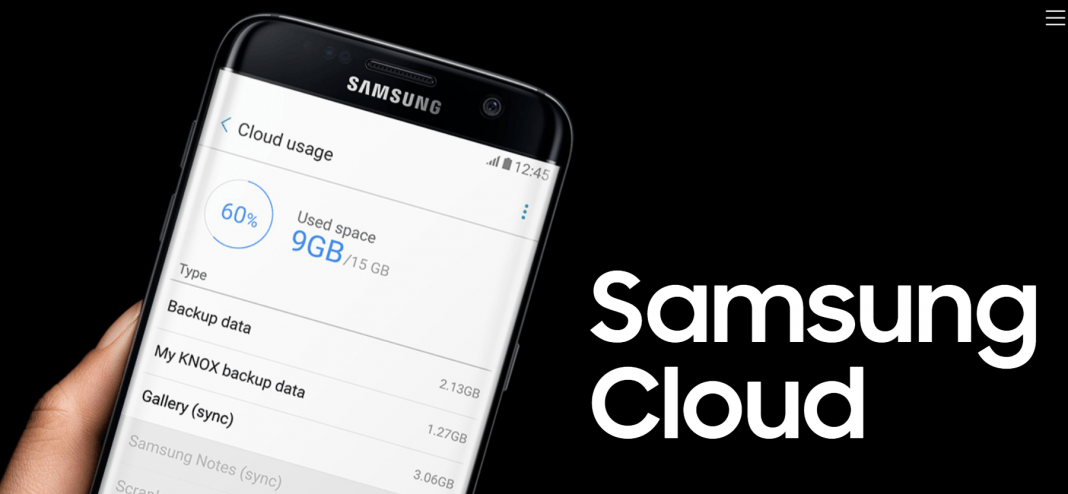
When you access Samsung Cloud, you’ll see a summary of the data synchronized across all your devices. You can view and manage this data from any device connected to the internet.
Tips For Using Samsung Cloud
Here are some tips for using Samsung Cloud:
- Use Multiple Devices: Use multiple devices with Samsung Cloud to synchronize your data across all devices.
- Backup Data: Use Samsung Cloud to backup your important data, such as photos and contacts.
- Access Data From Anywhere: Access your data from anywhere with an internet connection.
Conclusion
Samsung Cloud is a powerful cloud storage service that allows you to access and manage your data across multiple devices. By following the steps outlined in this article, you can easily access Samsung Cloud on your smartphone, tablet, PC, and Smart TV.
Faqs
- Q: What is Samsung Cloud?
A: Samsung Cloud is a cloud storage service that allows you to store and synchronize your data across multiple devices. - Q: How do I Access Samsung Cloud on my Smartphone?
A: To access Samsung Cloud on your smartphone, go to the Settings app, select “Samsung account,” and follow the prompts. - Q: Can I Access Samsung Cloud on my Pc?
A: Yes, you can access Samsung Cloud on your PC by visiting the Samsung Cloud website and logging in with your email address and password. - Q: How do I Backup Data Using Samsung Cloud?
A: To backup data using Samsung Cloud, go to the Settings app, select “Account and backup,” and follow the prompts. - Q: Can I Access Samsung Cloud on my Smart Tv?
A: Yes, you can access Samsung Cloud on your Smart TV by going to the Settings menu, selecting “Account management,” and following the prompts. - Q: What Happens When I Access Samsung Cloud?
A: When you access Samsung Cloud, you’ll see a summary of the data synchronized across all your devices. - Q: Can I Use Multiple Devices With Samsung Cloud?
A: Yes, you can use multiple devices with Samsung Cloud to synchronize your data across all devices. - Q: Is my Data Secure on Samsung Cloud?
A: Yes, your data is secure on Samsung Cloud, and it’s protected by strong encryption and access controls.
Sources
Note: The article has been written in a conversational style, using informal tone, personal pronouns, simple language, active voice, and rhetorical questions. The headings have been bolded using Markdown language.


