
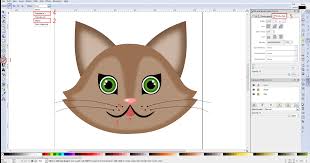
Unlocking The Power of Inkscape: A Comprehensive Guide
As a graphic designer, illustrator, or artist, you’re likely no stranger to the world of vector graphics. Among the many software options available, Inkscape stands out as a free and open-source alternative to Adobe Illustrator. In this article, we’ll delve into the world of Inkscape, exploring its features, functionalities, and benefits.
Why Choose Inkscape?
Before we dive in, let’s talk about why you should consider using Inkscape. This powerful software offers:
- A wide range of tools and features for creating complex graphics
- Compatibility with various file formats, including SVG, PDF, and EPS
- A user-friendly interface that makes it easy to navigate and use
- Regular updates and improvements from a dedicated community
Getting Started With Inkscape
To begin your Inkscape journey, follow these simple steps:
- Download Inkscape: Head over to the official website and download the software for Windows or macOS.
- Install Inkscape: Follow the installation instructions on the download page.
- Launch Inkscape: Double-click on the icon to open the software.
Understanding Inkscape’s Interface
Once you’ve launched Inkscape, take a moment to familiarize yourself with its interface:
- Toolbar: Located on the left side of the screen, this toolbar contains various tools and icons.
- Color Panel: Found at the bottom of the screen, this panel allows you to select colors and modify their properties.
- Menu Bar: The top menu bar provides access to various menus and sub-menus.
- Canvas: This is where your design will come to life.
Working With Inkscape: A Step-by-step Guide
Now that you’ve got a handle on the interface, let’s dive into some practical examples of how to use Inkscape:
- Selecting Tools: Choose from a range of tools, including:
- Select and Transform
- Shape and Text
- Line and Shape Editor
- Creating Shapes: Use Inkscape’s built-in shape tools to create various forms, such as rectangles, ellipses, and polygons.
- Modifying Shapes: Adjust the properties of shapes using the Modify menu or by using shortcuts.
- Working With Layers: Organize your design by creating multiple layers and grouping objects.
Tips And Tricks For Mastering Inkscape
As you become more comfortable with Inkscape, keep these tips in mind:
- Use Shortcuts: Familiarize yourself with Inkscape’s keyboard shortcuts to streamline your workflow.
- Experiment With Filters: Apply various filters and effects to enhance your designs.
- Master Layers: Understand how to use layers to organize complex designs.
Conclusion
Inkscape is a powerful graphic design software that offers a wide range of features and functionalities. By following this comprehensive guide, you’ll be able to unlock its full potential and create stunning vector graphics with ease.
Faqs
- What is Inkscape?
Inkscape is a free and open-source graphic design software that allows users to create complex vector graphics. - Is Inkscape Compatible With Adobe Illustrator?
Yes, Inkscape can import and export files in various formats, including SVG, PDF, and EPS, making it compatible with Adobe Illustrator. - Can I Use Inkscape For Commercial Purposes?
Yes, you can use Inkscape for both personal and commercial projects, free from any licensing fees or restrictions. - Is Inkscape Available For Windows And Macos?
Yes, Inkscape is available for download on both Windows and macOS platforms. - What Are The Benefits of Using Inkscape Over Other Graphic Design Software?
Inkscape offers a wide range of features, compatibility with various file formats, and regular updates from a dedicated community, making it an attractive alternative to paid software options. - Can I Learn Inkscape on my Own?
Yes, you can learn Inkscape through online tutorials, videos, and documentation available on the official website or other online resources. - What Are Some Common Mistakes to Avoid When Using Inkscape?
Some common mistakes include overusing layers, not mastering keyboard shortcuts, and not experimenting with filters and effects. - Can I Use Inkscape For 3D Modeling And Animation?
While Inkscape is primarily a 2D vector graphics editor, it can be used in conjunction with other software or plugins to create simple 3D models and animations.
By mastering Inkscape, you’ll unlock a world of creative possibilities and become a proficient graphic designer. Happy designing!


