
Unlocking The Potential of Hbbtv: A Comprehensive Guide
In today’s digital age, consumers are increasingly expecting a seamless viewing experience on their TVs. This is where HbbTV comes in – a hybrid broadcast broadband TV technology that has revolutionized the way we watch and interact with content on our screens.
As we explore the world of HbbTV, it’s essential to understand its capabilities and how to unlock them on various television brands. In this article, we’ll delve into the details of HbbTV, including its features, benefits, and step-by-step guides for enabling it on popular TV models from LG, Sony, Samsung, Philips, Panasonic, and Hisense.
What is Hbbtv?
HbbTV (Hybrid Broadcast Broadband TV) is an open standard technology that enables broadcasters to deliver a range of interactive services, such as catch-up TV, video-on-demand, and interactive applications, directly to the viewer’s set-top box or smart TV. This technology was developed by several major broadcasters and manufacturers in Europe.
Benefits of Hbbtv
The benefits of HbbTV are numerous, including:
- Enhanced Viewing Experience: HbbTV allows viewers to access a range of interactive services, such as catch-up TV and video-on-demand, directly from their set-top box or smart TV.
- Increased Engagement: With HbbTV, broadcasters can deliver personalized content and recommendations, increasing viewer engagement and loyalty.
- New Revenue Streams: HbbTV provides broadcasters with new opportunities to generate revenue through interactive services and advertising.
Unlocking Hbbtv on Your TV
Now that we’ve explored the benefits of HbbTV, let’s dive into the step-by-step guides for enabling it on popular TV models.
Actuating Hbbtv on LG Tvs
To enable HbbTV on your LG TV:
- Ensure your TV is connected to the internet.
- Press the “Menu” button on your remote control and navigate to “General” > “Channels.”
- Select the “Settings” option and then choose “HbbTV.”
- Toggle the switch to activate HbbTV.
Actuating Hbbtv on Sony Tvs
To enable HbbTV on your Sony TV:
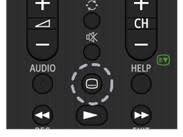
- Press the “Home” button on your remote control.
- Navigate to “Aid” (or “Help”) in the Settings menu.
- Select “Privacy” and then choose “Accept.”
- Access the “Channels” or “Configuration Channels” option, where you’ll find the HbbTV settings.
Actuating Hbbtv on Samsung Tvs
To enable HbbTV on your Samsung TV:
- Ensure your TV is updated to the latest software version.
- Press the “Settings” button on your remote control and navigate to “Transmission.”
- Select “Advanced Settings” and then choose “HbbTV.”
- Toggle the switch to activate HbbTV.
Actuating Hbbtv on Philips Tvs
To enable HbbTV on your Philips TV:
- Press the “Menu” button on your remote control.
- Navigate to “Options TV” and select “Advanced Options.”
- Choose “HbbTV” and toggle the switch to activate it.
Actuating Hbbtv on Panasonic Tvs
To enable HbbTV on your Panasonic TV:
- Press the “Menu” button on your remote control.
- Navigate to “Function Date” > “Service.”
- Choose whether to automatically start or manually select channels for HbbTV.
Actuating Hbbtv on Hisense Tvs
To enable HbbTV on your Hisense TV:
- Ensure your TV is connected to the internet.
- Press the “Menu” button and navigate to “System” > “Settings Application.”
- Select “HbbTV” and toggle the switch to activate it.
Conclusion
In conclusion, unlocking the potential of HbbTV on your TV requires some simple steps and a basic understanding of the technology. By following these guides, you’ll be able to access a range of interactive services and enhance your viewing experience.
Frequently Asked Questions (FAQs)
Here are eight FAQs related to HbbTV:
-
What is Hbbtv?
HbbTV (Hybrid Broadcast Broadband TV) is an open standard technology that enables broadcasters to deliver interactive services directly to the viewer’s set-top box or smart TV.
-
What Benefits Does Hbbtv Offer?
The benefits of HbbTV include enhanced viewing experiences, increased engagement, and new revenue streams through interactive services and advertising.
-
How do I Enable Hbbtv on my LG Tv?
To enable HbbTV on your LG TV, ensure it’s connected to the internet, press the “Menu” button, navigate to “General” > “Channels,” select the “Settings” option, and then choose “HbbTV.”
-
How do I Enable Hbbtv on my Sony Tv?
To enable HbbTV on your Sony TV, press the “Home” button, navigate to “Aid” (or “Help”) in the Settings menu, select “Privacy,” and then choose “Accept.”
-
How do I Enable Hbbtv on my Samsung Tv?
To enable HbbTV on your Samsung TV, ensure it’s updated to the latest software version, press the “Settings” button, navigate to “Transmission,” select “Advanced Settings,” and then choose “HbbTV.”
-
How do I Enable Hbbtv on my Philips Tv?
To enable HbbTV on your Philips TV, press the “Menu” button, navigate to “Options TV” and select “Advanced Options,” choose “HbbTV,” and toggle the switch to activate it.
-
How do I Enable Hbbtv on my Panasonic Tv?
To enable HbbTV on your Panasonic TV, press the “Menu” button, navigate to “Function Date” > “Service,” and choose whether to automatically start or manually select channels for HbbTV.
-
How do I Enable Hbbtv on my Hisense Tv?
To enable HbbTV on your Hisense TV, ensure it’s connected to the internet, press the “Menu” button, navigate to “System” > “Settings Application,” select “HbbTV,” and toggle the switch to activate it.
By following these guides and FAQs, you’ll be able to unlock the potential of HbbTV and enhance your viewing experience.


