
How to Modify Margins in Microsoft Word: A Step-by-step Guide
Are you tired of struggling with margins in your Microsoft Word documents? Do you want to learn how to customize the layout of your papers without sacrificing functionality? Look no further! In this article, we will guide you through the process of modifying margins in Microsoft Word, whether you’re using the desktop version or the online version.
What Are Margins in Microsoft Word?
Before we dive into the step-by-step instructions, let’s quickly define what margins are in Microsoft Word. Margins refer to the space between the text and the edges of the page. You can adjust the margin settings to create a document with a specific layout that suits your needs.
Modifying Margins in Microsoft Word 2019 (Desktop Version)
If you’re using Microsoft Word 2019 on your desktop, follow these steps:
- Open Your Document: First, open the document that you want to modify.
- Go to Layout: Click on the “Layout” tab at the top of the screen.
- Click on Margins: In the “Layout” tab, click on the “Margins” button in the “Page Setup” group.
- Select a Margin Type: A drop-down menu will appear with various margin types (Normal, Narrow, Wide, etc.). Select the one that suits your needs.
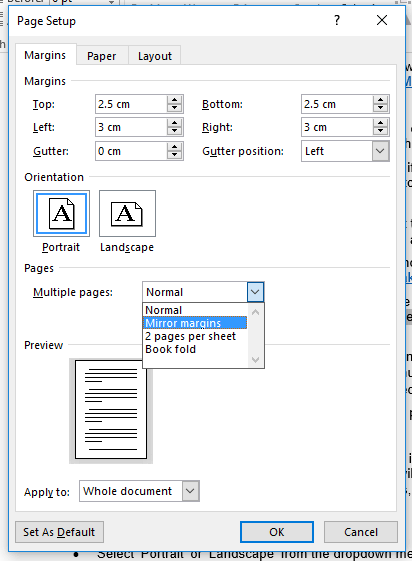
- Customize Margins: If you don’t see the desired margin type, click on the “Margins” button and select “Custom Margins.” This will open a new window where you can customize the margins to your liking.
Modifying Margins in Microsoft Word Online
If you’re using Microsoft Word online, follow these steps:
- Open Your Document: First, open the document that you want to modify.
- Go to Layout: Click on the “Layout” tab at the top of the screen.
- Click on Margins: In the “Layout” tab, click on the “Margins” button in the “Page Setup” group.
- Select a Margin Type: A drop-down menu will appear with various margin types (Normal, Narrow, Wide, etc.). Select the one that suits your needs.
- Customize Margins: If you don’t see the desired margin type, click on the “Margins” button and select “Custom Margins.” This will open a new window where you can customize the margins to your liking.
Modifying Margins in Microsoft Word For Mobile Devices
If you’re using Microsoft Word on your mobile device (smartphone or tablet), follow these steps:
- Open Your Document: First, open the document that you want to modify.
- Tap on The Pencil Icon: Tap on the pencil icon at the top-right corner of the screen.
- Select Layout: Tap on “Layout” from the menu.
- Select Margins: Select “Margins” from the menu.
- Customize Margins: You can now customize the margins to your liking.
Modifying Margins For a Specific Page or Section
If you want to modify the margins for a specific page or section, follow these steps:
- Position Your Cursor: Position your cursor at the beginning of the page or section that you want to modify.
- Go to Layout: Click on the “Layout” tab at the top of the screen (or tap on it if using mobile).
- Click on Margins: In the “Layout” tab, click on the “Margins” button in the “Page Setup” group (or select it from the menu if using mobile).
- Customize Margins: You can now customize the margins for the specific page or section.
Frequently Asked Questions
Q: How do I modify margins in Microsoft Word?
A: To modify margins, go to the “Layout” tab and click on the “Margins” button.
Q: Can I customize margins for a specific page or section?
A: Yes, you can customize margins for a specific page or section by positioning your cursor at the beginning of that page or section and following the steps above.
Q: How do I modify margins in Microsoft Word online?
A: To modify margins online, follow the same steps as above.
Q: Can I use Microsoft Word on my mobile device to modify margins?
A: Yes, you can use Microsoft Word on your mobile device (smartphone or tablet) to modify margins by following the steps above.
Conclusion
Modifying margins in Microsoft Word is a straightforward process that requires minimal effort. By following these simple steps, you can customize the layout of your documents and achieve the desired look without sacrificing functionality. Remember to always save and download your document after making changes to ensure they are preserved for future reference.
Faqs
Q: How do I modify margins in Microsoft Word?
A: To modify margins, go to the “Layout” tab and click on the “Margins” button.
Q: Can I customize margins for a specific page or section?
A: Yes, you can customize margins for a specific page or section by positioning your cursor at the beginning of that page or section and following the steps above.
Q: How do I modify margins in Microsoft Word online?
A: To modify margins online, follow the same steps as above.
Q: Can I use Microsoft Word on my mobile device to modify margins?
A: Yes, you can use Microsoft Word on your mobile device (smartphone or tablet) to modify margins by following the steps above.
Q: How do I save and download my modified document?
A: After making changes to your document, click on “File” > “Save As” to save a copy of your modified document. You can also download it by clicking on the “Download” button at the top-right corner of the screen.
Q: Can I modify margins in Microsoft Word for Android and iOS devices?
A: Yes, you can use Microsoft Word on your mobile device (smartphone or tablet) to modify margins by following the steps above.


