
Deleting Double Contacts in Your Phonebook: A Step-by-step Guide
Are you tired of having duplicate contacts in your phonebook? Do you wish there was a way to easily merge them into a single, accurate entry? Look no further! In this article, we’ll show you how to delete double contacts on various devices, including Android smartphones and tablets, iPhones, Macs, and more.
Why Delete Double Contacts?
Having duplicate contacts can be frustrating and confusing. It’s easy to lose track of which contact is the most up-to-date or accurate entry. By deleting double contacts, you’ll:
- Simplify your phonebook
- Reduce confusion and mistakes
- Ensure that your contacts are always up-to-date
Deleting Double Contacts on Android Devices
Most Android smartphones and tablets come with a built-in feature to merge duplicate contacts. Here’s how to do it:
Using The Google Contacts App
- Open The Google Contacts App: This is usually found on your device’s home screen or in the drawer.
- Tap on The Menu Icon (☰): This looks like three horizontal lines and can be found at the top left corner of the screen.
- Select “Manage Contacts”: From here, you’ll see options to merge, delete, or edit your contacts.
- Choose “Merge Duplicate Contacts”: This will scan for any duplicate entries in your phonebook.
- Review And Select The Duplicates: You’ll be shown a list of potential duplicates to review and choose which ones to merge.
Using The Phone App on Huawei Devices
If you’re using a Huawei device, you can follow these steps:
- Open The Phone App: This is usually found on your device’s home screen.
- Tap on The Menu Icon (⫶): This looks like three dots and can be found at the top right corner of the screen.
- Select “Settings”: From here, you’ll see options to manage your contacts.
- Choose “Organize Contacts”: Select this option to access the merge feature.
- Review And Select The Duplicates: You’ll be shown a list of potential duplicates to review and choose which ones to merge.
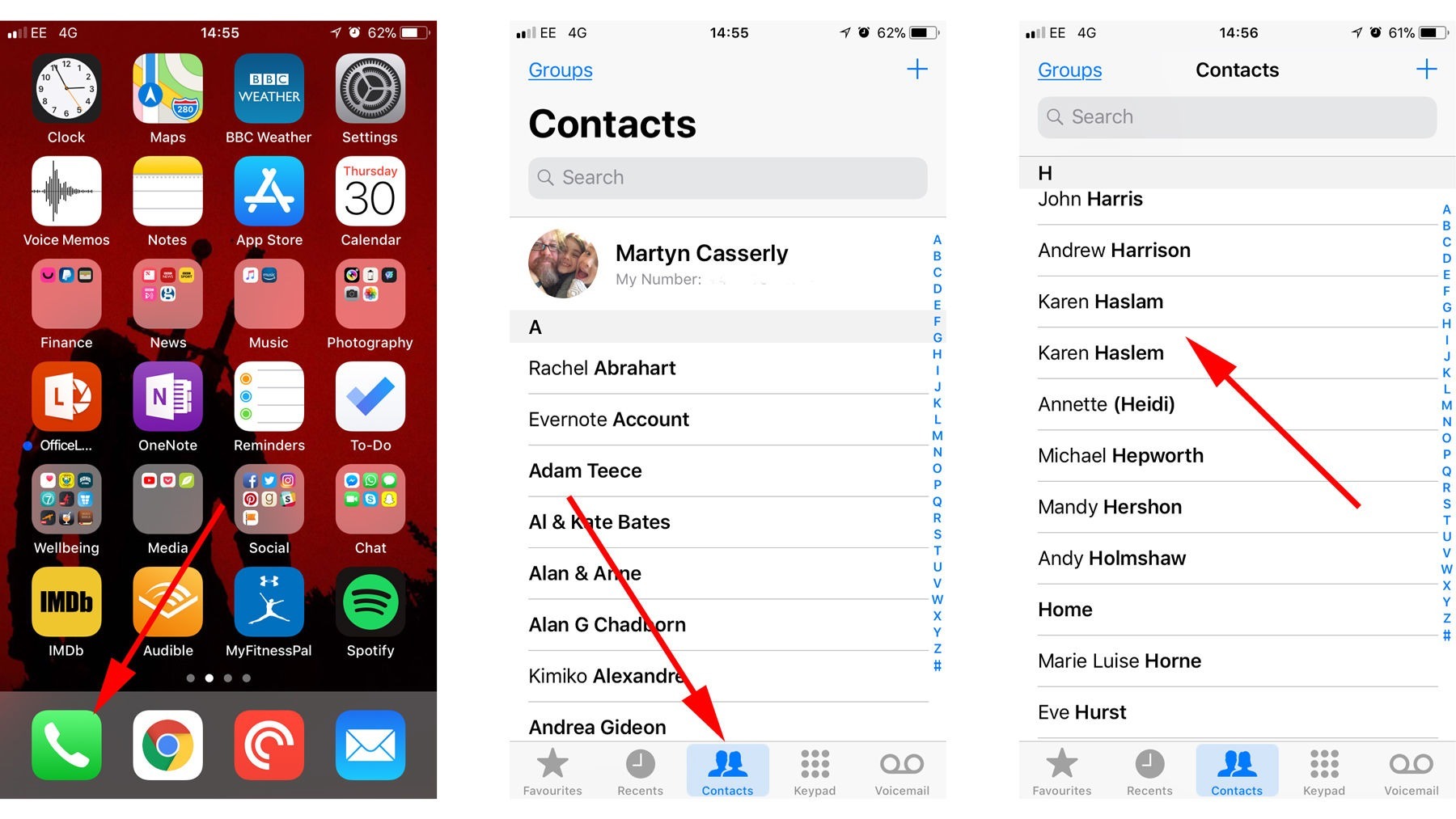
Deleting Double Contacts on Iphones And Ipads
IPhones, iPads, and Macs all have a built-in contact app that allows you to merge duplicate contacts. Here’s how:
Using The Contacts App on Ios Devices
- Open The Contacts App: This is usually found on your device’s home screen.
- Tap on The “Contacts” Tab at the bottom of the screen.
- Select “All Contacts” from the menu at the top right corner of the screen.
- Choose “Duplicate Contacts”: This will scan for any duplicate entries in your phonebook.
- Review And Select The Duplicates: You’ll be shown a list of potential duplicates to review and choose which ones to merge.
Using The Contacts App on Macs
If you’re using a Mac, follow these steps:
- Open The Contacts App: This is usually found on your dock or in your Applications folder.
- Select “File” from the menu at the top left corner of the screen.
- Choose “Find Duplicate Contacts”: This will scan for any duplicate entries in your phonebook.
- Review And Select The Duplicates: You’ll be shown a list of potential duplicates to review and choose which ones to merge.
Conclusion
Deleting double contacts is an easy process that can save you time and reduce confusion. By following these step-by-step guides, you can easily merge duplicate entries in your phonebook on Android devices, iPhones, Macs, and more. Remember to always check for any updates or changes before merging your contacts.
Frequently Asked Questions
- Q: Why do I Have Double Contacts?
A: Double contacts are usually caused by accidental duplicates or outdated contact information. - Q: How do I Prevent Double Contacts in The Future?
A: To avoid double contacts, make sure to regularly clean up your phonebook and update your contact information. - Q: Can I Merge Contacts on Multiple Devices at Once?
A: Yes! Many contact apps allow you to sync your contacts across multiple devices, making it easier to manage duplicate entries. - Q: What Happens if I Accidentally Delete a Contact?
A: If you accidentally delete a contact, don’t worry! Most contact apps allow you to recover deleted contacts or restore them from a backup. - Q: How do I Know Which Contact is The Most Up-to-date Entry?
A: Always check for any updates or changes before merging your contacts. Make sure to review and select the duplicates carefully. - Q: Can I Use Third-party Apps to Merge Contacts?
A: Yes! There are many third-party apps available that can help you merge duplicate contacts on various devices. - Q: How Often Should I Clean up my Phonebook?
A: It’s a good idea to regularly clean up your phonebook (every few months) to ensure that your contact information is accurate and up-to-date. - Q: Can I Export my Contacts For Backup Purposes?
A: Yes! Many contact apps allow you to export your contacts as a CSV or vCard file, making it easy to back up your data.
We hope this article has helped you understand the importance of deleting double contacts in your phonebook. Happy merging!


