
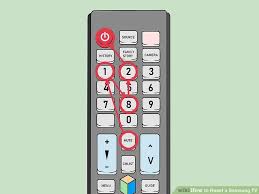
How to Reset Your Samsung Tv: A Step-by-step Guide
Are you experiencing issues with your Samsung TV, such as glitches or a frozen screen? Before considering a replacement, try resetting it to its factory settings. This process can resolve many problems and get your TV up and running smoothly again.
In this article, we’ll guide you through the steps to reset your Samsung TV, including how to do it without a remote control. We’ll also cover some alternative methods for controlling your TV if you’ve misplaced or lost your remote.
Why Reset Your Samsung Tv?
Resetting your Samsung TV can be beneficial in several ways:
- Resolve Technical Issues: A factory reset can resolve many technical problems, such as freezing screens, glitches, and other software-related issues.
- Improve Performance: Resetting your TV can improve its overall performance by clearing out temporary data and resolving any configuration conflicts.
- Prepare For Sale or Disposal: If you’re planning to sell or dispose of your Samsung TV, resetting it will ensure that all personal settings and data are erased.
Method 1: Reset With The Remote Control
Resetting your Samsung TV using a remote control is the most straightforward method. Follow these steps:
- Turn on Your TV: Press the power button to turn on your Samsung TV.
- Access The Settings Menu: Use the directional arrows on your remote to navigate to the Settings menu.
- Select The General Section: Choose the General section from the Settings menu.
- Choose The Reset Option: Select the Reset option within the General section.
- Enter Your Pin (if Required): If prompted, enter your 4-digit PIN code to confirm the reset process.
Method 2: Reset Without a Remote Control
If you don’t have access to a remote control, there are alternative methods for resetting your Samsung TV:
- Use a Universal Remote: You can use a universal remote that’s compatible with your Samsung TV. This will allow you to navigate through the menu and select the reset option.
- Access The Settings Menu Directly: Some newer Samsung TV models have a direct access button on the TV itself, allowing you to access the Settings menu without a remote control.
Method 3: Reset Using The Menu Button
If your TV has physical buttons, such as the Menu button, Power button, and Volume controls, you can use these to reset your TV:
- Press And Hold The Menu Button: Press and hold the Menu button for about 10 seconds.
- Release The Menu Button And Press The Power Button: Release the Menu button and press the Power button to turn on your TV.
- Wait For The Menu to Appear: Wait for the menu to appear, then select the Reset option.
Method 4: Reset Using a Smartphone App
If you have a smartphone with an IR blaster or Wi-Fi connectivity, you can use the Samsung Smart Control app to reset your TV:
- Download And Install The Samsung Smart Control App: Download and install the Samsung Smart Control app on your smartphone.
- Pair Your TV With The App: Pair your TV with the app using the code provided by your TV’s manufacturer.
- Select The Reset Option Within The App: Select the Reset option within the app to initiate the reset process.
Additional Tips And Precautions
When resetting your Samsung TV, keep in mind:
- Backup Your Data (if Possible): If you have important settings or data saved on your TV, try to backup this information before proceeding with the reset.
- Consult The User Manual: Refer to the official user manual for specific instructions and guidelines unique to your Samsung TV model.
- Be Cautious When Using Alternative Methods: When using alternative methods, such as resetting without a remote control or using a smartphone app, be cautious of any potential issues or conflicts that may arise.
By following these steps, you should be able to reset your Samsung TV and resolve any technical issues you’re experiencing.


