
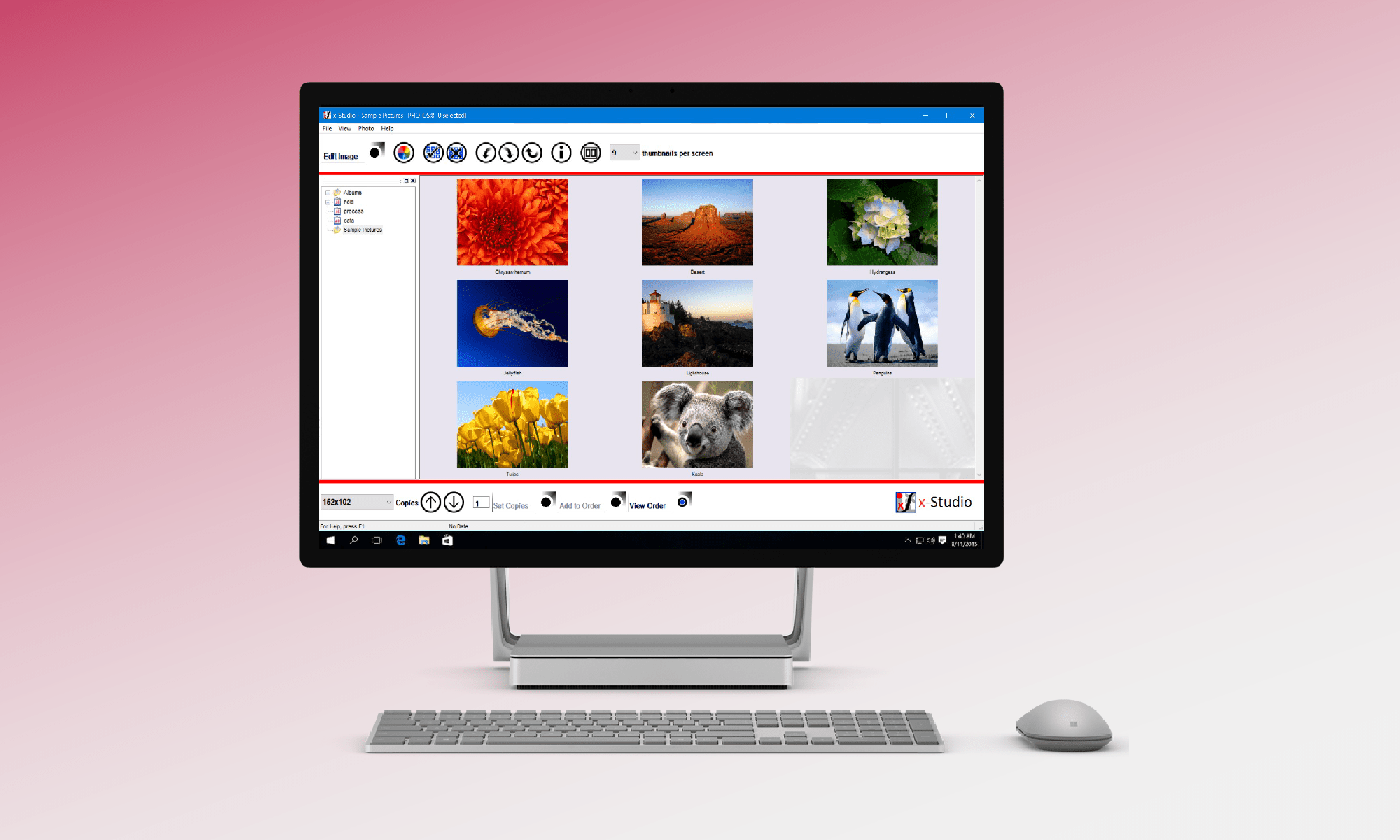
How to Print Photos on Card: A Step-by-step Guide
Are you looking for ways to print your favorite photos on card? Look no further! In this article, we will guide you through the process of printing photos on card using various software and online services.
Why Print Photos on Card?
Printing photos on card is a great way to preserve memories and create unique gifts. Whether it’s a birthday, anniversary, or special occasion, printing photos on card allows you to give a personalized touch to your presents.
Software For Printing Photos on Card
There are several software options available that allow you to print photos on card. Here are some of the most popular ones:
Photo (Windows 10/11)
If you’re using Windows 10 or 11, you can use the built-in Photo app to print your favorite photos. The Photo app allows you to view, edit, and share your photos.
- To get started, open the Photo app by searching for it in the Start menu.
- Select the photo you want to print from the All Photos tab or import a new image from OneDrive or iCloud.
- Click on the three dots at the top-right corner of the window and select Print.
- Choose your printer and select the settings you prefer.
Photo (macOS)
If you’re using macOS, you can use the built-in Photo app to print your favorite photos. The Photo app allows you to view, edit, and share your photos.
- To get started, open the Photos app from the Dock.
- Select the photo you want to print from the Photos tab or import a new image from iCloud.
- Click on the three dots at the top-right corner of the window and select Print.
- Choose your printer and select the settings you prefer.
Xnview (Windows/macOS/Linux)
If you’re looking for a more advanced software option, XnView is an excellent choice. XnView allows you to view, edit, and print your photos in various formats.
- To get started, download and install XnView from their official website.
- Open the app and select the photo you want to print from the All Photos tab or import a new image from a specific folder.
- Click on the printer icon at the top-right corner of the window and select Print.
- Choose your printer and select the settings you prefer.
Services For Printing Photos on Card
In addition to software, there are several online services that allow you to print photos on card. Here are some of the most popular ones:
Photobox
Photobox is an excellent service that allows you to print photos on card, calendars, and other materials.
- To get started, visit the Photobox website and sign up for an account.
- Upload your photo and select the size and format you prefer.
- Choose your printer and pay for your order.
Photosì
PhotoSì is another excellent service that allows you to print photos on card, calendars, and other materials.
- To get started, visit the PhotoSì website and sign up for an account.
- Upload your photo and select the size and format you prefer.
- Choose your printer and pay for your order.
Photocity
Photocity is a service that allows you to print photos on card, calendars, and other materials.
- To get started, visit the Photocity website and sign up for an account.
- Upload your photo and select the size and format you prefer.
- Choose your printer and pay for your order.
Apps For Printing Photos on Card
In addition to software and online services, there are several apps available that allow you to print photos on card. Here are some of the most popular ones:
Cheerz (Android/iOS)
CHEERZ is a free app that allows you to select your favorite photo from your device and order a printed copy.
- To get started, download and install CHEERZ from the Google Play Store or Apple App Store.
- Select your photo and choose the size and format you prefer.
- Pay for your order and wait for your print to arrive.
PrinterShare is an app that allows you to print directly from your smartphone without using a computer.
- To get started, download and install PrinterShare from the Google Play Store or Apple App Store.
- Select your photo and choose the size and format you prefer.
- Pay for your order and wait for your print to arrive.
Official Apps of Printer Producers
Many printer manufacturers have their own apps that allow you to print directly from your smartphone.
- To get started, download and install the app from the Google Play Store or Apple App Store.
- Select your photo and choose the size and format you prefer.
- Pay for your order and wait for your print to arrive.
Conclusion
Printing photos on card is a great way to preserve memories and create unique gifts. With the software, online services, and apps available, it’s never been easier to print your favorite photos.
Frequently Asked Questions (FAQs)
-
What Are Some of The Best Software Options For Printing Photos on Card?
- Photo (Windows 10/11), Photo (macOS), XnView (Windows/macOS/Linux)
-
What Are Some of The Most Popular Online Services For Printing Photos on Card?
-
Photobox, PhotoSì, Photocity
-
What Are Some of The Best Apps For Printing Photos on Card?
-
CHEERZ (Android/iOS), PrinterShare (Android/iOS/iPadOS)
-
How do I Print a Photo on Card Using The Photo App on Windows 10/11?
-
Open the Photo app, select your photo, click on the three dots at the top-right corner of the window and select Print.
-
How do I Print a Photo on Card Using The Photo App on Macos?
-
Open the Photos app, select your photo, click on the three dots at the top-right corner of the window and select Print.
Ultimo Aggiornamento: February 2023


