
How to Change Icloud Password: A Step-by-step Guide
Are you tired of using the same old password for your Apple ID? Do you want to add an extra layer of security to your account? Look no further! In this article, we’ll show you how to change your iCloud password on various devices, including iPhone, iPad, Mac, and even online.
Why Change Your Icloud Password?
Before we dive into the steps, let’s talk about why changing your iCloud password is essential. Here are a few reasons:
- Security: Using a strong and unique password for each of your accounts helps protect you from data breaches and cyber attacks.
- Convenience: Changing your password regularly ensures that even if someone gets their hands on it, they won’t be able to access your account for long.
- Peace of Mind: Knowing that your account is secure can give you peace of mind, especially when using public Wi-Fi or sharing devices.
Changing Icloud Password on Iphone
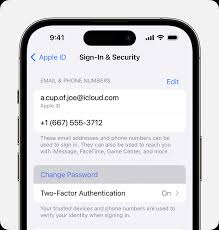
To change your iCloud password on an iPhone, follow these steps:
- Go to Settings > [Your Name] > Password & Security.
- Tap “Modify Password.”
- Enter your current password and tap “Next.”
- Create a new password and confirm it by tapping “Next” again.
- Review the security suggestions provided by Apple.
That’s it! You’ve successfully changed your iCloud password on your iPhone.
Changing Icloud Password on Ipad
The process is similar to changing the password on an iPhone:
- Go to Settings > [Your Name] > Password & Security.
- Tap “Modify Password.”
- Enter your current password and tap “Next.”
- Create a new password and confirm it by tapping “Next” again.
- Review the security suggestions provided by Apple.
You’re done! You’ve changed your iCloud password on your iPad.
Changing Icloud Password on Mac
To change your iCloud password on a Mac, follow these steps:
- Go to System Preferences > iCloud.
- Click “Account Details.”
- Click “Password & Security.”
- Tap “Modify Password.”
- Enter your current password and tap “Next.”
- Create a new password and confirm it by tapping “Next” again.
You’ve successfully changed your iCloud password on your Mac.
Changing Icloud Password Online
If you prefer to change your iCloud password online, here’s how:
- Go to the Apple ID website.
- Sign in with your current credentials.
- Click “Password & Security.”
- Tap “Modify Password.”
- Enter your current password and tap “Next.”
- Create a new password and confirm it by tapping “Next” again.
You’ve successfully changed your iCloud password online.
What if I Forgot My Icloud Password?
If you forgot your iCloud password, don’t worry! You can easily recover it:
- Go to the Apple ID website.
- Click “Forgot Password.”
- Enter your Apple ID and tap “Next.”
- Follow the instructions provided by Apple.
You’ve recovered your iCloud password!
Tips For Choosing a Strong Password
When choosing a strong password, remember these tips:
- Length Matters: Aim for passwords that are at least 12 characters long.
- Mix it up: Combine uppercase and lowercase letters, numbers, and special characters.
- Avoid Common Patterns: Don’t use easily guessable information like your name, birthdate, or common words.
You’ve got this!
Frequently Asked Questions
Here are some frequently asked questions about changing iCloud passwords:
Q: How often should I change my iCloud password?
A: Change your password every 60 to 90 days for added security.
Q: Can I use the same password for all my accounts?
A: No, using unique passwords for each account helps protect you from data breaches and cyber attacks.
Q: What if I forgot my Apple ID or password?
A: Follow the recovery steps provided by Apple to regain access to your account.
You’re now equipped with the knowledge to change your iCloud password on various devices. Remember to stay safe online by using strong passwords, keeping them unique for each account, and changing them regularly.


