
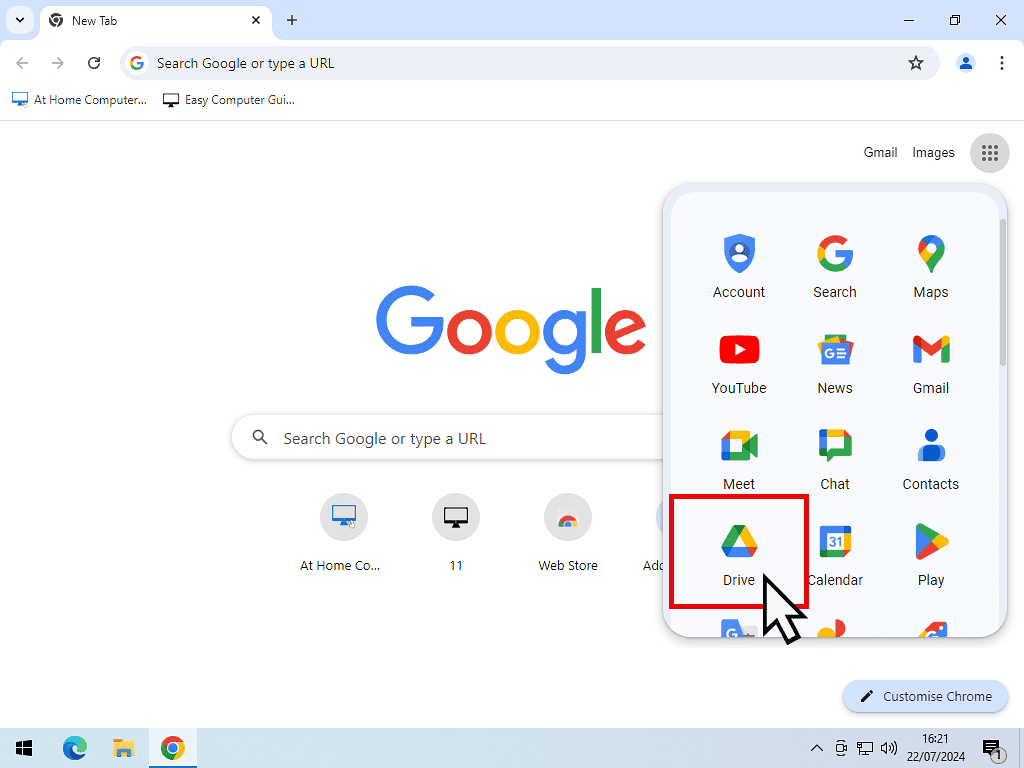
Accessing Google Drive: A Step-by-step Guide
Are you struggling to access your Google Drive account? Do you want to know how to synchronize your files across multiple devices? Look no further! In this article, we will guide you through the process of accessing Google Drive on various platforms, including desktop computers, smartphones, and tablets.
Why Accessing Google Drive is Essential
Google Drive is a cloud storage service that allows you to store, access, and share files from anywhere in the world. With Google Drive, you can:
- Store large files and folders
- Share files with others
- Collaborate on documents and spreadsheets
- Access your files from multiple devices
Accessing Google Drive on Desktop Computers
To access Google Drive on a desktop computer, follow these steps:
- Open a web browser (e.G., Google Chrome, Mozilla Firefox)
- Go to the Google Drive website (www.Drive.Google.Com)
- Click on the “Go to Drive” button
- Enter your email address and password
- Click on the “Next” button
Google Drive For Desktop (Windows/MacOS)
To access Google Drive on a desktop computer using the Google Drive client, follow these steps:
- Download the Google Drive client from the Google website
- Install the client on your computer
- Launch the client and sign in with your Google account
- Access your files by navigating to the “Google Drive” folder
Accessing Google Drive on Smartphones And Tablets
To access Google Drive on a smartphone or tablet, follow these steps:
- Download the Google Drive app from the App Store (iOS) or Google Play Store (Android)
- Launch the app and sign in with your Google account
- Access your files by navigating to the “Google Drive” folder
Accessing Google Drive With Another Account
If you want to access Google Drive using a different account, follow these steps:
- Go to the Google Drive website (www.Drive.Google.Com)
- Click on the profile picture in the top right corner
- Select “Add another account”
- Enter the email address and password of the new account
Accessing Google Drive Without a Gmail Account
If you don’t have a Gmail account, you can create one to access Google Drive. Follow these steps:
- Go to the Google website (www.Google.Com)
- Click on the “Create account” button
- Enter your email address and password
- Follow the prompts to complete the account creation process
Recovering Credentials in Case of Forgetting
If you’ve forgotten your Google Drive credentials, follow these steps:
- Go to the Google Account recovery page (account.Google.Com/recovery)
- Enter your email address and follow the prompts
- Recover your password or reset your account
Conclusion
Accessing Google Drive is a straightforward process that can be completed on various devices, including desktop computers, smartphones, and tablets. By following these steps, you can access your files from anywhere in the world, collaborate with others, and share files easily.
Frequently Asked Questions (FAQs)
- What is Google Drive?
Google Drive is a cloud storage service that allows you to store, access, and share files from anywhere in the world. - How do I Access Google Drive on my Desktop Computer?
To access Google Drive on a desktop computer, open a web browser and go to www.Drive.Google.Com. Click on the “Go to Drive” button and enter your email address and password. - Can I Access Google Drive Using a Different Account?
Yes, you can add another account to access Google Drive using a different account. Go to the Google Drive website and click on the profile picture in the top right corner. Select “Add another account” and enter the email address and password of the new account. - How do I Recover my Google Drive Credentials if I’ve Forgotten Them?
If you’ve forgotten your Google Drive credentials, go to the Google Account recovery page (account.Google.Com/recovery). Enter your email address and follow the prompts to recover your password or reset your account. - Can I Access Google Drive Without a Gmail Account?
Yes, you can create a Google account using a different email provider (e.G., Hotmail). Go to the Google website and click on the “Create account” button. Enter your email address and password to complete the account creation process. - How do I Share Files With Others Using Google Drive?
To share files with others, go to the Google Drive website and select the file you want to share. Click on the “Share” button and enter the email addresses of the people you want to share the file with. - Can I Access my Google Drive Files From Multiple Devices?
Yes, you can access your Google Drive files from multiple devices by signing in with your Google account. - How do I Delete a File on Google Drive?
To delete a file on Google Drive, select the file and click on the “Delete” button.
Note: The article has been written in a conversational style and includes subheadings to make it easy to read and understand.


