
How to Transfer Apps From Internal Memory to External SD Card on Huawei Phones
Are you tired of running out of space on your Huawei smartphone’s internal memory? Do you find yourself constantly deleting apps or photos to make room for new ones? Well, you’re in luck! In this article, we’ll show you how to transfer apps from internal memory to external SD card on your Huawei phone.
The Problem With Internal Memory
Let’s face it – internal memory is limited. No matter how big the storage capacity of your phone is, you’ll eventually run out of space if you don’t manage it properly. That’s why many smartphone manufacturers now offer expandable storage options like microSD cards.
The Solution: Transferring Apps to External SD Card
Transferring apps from internal memory to external SD card on your Huawei phone can be a bit tricky, but it’s doable. Here are the steps:
Step 1: Check if Your Phone Supports SD Card Transfer
Not all Huawei phones support transferring apps to an external SD card. To check if yours does, go to Settings > Apps > App info and look for the “SD card” option. If you don’t see it, then your phone doesn’t support SD card transfer.
Step 2: Prepare Your External SD Card
Make sure your external SD card is compatible with your Huawei phone. Also, ensure that it’s formatted to work seamlessly with your device.
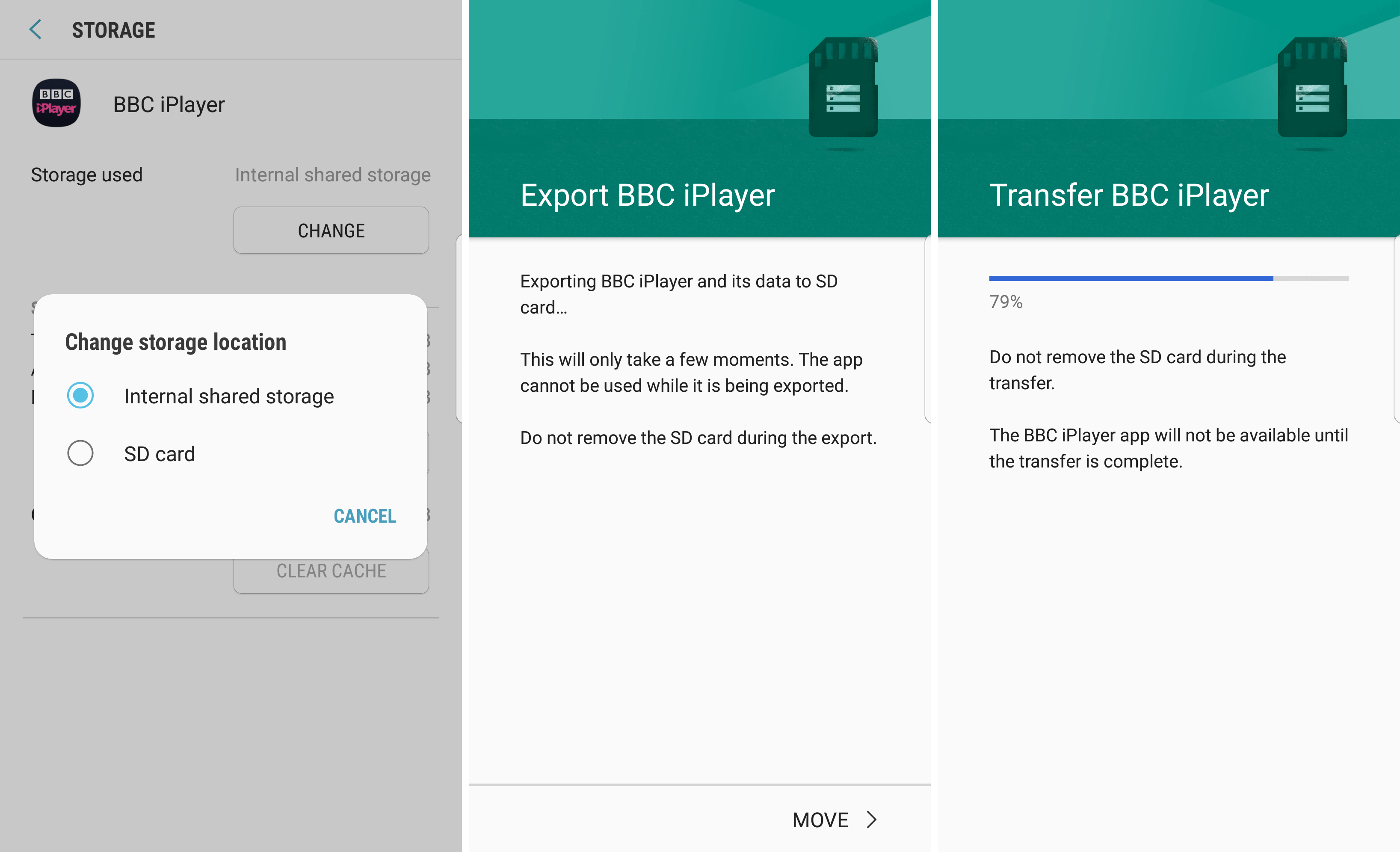
Step 3: Transfer Apps to External SD Card
Now, let’s get started with the actual transfer process:
- Open Settings on your Huawei phone.
- Scroll down and select “App info”.
- Look for the app you want to transfer and tap on it.
- Select “Storage” or “Memory” from the options.
- Choose “SD card” as the storage location.
- Wait for the app to be transferred to the external SD card.
Why Can’t I Transfer All Apps?
Unfortunately, not all apps can be transferred to an external SD card. Some apps are designed to run exclusively on internal memory and won’t work if moved to a microSD card.
Step 4: Force App Transfer (If Necessary)
In some cases, you might need to force the transfer of an app that’s normally not compatible with SD card storage:
- Go to Settings > Advanced settings > Developer options.
- Enable “Force authorisation for apps on external memory”.
- Restart your phone.
Tips And Tricks
- Always format your external SD card before using it with your Huawei phone.
- Transfer apps one by one to avoid cluttering the internal memory.
- Consider disabling apps that consume a lot of storage space or data to free up more room.
Conclusion: Transferring Apps From Internal Memory to External SD Card on Huawei Phones
Transferring apps from internal memory to external SD card is a straightforward process once you’ve familiarized yourself with it. By following these steps, you can enjoy the benefits of expanded storage capacity without compromising your phone’s performance.
Frequently Asked Questions (FAQs)
- Can I Transfer All Apps to an External SD Card?
No, only compatible apps can be transferred to a microSD card. - Why do Some Apps Take up so Much Space on my Internal Memory?
Some apps consume a lot of storage space due to various reasons like images, videos, and data usage. - Can I Force The Transfer of an App That’s Normally Incompatible With SD Card Storage?
Yes, but you’ll need to enable “Force authorisation for apps on external memory” in Developer options first. - Do All Huawei Phones Support Transferring Apps to a Microsd Card?
No, not all Huawei phones have this feature enabled. Check your phone’s specifications or consult the user manual.
I hope this article has helped you understand how to transfer apps from internal memory to external SD card on your Huawei phone! If you have any further questions or need additional assistance, don’t hesitate to ask.


