
How to Mute a Contact on Whatsapp
Are you tired of receiving notifications from a particular contact on WhatsApp? Do you want to silence their messages without blocking them entirely? Look no further! In this article, we’ll guide you through the steps to mute a contact on WhatsApp on both Android and iOS devices.
Why Would You Want to Mute a Contact on Whatsapp?
Before we dive into the instructions, let’s discuss why you might want to mute a contact on WhatsApp. Perhaps you have a friend or family member who sends you frequent messages that can be distracting or annoying. Or maybe you’re trying to avoid notifications from a coworker or colleague during work hours.
Whatever the reason, muting a contact on WhatsApp is a great way to silence their messages without blocking them entirely. This means they’ll still be able to send you messages, but you won’t receive any notifications for those conversations.
How to Mute a Contact on Whatsapp: Android
To mute a contact on WhatsApp on an Android device:
- Open the WhatsApp app and navigate to the Chat section.
- Find the conversation with the person you want to mute and tap on it.
- Tap on the name of the person at the top of the screen.
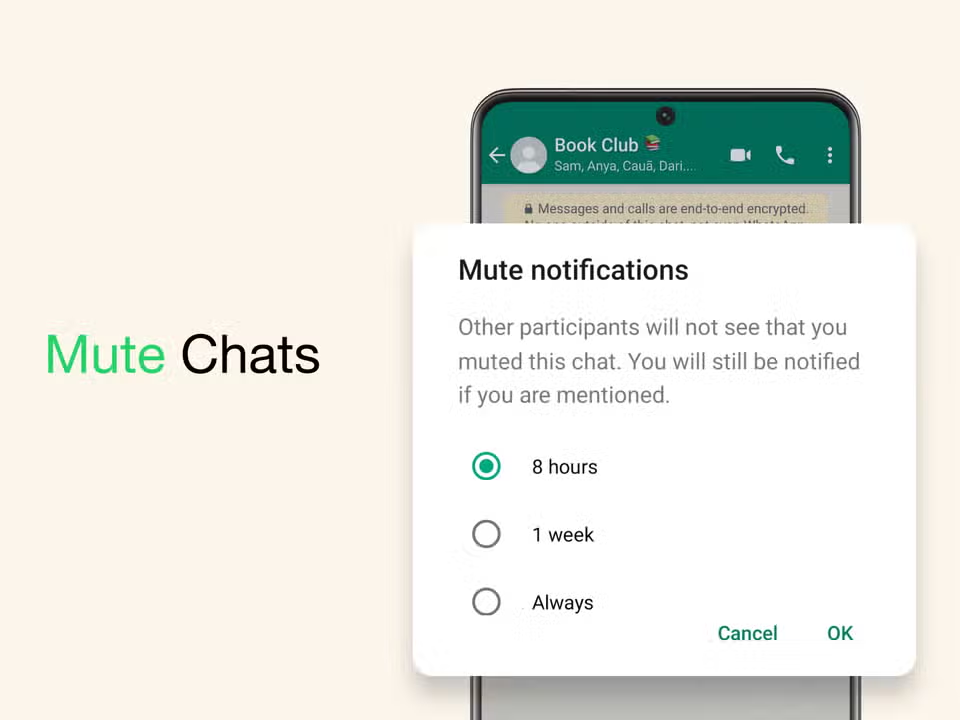
- Select “Mute notifications” from the menu that appears.
- Choose how long you want to mute the contact for (8 hours, 1 week, or always).
That’s it! Your contact is now muted, and you won’t receive any notifications for their messages.
How to Mute a Contact on Whatsapp: Ios
To mute a contact on WhatsApp on an iOS device:
- Open the WhatsApp app and navigate to the Chat section.
- Find the conversation with the person you want to mute and tap on it.
- Tap on the name of the person at the top of the screen.
- Select “Mute” from the menu that appears.
- Choose how long you want to mute the contact for (8 hours, 1 week, or always).
How to Mute a Contact on Whatsapp: PC
You can also mute a contact on WhatsApp using the desktop client or WhatsApp Web:
- Open WhatsApp on your computer and log in to your account.
- Navigate to the Chat section and find the conversation with the person you want to mute.
- Click on the name of the person at the top of the screen.
- Select “Mute notifications” from the menu that appears.
- Choose how long you want to mute the contact for (8 hours, 1 week, or always).
How to Mute a Group on Whatsapp
If you want to mute an entire group instead of just a single contact, the process is similar:
- Open WhatsApp and navigate to the Chat section.
- Find the group conversation you want to mute and tap on it.
- Tap on the group name at the top of the screen.
- Select “Mute notifications” from the menu that appears.
- Choose how long you want to mute the group for (8 hours, 1 week, or always).
Frequently Asked Questions
Q: Will the contact still be able to send me messages if I mute them?
A: Yes, the contact will still be able to send you messages, but you won’t receive any notifications for those conversations.
Q: Can I unmute a contact if I change my mind?
A: Yes, you can unmute a contact at any time by following the same steps as before.
Q: Will muting a contact affect my relationships with them?
A: Muting a contact is a temporary measure and won’t damage your relationship with them. They’ll still be able to communicate with you, but you won’t receive notifications for those conversations.
Q: Can I mute multiple contacts at once?
A: Yes, you can mute multiple contacts by selecting the chats you want to mute and following the same steps as before.
Q: Will muting a group affect all members of that group?
A: No, muting a group will only affect your notifications for that specific group. Other members of the group won’t be affected.
Q: Can I use WhatsApp without receiving notifications from muted contacts or groups?
A: Yes, you can still use WhatsApp and communicate with other contacts without receiving notifications from muted individuals or groups.
Q: Will muting a contact on WhatsApp affect my notification settings for other apps?
A: No, muting a contact on WhatsApp won’t affect your notification settings for other apps.
Q: Can I mute a contact if they’re not in my contact list?
A: Yes, you can mute a contact even if they’re not in your contact list. Simply select the chat with that person and follow the same steps as before.
Conclusion:
Muting a contact on WhatsApp is a great way to silence their messages without blocking them entirely. By following these simple steps, you can easily mute a contact or group on both Android and iOS devices. Remember, muting a contact is a temporary measure and won’t damage your relationship with them. If you change your mind, you can always unmute them by following the same steps as before. Happy WhatsApp-ing!


