
Updating Android Apps: A Comprehensive Guide
As a smartphone user, you’ve likely encountered issues with your apps not updating properly or requiring manual updates. This comprehensive guide will walk you through the process of updating Android apps, including those without Wi-Fi access or using alternative stores like HUAWEI AppGallery and Amazon Appstore.
Understanding Android App Updates
Before we dive into the update process, it’s essential to understand how Android app updates work. The Play Store is the primary source for updating apps on your device. You can manually update apps by searching for them in the Play Store or enabling automatic updates. However, some devices may not have access to Google services, and alternative stores become necessary.
Updating Apps Using The Play Store
The most straightforward way to update Android apps is by utilizing the Play Store. Here’s how:
- Open The Play Store: Tap on the Play Store icon on your device’s home screen or navigate to it from the app drawer.
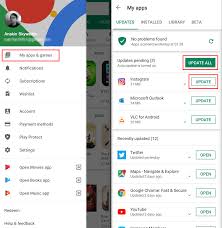
- Search For Updates: Tap on the menu icon (three horizontal lines) and select “My apps & games.” This will display a list of apps that need updates.
- Update Apps: Select the update button next to each app, and the Play Store will handle the download and installation process.
Updating Apps Without Wi-fi Access
If your device is not connected to Wi-Fi, you can still update apps using cellular data. However, keep in mind that this may consume a significant amount of data and battery life.
- Enable Cellular Data: Go to Settings > Network & internet > Mobile network > Data usage.
- Update Apps: Open the Play Store, select “My apps & games,” and follow the same steps as above.
Updating Apps Without The Play Store
If your device is not compatible with the Google Play Store or you’re using an alternative store like HUAWEI AppGallery or Amazon Appstore, here’s how to update apps:
- Open Alternative Store: Launch the alternative store on your device.
- Search For Updates: Search for the app you want to update in the store.
- Update Apps: Select the update button next to each app, and the store will handle the download and installation process.
Updating Android TV Apps
If you’re using an Android TV, updating apps is a bit different:
- Open The Play Store: Use your remote control to navigate to the Play Store icon.
- Update Apps: Select “My applications” from the menu, and follow the same steps as above.
Updating PC Apps
Unfortunately, Google has removed the ability to update Android apps on PC using the Chrome browser. However, some apps may still offer updates through their own websites or desktop clients.
Conclusion
Updating Android apps is a straightforward process that can be completed using the Play Store or alternative stores like HUAWEI AppGallery and Amazon Appstore. Remember to always check for updates manually or enable automatic updates to ensure your apps are running smoothly.
Frequently Asked Questions (FAQs)
- How do I Update my Android App?
- Open the Play Store, select “My apps & games,” and follow the same steps as above.
- Can I Update Apps Without Wi-fi Access?
- Yes, but be aware that this may consume a significant amount of data and battery life.
- How do I Update Apps Using an Alternative Store?
- Open the alternative store on your device, search for updates, and select the update button next to each app.
- Can I Update Android TV Apps?
- Yes, use your remote control to navigate to the Play Store icon and follow the same steps as above.
- How do I Update PC Apps?
- Unfortunately, Google has removed this functionality, but some apps may still offer updates through their own websites or desktop clients.
- Why Are my Android Apps Not Updating Automatically?
- Check your device’s settings to ensure automatic updates are enabled.
- Can I Use an Alternative Store on my Android Device?
- Yes, stores like HUAWEI AppGallery and Amazon Appstore offer alternative ways to install and update apps.
Recommended Tutorials


