
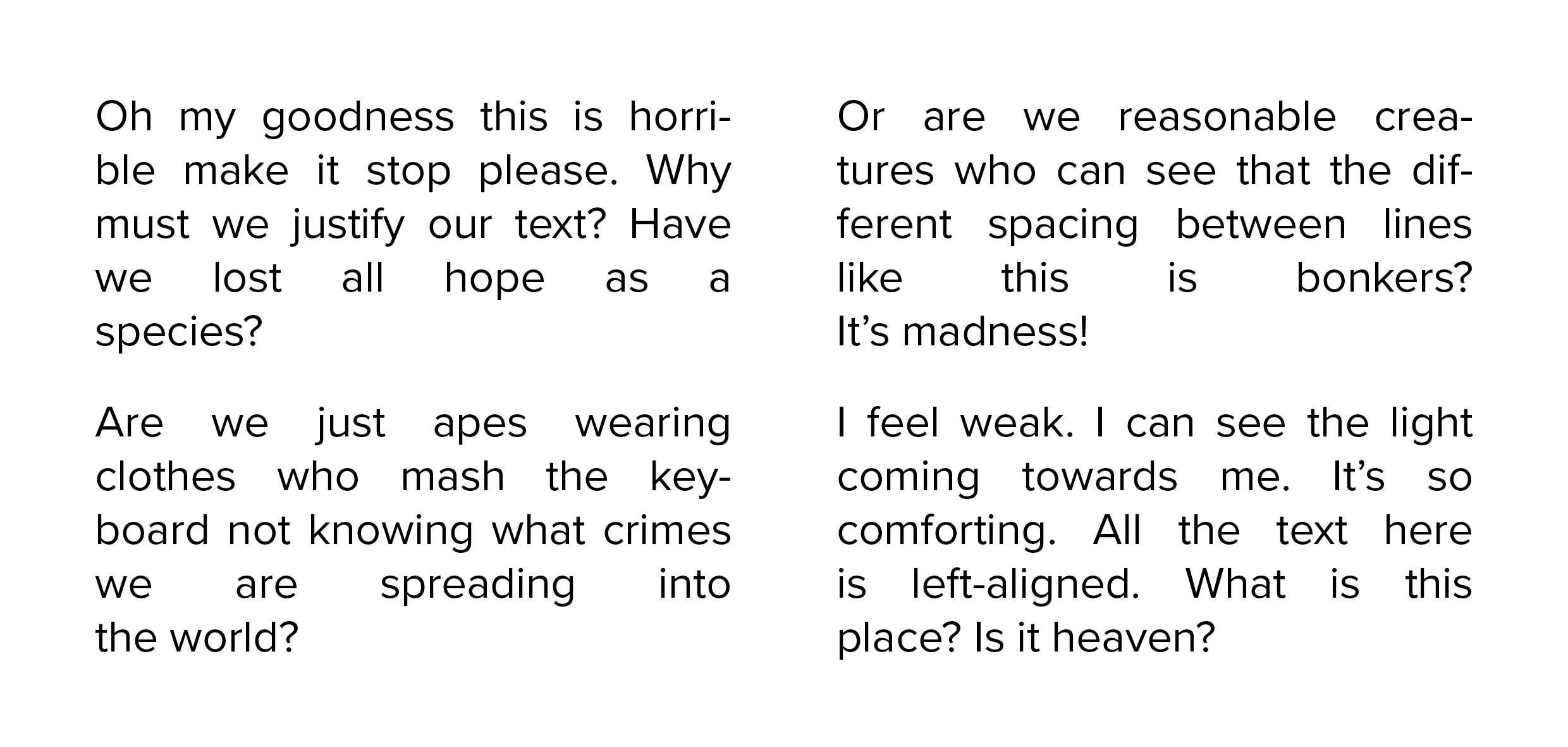
Are you struggling to justify a text in various software applications? Look no further! This article will guide you through the process of justifying a text in popular programs like Microsoft Word, Pages, LibreOffice Writer, HTML, Photoshop, Illustrator, WordPress, Google Documents, and PowerPoint.
Why Justify a Text?
Justifying a text is an essential feature that ensures your document or presentation looks professional and polished. It helps to align the text properly, making it easier to read and understand. Whether you’re working on a project for school, work, or personal purposes, justifying your text will make a significant difference in the overall appearance of your output.
How to Justify a Text With Microsoft Word
Microsoft Word is one of the most widely used word processing software applications. To justify a text in Word, follow these steps:
- Open the document you want to modify.
- Select the text you want to justify by placing the cursor at the beginning of the text and dragging it to the end.
- Click on the “Home” tab in the ribbon.
- Click on the “Justify” button (represented by four horizontal lines).
- Alternatively, use the keyboard shortcut Ctrl + F (Windows) or Command + J (Mac).
How to Justify a Text With Pages
Pages is a popular word processing software application developed by Apple. To justify a text in Pages:
- Open the document you want to modify.
- Select the text you want to justify by placing the cursor at the beginning of the text and dragging it to the end.
- Click on the “Format” menu.
- Click on “Text” and then select “Justify.”
- Alternatively, use the keyboard shortcut Command + Option + |.
How to Justify a Text With Libreoffice Writer
LibreOffice Writer is a free and open-source word processing software application. To justify a text in Writer:
- Open the document you want to modify.
- Select the text you want to justify by placing the cursor at the beginning of the text and dragging it to the end.
- Click on the “Format” menu.
- Click on “Text” and then select “Justify.”
- Alternatively, use the keyboard shortcut Ctrl + J (Windows) or Command + J (Mac).
How to Justify a Text With Html
HTML is a markup language used for creating web pages. To justify a text in HTML:
- Wrap the text you want to justify between
tags.
- Add the attribute “align=’justify'” within the
tag.
Example: <P align="justify">Justified text</p>
How to Justify a Text With Photoshop
Photoshop is a popular image editing software application developed by Adobe. To justify a text in Photoshop:
- Open the image you want to modify.
- Select the text tool from the toolbar.
- Type or paste the text you want to justify.
- Click on the “Text” menu and then select “Paragraph.”
- Select the “Justify” option.
How to Justify a Text With Illustrator
Illustrator is a vector graphics software application developed by Adobe. To justify a text in Illustrator:
- Open the document you want to modify.
- Select the text tool from the toolbar.
- Type or paste the text you want to justify.
- Click on the “Type” menu and then select “Paragraph.”
- Select the “Justify” option.
How to Justify a Text With WordPress
WordPress is a popular content management system used for creating websites. To justify a text in WordPress:
- Open the page or post you want to modify.
- Click on the “Text” tab.
- Use the keyboard shortcut Shift + Alt + J (Windows) or Command + Option + J (Mac).
- Alternatively, use a plugin like King-Add Text Underline and Justify.
How to Justify a Text With Google Documents
Google Documents is a free online word processing software application developed by Google. To justify a text in Google Documents:
- Open the document you want to modify.
- Click on the “Format” menu.
- Select “Justify.”
- Alternatively, use the keyboard shortcut Ctrl + Shift + J (Windows) or Command + Shift + J (Mac).
How to Justify a Text With Powerpoint
PowerPoint is a popular presentation software application developed by Microsoft. To justify a text in PowerPoint:
- Open the presentation you want to modify.
- Select the box that contains the text you want to justify.
- Click on the “Home” tab in the ribbon.
- Click on the “Paragraph” button (represented by four horizontal lines).
- Alternatively, use the keyboard shortcut Ctrl + Shift + J (Windows) or Command + Shift + J (Mac).
Conclusion
Justifying a text is an essential feature that can make a significant difference in the appearance of your document or presentation. Whether you’re working with Microsoft Word, Pages, LibreOffice Writer, HTML, Photoshop, Illustrator, WordPress, Google Documents, or PowerPoint, this article has provided you with step-by-step guides on how to justify a text.
Frequently Asked Questions (FAQs)
- Q: What is Justifying a Text?
A: Justifying a text means aligning the text properly so that it looks professional and polished. - Q: Why Should I Justify my Text?
A: Justifying your text can make a significant difference in the overall appearance of your document or presentation. - Q: How do I Justify a Text in Microsoft Word?
A: To justify a text in Microsoft Word, select the text you want to modify, click on the “Home” tab, and then click on the “Justify” button. - Q: Can I Justify a Text With Other Software Applications?
A: Yes, this article has provided step-by-step guides on how to justify a text in various software applications, including Pages, LibreOffice Writer, HTML, Photoshop, Illustrator, WordPress, Google Documents, and PowerPoint. - Q: What is The Difference Between Justifying And Aligning Text?
A: Justifying a text means aligning it so that both sides of the text are even, while aligning text means adjusting its position within a document or presentation. - Q: Can I Justify a Text Using Keyboard Shortcuts?
A: Yes, most software applications allow you to justify a text using keyboard shortcuts, which can save you time and effort. - Q: Why is Justifying a Text Important For Presentations?
A: Justifying a text is essential for creating professional-looking presentations that engage your audience. - Q: Can I Use Plugins or Add-ons to Justify my Text in WordPress or Other Software Applications?
A: Yes, there are various plugins and add-ons available that can help you justify your text in WordPress or other software applications.
We hope this article has been helpful in answering your questions about justifying a text. If you have any further queries, please don’t hesitate to ask!


