
Microsoft Teams: The Ultimate Guide to Downloading And Using The Popular Communication Tool
Are you tired of juggling multiple communication tools for work or school? Look no further than Microsoft Teams, a popular platform that combines chat, video conferencing, and file sharing in one convenient package.
In this article, we’ll show you how to download and install Microsoft Teams on your computer, smartphone, or tablet. We’ll also explore the various subscription plans available, including the free version, and provide tips on how to get the most out of this powerful tool.
The Benefits of Microsoft Teams
Before we dive into the instructions, let’s take a moment to appreciate the benefits of using Microsoft Teams. This platform offers:
- Seamless communication and collaboration with colleagues or classmates
- Secure file sharing and storage
- High-quality video conferencing capabilities
- Integration with other Microsoft Office tools, such as Word, Excel, and PowerPoint
Downloading Microsoft Teams: A Step-by-step Guide
Whether you’re using a computer, smartphone, or tablet, downloading Microsoft Teams is a straightforward process. Here’s how to do it:
On Computer (Windows)
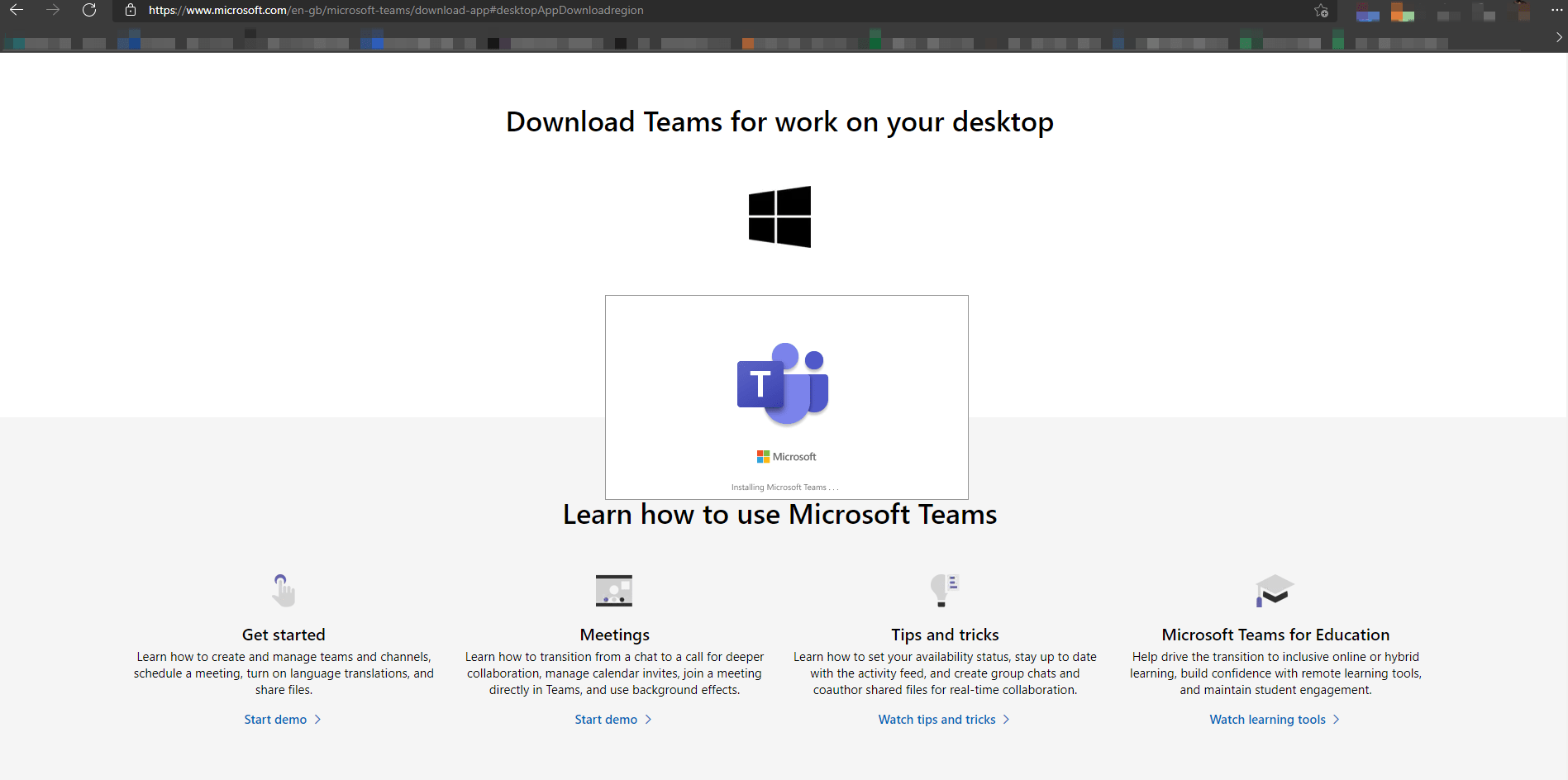
- Visit the official Microsoft Teams website.
- Click on the “Download for desktop” button.
- Select the appropriate version for your operating system (32-bit or 64-bit).
- Wait for the download to complete, then run the installer.
- Follow the prompts to install Microsoft Teams.
On Mac
- Visit the official Microsoft Teams website.
- Click on the “Download for desktop” button.
- Select the appropriate version for your operating system (macOS).
- Wait for the download to complete, then run the installer.
- Follow the prompts to install Microsoft Teams.
On Smartphone And Tablet
- Visit the App Store (for iOS devices) or Google Play Store (for Android devices).
- Search for “Microsoft Teams” in the search bar.
- Select the app from the results page.
- Tap the “Install” button to download and install Microsoft Teams.
Creating a Microsoft Account: A Quick Guide
Before you can start using Microsoft Teams, you’ll need to create a Microsoft account. Here’s how:
- Visit the official Microsoft website.
- Click on the “Sign up now” button.
- Fill out the registration form with your details (name, email address, password, etc.).
- Verify your email address by clicking on the confirmation link sent by Microsoft.
Using Microsoft Teams: Tips And Tricks
Now that you’ve downloaded and installed Microsoft Teams, here are some tips to help you get started:
- Add Team Members: Invite colleagues or classmates to join your team by adding their email addresses.
- Create Channels: Organize conversations into different channels (e.G., #General, #announcements).
- Share Files: Upload and share files with team members using the file sharing feature.
- Video Conference: Join video meetings with team members or clients.
Microsoft Teams Subscription Plans: What You Need to Know
Microsoft offers various subscription plans for Microsoft Teams. Here’s a brief overview:
Free Version
The free version of Microsoft Teams includes:
- Unlimited users
- 2 GB of file storage per user (10 GB for teams)
- Basic video conferencing capabilities
Paid Subscription Plans: A Comparison
Here are the paid subscription plans available for Microsoft Teams:
Microsoft 365 Essentials
This plan is designed for small and medium-sized businesses.
- Includes all the features in the free version
- Adds meetings with up to 300 participants, 10 GB of storage per user, and phone or online support at $3.40/Month (annual subscription)
Microsoft 365 Business Basic
This plan includes:
- All the features in the Essentials plan
- Adds file sharing with up to 1 TB of storage per user
- Includes basic video conferencing capabilities
Cost: $4.20/User/month + VAT (annual subscription)
Microsoft 365 Business Standard
This plan includes all the features from the Business Basic plan, plus:
- Desktop versions of Outlook, Word, Excel, PowerPoint, OneNote, Access, and Publisher
- Cost: $12.60/User/month + VAT or $10.50/User/month + VAT (annual subscription)
Office 365 E3
This plan is designed for large businesses.
- Includes all the features from the Business Standard plan
- Adds unlimited users and file storage
- Includes advanced video conferencing capabilities
Cost: $19.70/Month/user + VAT (annual subscription)
Conclusion
Microsoft Teams is a powerful communication tool that can help you collaborate with colleagues or classmates in real-time. With this guide, you should be able to download and install Microsoft Teams on your computer, smartphone, or tablet. We’ve also covered the various subscription plans available, including the free version.
Whether you’re using Microsoft Teams for work or school, we hope this article has helped you get started with this popular platform.
Frequently Asked Questions (FAQs)
- Q: What is Microsoft Teams?
A: Microsoft Teams is a communication and collaboration platform that combines chat, video conferencing, and file sharing in one convenient package. - Q: How do I Download Microsoft Teams?
A: Visit the official Microsoft website and follow the prompts to download and install Microsoft Teams on your computer, smartphone, or tablet. - Q: What is The Free Version of Microsoft Teams?
A: The free version includes unlimited users, 2 GB of file storage per user (10 GB for teams), and basic video conferencing capabilities. - Q: How Much Does it Cost to Upgrade to a Paid Subscription Plan?
A: The costs vary depending on the plan you choose. Please refer to the section “Microsoft Teams Subscription Plans” above for more information. - Q: Can I Use Microsoft Teams Without Creating a Microsoft Account?
A: No, you’ll need to create a Microsoft account before using Microsoft Teams. - Q: How do I Add Team Members to my Microsoft Team?
A: Invite colleagues or classmates by adding their email addresses in the “Add team members” section of your Microsoft Team. - Q: What is The Difference Between The Paid Subscription Plans Offered by Microsoft?
A: Please refer to the section “Microsoft Teams Subscription Plans” above for a comparison of the paid subscription plans available.
We hope this guide has helped you get started with Microsoft Teams!


