
How to Create a Poster: A Step-by-step Guide
Are you looking for a way to create a poster without having to hire a professional designer? Look no further! With the right tools and a little bit of creativity, you can create a stunning poster that will grab attention and communicate your message effectively.
In this article, we’ll take you through the process of creating a poster using various online services and software. We’ll cover the basics of designing a poster, from choosing a template to adding images and text, and provide tips and tricks for making your poster stand out.
Why Create a Poster?
Before we dive into the nitty-gritty details, let’s talk about why creating a poster is important. A well-designed poster can:
- Grab attention and draw in viewers
- Communicate a message or promote an event effectively
- Be used as a marketing tool to reach a wider audience
- Add a personal touch to your workspace or home
Tools For Creating a Poster
Now that we’ve covered the why, let’s talk about the tools you can use to create a poster. Here are some popular options:
1. Canva
Canva is a popular online design platform that offers a wide range of templates and design tools. It’s free to use, and you can access it from anywhere with an internet connection.
- To get started, simply sign up for a Canva account and choose a template for your poster.
- Customize the template by adding images, text, and other design elements.
- Use Canva’s intuitive drag-and-drop interface to move objects around and adjust their size and position.
How to Create a Poster on Canva
Creating a poster on Canva is easy. Here are the steps:
- Sign up for a Canva account or log in if you already have one.
- Choose a template from Canva’s extensive library of design templates.
- Customize the template by adding images, text, and other design elements.
- Use Canva’s drag-and-drop interface to move objects around and adjust their size and position.
- Once you’re happy with your design, click on the “Share” button to download or print your poster.
2. Adobe Illustrator
Adobe Illustrator is a powerful vector graphics editor that’s popular among designers. It offers advanced features like layering, masking, and effects.
- To create a poster in Adobe Illustrator, start by creating a new document.
- Use the shape tools to draw out the basic shape of your poster.
- Add images and text using the import options.
- Experiment with different effects and filters to give your design some extra flair.
How to Create a Poster on Adobe Illustrator
Creating a poster on Adobe Illustrator requires some basic knowledge of the software. Here are the steps:
- Start by creating a new document in Adobe Illustrator.
- Use the shape tools to draw out the basic shape of your poster.
- Add images and text using the import options.
- Experiment with different effects and filters to give your design some extra flair.
- Once you’re happy with your design, click on the “File” menu to save it as a PDF or JPEG file.
3. Microsoft Publisher
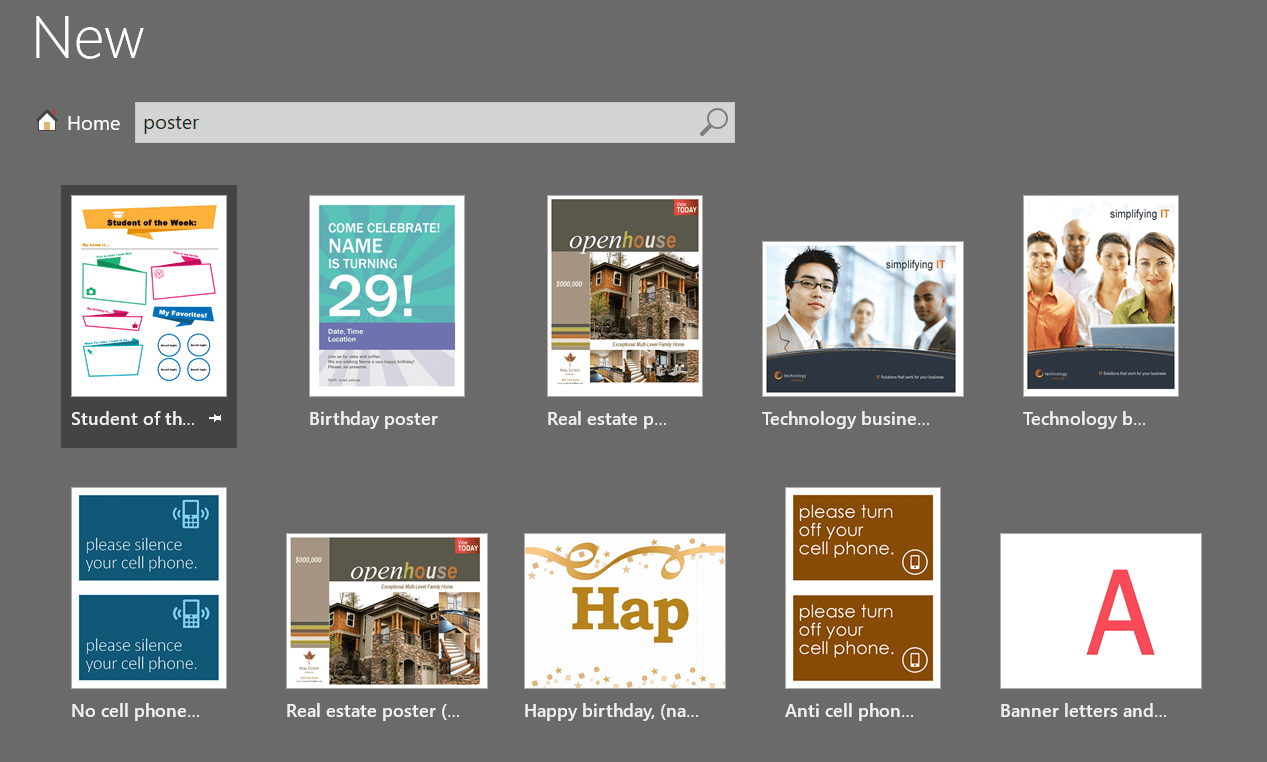
Microsoft Publisher is a user-friendly desktop publishing software that’s perfect for creating posters, flyers, and brochures.
- To create a poster in Microsoft Publisher, start by opening the program.
- Choose a template from the extensive library of design templates.
- Customize the template by adding images, text, and other design elements.
- Use the drag-and-drop interface to move objects around and adjust their size and position.
How to Create a Poster on Microsoft Publisher
Creating a poster on Microsoft Publisher is easy. Here are the steps:
- Open Microsoft Publisher and choose a template from the library of design templates.
- Customize the template by adding images, text, and other design elements.
- Use the drag-and-drop interface to move objects around and adjust their size and position.
- Once you’re happy with your design, click on the “File” menu to save it as a PDF or JPEG file.
4. Visaprint
Visaprint is an online printing service that offers a wide range of templates and design tools.
- To create a poster using Visaprint, start by choosing a template from their library.
- Customize the template by adding images, text, and other design elements.
- Use the drag-and-drop interface to move objects around and adjust their size and position.
How to Create a Poster on Visaprint
Creating a poster on Visaprint is easy. Here are the steps:
- Choose a template from Visaprint’s library of design templates.
- Customize the template by adding images, text, and other design elements.
- Use the drag-and-drop interface to move objects around and adjust their size and position.
- Once you’re happy with your design, click on the “Order” button to print your poster.
Tips And Tricks For Creating a Poster
Now that we’ve covered the basics of creating a poster using various online services and software, let’s talk about some tips and tricks for making your poster stand out:
- Use high-quality images that are relevant to your message.
- Keep your design clean and simple by avoiding clutter and distractions.
- Experiment with different colors and fonts to add visual interest.
- Don’t be afraid to try new things and take risks!
Conclusion
Creating a poster is an art form that requires creativity, patience, and practice. By using the right tools and following these steps, you can create a stunning poster that will grab attention and communicate your message effectively.
Remember, the key to creating a great poster is to keep it simple, use high-quality images, and experiment with different colors and fonts.
We hope this article has provided you with valuable insights and tips for creating a poster. Happy designing!
Faqs
Here are some frequently asked questions about creating a poster:
Q: What software should I use to create a poster?
A: There are many options available, including Canva, Adobe Illustrator, Microsoft Publisher, and Visaprint.
Q: How do I choose the right template for my poster?
A: Choose a template that aligns with your message and audience. Consider factors like color scheme, font style, and image selection.
Q: What’s the best way to add images to my poster?
A: Use high-quality images that are relevant to your message. Experiment with different layouts and sizes to find the perfect fit.
Q: How do I make sure my poster is easy to read?
A: Keep your design clean and simple by avoiding clutter and distractions. Use clear fonts and color schemes that contrast with each other.
Q: Can I print my poster myself, or should I use a printing service?
A: Both options are viable! If you have access to a printer and paper, go ahead and print it yourself. Otherwise, consider using a printing service like Visaprint.
Q: How do I know if my poster is effective?
A: Look for signs of engagement, such as comments, likes, or shares on social media. Measure the success of your poster by tracking its performance over time.
References
- Canva: Www.Canva.Com
- Adobe Illustrator: Www.Adobe.Com/products/illustrator
- Microsoft Publisher: Www.Microsoft.Com/en-us/publisher
- Visaprint: Www.Visaprint.Com


