
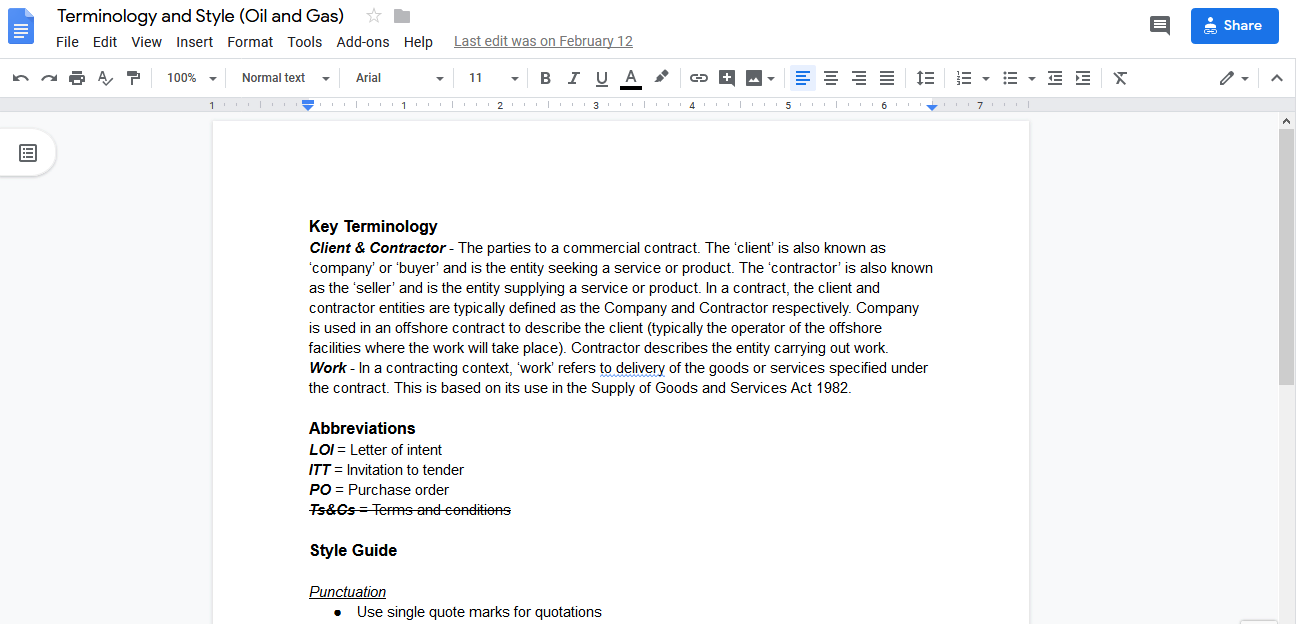
How to Get Microsoft Word Free: A Step-by-step Guide
Are you looking for a way to get Microsoft Word without paying a dime? Look no further! In this article, we will show you how to download and install Microsoft Word free on your PC, Mac, Android device, iPhone, or iPad. We’ll also cover the online version of the service.
What is Microsoft Word Free?
Before we dive into the steps, let’s first understand what Microsoft Word Free is. Microsoft Word Free is a trial version of the popular word processing software that allows you to use all the features of the full version for 30 days without any obligation to purchase it. After the trial period expires, you’ll need to subscribe to Microsoft 365 or purchase a license to continue using the software.
Downloading And Installing Microsoft Word Free on PC
To download and install Microsoft Word Free on your PC running Windows 10 or Windows 11, follow these steps:
- Open The Microsoft Store: Go to the Microsoft Store app on your computer.
- Search For Microsoft Word: Type “Microsoft Word” in the search bar and press Enter.
- Select The Trial Version: Choose the trial version of Microsoft Word from the search results.
- Click Get: Click the “Get” button to start the download process.
- Wait For The Download to Complete: Wait for the download to complete, which may take a few minutes depending on your internet connection speed.
- Run The Installer: Once the download is complete, run the installer and follow the prompts to install Microsoft Word.
- Activate Your Account: When prompted, activate your Microsoft account to access the software.
Downloading And Installing Microsoft Word Free on Mac
To download and install Microsoft Word Free on your Mac running macOS, follow these steps:
- Open The Mac App Store: Go to the Mac App Store app on your computer.
- Search For Microsoft Word: Type “Microsoft Word” in the search bar and press Enter.
- Select The Trial Version: Choose the trial version of Microsoft Word from the search results.
- Click Get: Click the “Get” button to start the download process.
- Wait For The Download to Complete: Wait for the download to complete, which may take a few minutes depending on your internet connection speed.
- Install Microsoft Word: Once the download is complete, install Microsoft Word by following the prompts.
- Activate Your Account: When prompted, activate your Microsoft account to access the software.
Downloading And Installing Microsoft Word Free on Android
To download and install Microsoft Word Free on your Android device, follow these steps:
- Open The Play Store: Go to the Google Play Store app on your device.
- Search For Microsoft Word: Type “Microsoft Word” in the search bar and press Enter.
- Select The Trial Version: Choose the trial version of Microsoft Word from the search results.
- Click Install: Click the “Install” button to start the download process.
- Wait For The Download to Complete: Wait for the download to complete, which may take a few minutes depending on your internet connection speed.
- Run Microsoft Word: Once the download is complete, run Microsoft Word by tapping on its icon.
Downloading And Installing Microsoft Word Free on Iphone or Ipad
To download and install Microsoft Word Free on your iPhone or iPad running iOS or iPadOS, follow these steps:
- Open The App Store: Go to the App Store app on your device.
- Search For Microsoft Word: Type “Microsoft Word” in the search bar and press Enter.
- Select The Trial Version: Choose the trial version of Microsoft Word from the search results.
- Click Get: Click the “Get” button to start the download process.
- Wait For The Download to Complete: Wait for the download to complete, which may take a few minutes depending on your internet connection speed.
- Run Microsoft Word: Once the download is complete, run Microsoft Word by tapping on its icon.
Using Microsoft Word Free Online
To use Microsoft Word Free online, follow these steps:
- Open Your Browser: Open your preferred browser (e.G., Google Chrome, Mozilla Firefox).
- Go to Office.Com: Go to office.Com and sign in with your Microsoft account.
- Select Microsoft Word: Choose Microsoft Word from the list of available apps.
- Create a New Document: Click on the “New” button to create a new document.
- Edit Your Document: Use Microsoft Word’s online editor to edit your document.
Conclusion
In conclusion, getting Microsoft Word free is easier than you think! By following these step-by-step guides, you can download and install Microsoft Word Free on your PC, Mac, Android device, iPhone, or iPad. You can also use the online version of the service without any hassle.
Frequently Asked Questions (FAQs)
- Q: Is Microsoft Word Free a Full-featured Version?
A: Yes, Microsoft Word Free is a fully featured version of the software that allows you to use all its features for 30 days. - Q: Do I Need to Purchase Microsoft 365 or a License After The Trial Period Expires?
A: Yes, if you want to continue using Microsoft Word after the trial period expires, you’ll need to subscribe to Microsoft 365 or purchase a license. - Q: Can I Use Microsoft Word Free Online?
A: Yes, you can use Microsoft Word Free online by signing in with your Microsoft account at office.Com. - Q: Is Microsoft Word Free Compatible With my Device?
A: Microsoft Word Free is compatible with Windows 10, Windows 11, macOS, Android devices, iPhones, and iPads. - Q: Can I Download Microsoft Word Free on Multiple Devices?
A: Yes, you can download Microsoft Word Free on multiple devices, but you’ll need to activate your Microsoft account each time you use the software. - Q: What Happens if I Don’t Activate my Microsoft Account After Installing Microsoft Word Free?
A: If you don’t activate your Microsoft account, you won’t be able to access some features of Microsoft Word.
We hope this guide has been helpful in answering your questions about getting Microsoft Word free!


