
How to Set Up Dns: A Step-by-step Guide
Are you tired of slow internet speeds and difficulty accessing certain websites? Do you want to know how to set up a faster and more efficient way to connect to the internet? Look no further! In this article, we will guide you through the process of setting up DNS (Domain Name System) on your computer, smartphone, or tablet.
What is Dns?
DNS is like a translator that helps your device connect to the internet by converting human-readable domain names into numerical IP addresses. Think of it as a phonebook for the internet! When you type in a website’s address, DNS translates it into an IP address that your device can understand.
Why Do I Need to Set Up Dns?
Setting up DNS can improve your internet speeds and make it easier to access certain websites. By using a faster DNS service, you can reduce the time it takes for your device to connect to the internet and load websites.
Types of Dns Services
There are several types of DNS services available, including:
- Google Public Dns: A fast and reliable DNS service provided by Google.
- Cloudflare Dns: A secure and high-performance DNS service provided by Cloudflare.
- Opendns: A free and open-source DNS service that offers advanced security features.
How to Set Up Dns on Your Computer
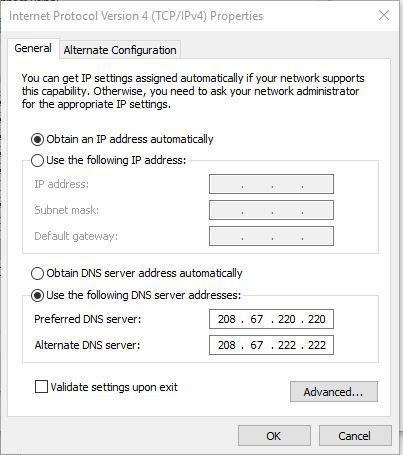
Setting up DNS on your computer is a relatively simple process. Here’s how:
- Click on The Start Button: On Windows 10, click on the Start button and select Settings.
- Go to Network & Internet: In the Settings window, go to Network & Internet.
- Select Wi-fi or Ethernet: Select the network you want to connect to (Wi-Fi or Ethernet).
- Click on Properties: Click on the Properties button next to the network name.
- Click on Dns: Scroll down and click on DNS.
- Enter Your Preferred Dns Server Address: Enter the IP address of your preferred DNS server (e.G., 8.8.8.8 For Google Public DNS).
- Click OK: Click OK to save the changes.
How to Set Up Dns on Your Smartphone or Tablet
Setting up DNS on your smartphone or tablet is a bit more involved, but still relatively simple. Here’s how:
- Go to Settings: Go to Settings on your device.
- Select Wi-fi: Select the network you want to connect to (Wi-Fi).
- Click on Advanced Options: Click on Advanced options next to the network name.
- Scroll Down And Select Dns: Scroll down and select DNS.
- Enter Your Preferred Dns Server Address: Enter the IP address of your preferred DNS server (e.G., 8.8.8.8 For Google Public DNS).
- Click OK: Click OK to save the changes.
How to Set Up Dns on Your Modem
Setting up DNS on your modem is a bit more involved, but still relatively simple. Here’s how:
- Connect to Your Modem: Connect to your modem using a web browser.
- Enter Your Login Credentials: Enter your login credentials (usually admin/admin).
- Click on Advanced Options: Click on Advanced options next to the network name.
- Scroll Down And Select Dns: Scroll down and select DNS.
- Enter Your Preferred Dns Server Address: Enter the IP address of your preferred DNS server (e.G., 8.8.8.8 For Google Public DNS).
- Click OK: Click OK to save the changes.
Conclusion
Setting up DNS on your computer, smartphone, or tablet can improve your internet speeds and make it easier to access certain websites. By using a faster DNS service, you can reduce the time it takes for your device to connect to the internet and load websites. We hope this guide has been helpful in setting up DNS on your device!
Frequently Asked Questions (FAQs)
- Q: What is Dns?
A: DNS stands for Domain Name System and is like a translator that helps your device connect to the internet by converting human-readable domain names into numerical IP addresses. - Q: Why do I Need to Set up Dns?
A: Setting up DNS can improve your internet speeds and make it easier to access certain websites. - Q: What Are Some Popular Dns Services?
A: Some popular DNS services include Google Public DNS, Cloudflare DNS, and OpenDNS. - Q: How do I Set up Dns on my Computer?
A: To set up DNS on your computer, go to Settings > Network & Internet > Wi-Fi or Ethernet > Properties > DNS > Enter your preferred DNS server address > Click OK. - Q: How do I Set up Dns on my Smartphone or Tablet?
A: To set up DNS on your smartphone or tablet, go to Settings > Wi-Fi > Advanced options > DNS > Enter your preferred DNS server address > Click OK. - Q: How do I Set up Dns on my Modem?
A: To set up DNS on your modem, connect to your modem using a web browser, enter your login credentials, click on Advanced options next to the network name, scroll down and select DNS, enter your preferred DNS server address, and click OK. - Q: Can I Change my Dns Settings at Any Time?
A: Yes, you can change your DNS settings at any time by following the same steps as above.
We hope this guide has been helpful! If you have any further questions or need assistance with setting up DNS on your device, feel free to ask.


