
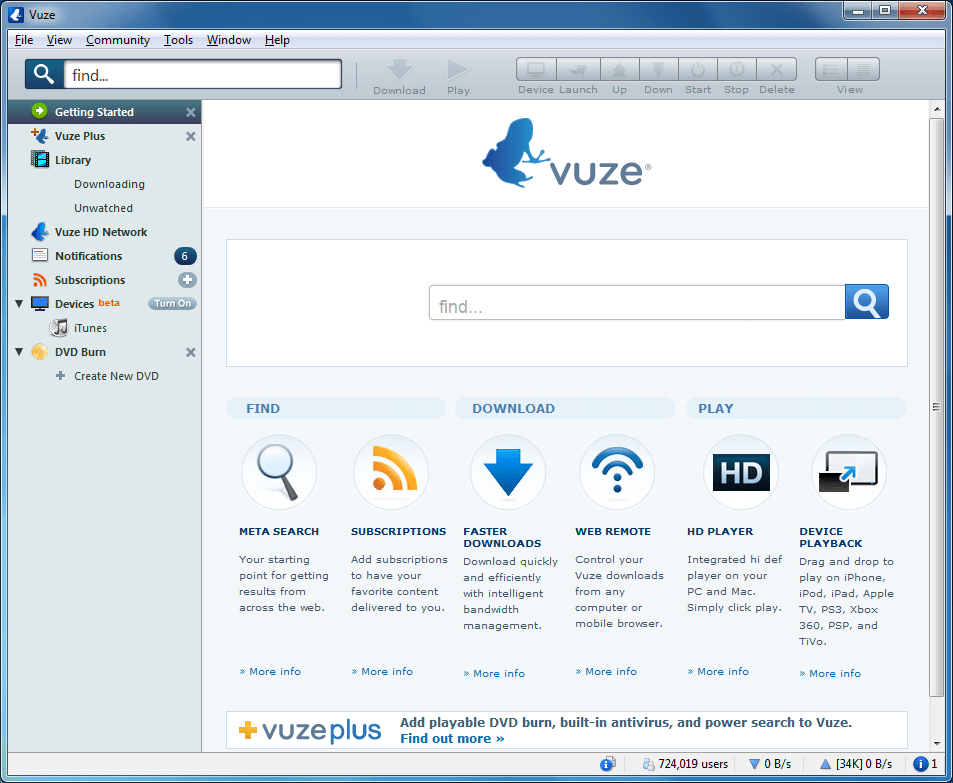
The Ultimate Guide to Vuze: A Free Software For Downloading Torrents
Are you tired of searching for ways to download your favorite torrent files? Look no further! In this article, we will explore the world of Vuze, a free software that allows you to search, download, and play back torrents with ease.
What is Vuze?
Vuze is a free and open-source BitTorrent client that not only allows you to download torrents but also provides a user-friendly interface for visualizing video in HD, searching for torrents, and transferring multimedia files on mobile devices. Despite its many features, Vuze has an incredibly simple and intuitive interface that can be managed even by those who are not experts in computer technology.
How to Download And Install Vuze
Downloading and installing Vuze is a breeze! Simply follow these steps:
- Visit The Vuze Website: Head over to the Vuze website and click on the “Vuze Free Download” button.
- Download The Installer: The Vuze installer will be downloaded onto your PC. Once the download is complete, open the file by double-clicking on it.
- Follow The Installation Prompts: In the window that opens, click on “Yes” to authorize the installation of Vuze on Windows 7 and Vista. If required, you may need to download and install the Java software. Accept the license terms and click on “Decline” to avoid installing any additional toolbars.
- Launch Vuze: Once the installation is complete, launch Vuze by clicking on the icon.
Setting Up Vuze
After launching Vuze, you will be prompted to perform a connection test to maximize your download speed. Simply click on the “Continuous” button and wait for the test to complete. Accept the automatic configuration of the connection by clicking on “Apply”.
Using Vuze to Search And Download Torrents
To search and download a torrent file with Vuze, follow these steps:
- Search For The Torrent: Type in the name of the torrent you’re looking for in the search bar located at the top right corner of the screen.
- Browse Through The Results: The search results will be displayed in the Meta Search section. Browse through the outcomes and click on the voice “Rank” to see which torrents have a higher score.
- Initiate The Download: Click on the blue button with the white arrow icon beside the Rank of each torrent found, then click on “Continuous downloading”.
Managing Your Downloads
Once your downloads are complete, you can access them in the Bookmarks section within Vuze. To visualize video files or listen to audio files, simply double-click on them.
Accessing HD Podcasts With Vuze
Vuze also provides access to a series of handpicked podcasts with video in high definition that are ready to be downloaded and viewed for free. Simply click on the orange button present under each podcast title to select and subscribe to it. New episodes will be automatically downloaded onto your PC, allowing you to watch them at any time.
Transferring Video Files to Your Smartphone
Want to transfer video files from Vuze to your smartphone? Click on the “Turn on” button beside the voice “DEVICE PLAYBACK” in the left-hand sidebar and follow the simple guided procedure to install the necessary plug-in. Once installed, connect your phone to your computer, drag the elements you want to transfer onto the icon relative to your smartphone, and voilà! Your video files will be transferred to your smartphone.
Conclusion
In conclusion, Vuze is a free software that offers a wide range of features for searching, downloading, and playing back torrents. Its user-friendly interface makes it easy to use even for those who are not experts in computer technology. Whether you’re looking to transfer multimedia files to your smartphone or access HD podcasts, Vuze has got you covered.


