
How to Close Your Facebook Account: A Step-by-step Guide
Are you tired of Facebook and want to delete your account? Look no further! Closing your Facebook account can be a bit tricky, but don’t worry, we’ve got you covered. In this article, we’ll guide you through the process of closing your Facebook account temporarily or permanently.
Why Close Your Facebook Account?
Before we dive into the steps, let’s talk about why you might want to close your Facebook account. Maybe you’re tired of the drama and negativity on the platform, or perhaps you’ve realized that social media isn’t for you. Whatever the reason, closing your account is a straightforward process.
Closing Your Facebook Account Temporarily
If you just need a break from Facebook, closing your account temporarily might be the way to go. This way, you can take some time off without deleting your account permanently. Here’s how:
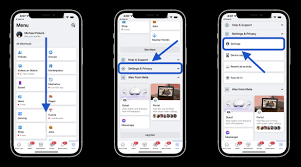
How to Close Facebook Temporarily on Mobile
- Open The Facebook App: Launch the Facebook app on your mobile device.
- Tap on The Menu Icon: Tap on the three horizontal lines (☰) in the top right corner of the screen.
- Select Settings And Privacy: Choose “Settings and Privacy” from the menu.
- Click on Account Management: Select “Account Management” from the settings page.
- Choose Deactivate or Eliminate: Tap on “Deactivate or Eliminate” and select “Deactivate my account.”
- Confirm Your Choice: Confirm that you want to deactivate your account by selecting “Deactivate my account” again.
How to Close Facebook Temporarily on Desktop
- Log in to Facebook: Log in to Facebook on your desktop.
- Click on The Three Dots: Click on the three dots (⋯) next to your profile picture.
- Select Settings And Privacy: Choose “Settings and Privacy” from the dropdown menu.
- Click on Account Management: Select “Account Management” from the settings page.
- Choose Deactivate or Eliminate: Click on “Deactivate or Eliminate” and select “Deactivate my account.”
- Confirm Your Choice: Confirm that you want to deactivate your account by selecting “Deactivate my account” again.
Closing Your Facebook Account Permanently
If you’re sure you never want to use Facebook again, closing your account permanently is the way to go. Here’s how:
How to Close Facebook Permanently on Mobile
- Open The Facebook App: Launch the Facebook app on your mobile device.
- Tap on The Menu Icon: Tap on the three horizontal lines (☰) in the top right corner of the screen.
- Select Settings And Privacy: Choose “Settings and Privacy” from the menu.
- Click on Account Management: Select “Account Management” from the settings page.
- Choose Delete my Account: Tap on “Delete my account.”
- Confirm Your Choice: Confirm that you want to delete your account by selecting “Delete my account” again.
How to Close Facebook Permanently on Desktop
- Log in to Facebook: Log in to Facebook on your desktop.
- Click on The Three Dots: Click on the three dots (⋯) next to your profile picture.
- Select Settings And Privacy: Choose “Settings and Privacy” from the dropdown menu.
- Click on Account Management: Select “Account Management” from the settings page.
- Choose Delete my Account: Click on “Delete my account.”
- Confirm Your Choice: Confirm that you want to delete your account by selecting “Delete my account” again.
Closing a Friend’s Facebook Account
If a friend has passed away, closing their Facebook account can be a bit tricky. Here’s what you need to do:
- Contact Facebook Support: Fill out the form on Facebook’s help center page.
- Provide Necessary Information: Provide your friend’s name, email address, and profile URL.
- Attach Required Documents: Attach any necessary documents, such as a death certificate.
Closing Facebook Accounts on Multiple Devices
If you have multiple devices connected to your Facebook account, closing the account will automatically log you out of all those devices. Here’s how to do it:
- Open The Facebook App: Launch the Facebook app on one of your devices.
- Tap on The Menu Icon: Tap on the three horizontal lines (☰) in the top right corner of the screen.
- Select Settings And Privacy: Choose “Settings and Privacy” from the menu.
- Click on Account Management: Select “Account Management” from the settings page.
- Choose Display Devices: Tap on “Display devices.”
- Log Out of Individual Devices: Tap on each device to log out.
Conclusion
Closing your Facebook account can be a bit tricky, but with this guide, you should be able to do it easily. Remember that closing your account is reversible within 30 days, so if you change your mind, you can reactivate your account.
Faqs
- How Long Does it Take to Close my Facebook Account?
It usually takes a few minutes to close your Facebook account. - Will Closing my Facebook Account Delete All my Data?
Yes, closing your Facebook account will delete all your data, including posts, photos, and videos. - Can I Reactivate my Facebook Account After Deleting It?
No, you cannot reactivate your Facebook account once it’s been deleted permanently. - How do I Close a Friend’s Facebook Account if They’ve Passed Away?
You can contact Facebook support to request that their account be closed. - Will Closing my Facebook Account Log me Out of All Devices Connected to my Account?
Yes, closing your Facebook account will automatically log you out of all devices connected to your account. - Can I Delete my Facebook Account Using a Link?
Yes, you can delete your Facebook account using a link provided by Facebook. - How do I Know if my Friend’s Facebook Account Has Been Closed?
You’ll receive an email from Facebook confirming that their account has been closed. - Will Closing my Facebook Account Affect my Ability to Use Other Facebook-owned Services?
Closing your Facebook account will not affect your ability to use other Facebook-owned services, such as Instagram or WhatsApp.


