
How to Create a New Google Account: A Step-by-step Guide
As we navigate the digital world, having a Google account has become an essential tool for various purposes, from personal use to professional applications. However, sometimes you may need to create a new account for specific reasons, such as work or school projects. In this article, we will guide you through the process of creating a new Google account on different devices and platforms.
Why Create a New Google Account?
Before diving into the step-by-step instructions, let’s understand why you might want to create a new Google account:
- To separate your personal and professional life online
- For work or school projects that require a dedicated email address
- To access specific Google services without mixing them with your main account
Creating a New Google Account on PC And Mac
If you’re using a computer, follow these steps to create a new Google account:
- Access The Google Website: Open a web browser and navigate to www.Google.Com.
- Click on “Create Account”: You’ll find this option in the top right corner of the page.
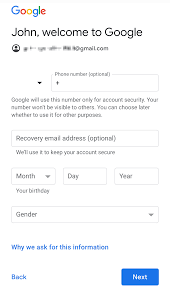
- Fill Out The Form: Provide your name, surname, given name, and gender.
- Choose a Username: Select a unique username that will be associated with your new Google account.
- Set up Your Password: Create a strong password to secure your account.
- Verify Your Phone Number: Enter your phone number to receive a verification code via SMS.
- Create a Recovery Email Address: Set up a secondary email address for account recovery purposes.
- Accept The Terms of Service: Read and agree to Google’s terms of service.
Creating a New Google Account on Android
If you’re using an Android device, follow these steps:
- Access The Settings App: Find the “Settings” icon on your device.
- Click on “Account”: Tap on this option to access your account settings.
- Select “Add Account”: Choose Google as the type of account you want to add.
- Choose “Create a New Account”: Select this option to create a new Google account.
- Fill Out The Form: Provide your name, surname, given name, and gender.
- Set up Your Password: Create a strong password to secure your account.
- Verify Your Phone Number: Enter your phone number to receive a verification code via SMS.
Creating a New Google Account on Iphone or Ipad
If you’re using an Apple device, follow these steps:
- Access The Settings App: Find the “Settings” icon on your device.
- Click on “Mail”: Tap on this option to access your email settings.
- Select “Add Account”: Choose Google as the type of account you want to add.
- Choose “Create a New Account”: Select this option to create a new Google account.
- Fill Out The Form: Provide your name, surname, given name, and gender.
- Set up Your Password: Create a strong password to secure your account.
Creating a New Google Account Without Gmail
Yes, you can create a Google account without using a Gmail address! Follow these steps:
- Access The Google Website: Open a web browser and navigate to www.Google.Com.
- Click on “Create Account”: You’ll find this option in the top right corner of the page.
- Fill Out The Form: Provide your name, surname, given name, and gender.
- Choose a Username: Select a unique username that will be associated with your new Google account.
- Set up Your Password: Create a strong password to secure your account.
Creating a New Google Account For Minors
If you’re creating an account for a minor (under 18), follow these steps:
- Access The Google Website: Open a web browser and navigate to www.Google.Com.
- Click on “Create Account”: You’ll find this option in the top right corner of the page.
- Choose “For my Son”: Select this option to create an account for a minor.
- Fill Out The Form: Provide your name, surname, given name, and gender.
- Set up Your Password: Create a strong password to secure your account.
Creating a New Google Account For School
If you’re creating an account for school purposes, follow these steps:
- Access The Google Website: Open a web browser and navigate to www.Google.Com.
- Click on “Create Account”: You’ll find this option in the top right corner of the page.
- Choose “For my Son”: Select this option to create an account for school purposes.
- Fill Out The Form: Provide your name, surname, given name, and gender.
- Set up Your Password: Create a strong password to secure your account.
Conclusion
Creating a new Google account is a straightforward process that can be completed on various devices and platforms. Whether you’re looking to separate your personal and professional life online or create an account for work or school purposes, this guide has provided you with the necessary steps to follow. Remember to always use strong passwords and verify your phone number to secure your new Google account.
Frequently Asked Questions (FAQs)
- Q: Can I Create a New Google Account Without Using Gmail?
A: Yes, you can create a Google account without using a Gmail address. - Q: How do I Create a New Google Account For Minors?
A: Follow the steps outlined in this article to create an account for a minor (under 18). - Q: Can I Use my Existing Phone Number to Create a New Google Account?
A: Yes, you can use your existing phone number to verify your account. - Q: How do I Recover my Lost or Forgotten Password?
A: You can recover your lost password by following the instructions on the Google website. - Q: Can I Change my Username After Creating a New Google Account?
A: Yes, you can change your username after creating an account by following the instructions on the Google website. - Q: How do I Know if my Google Account is Secure?
A: To ensure your account security, always use strong passwords and verify your phone number. -
Q: Can I Access Specific Google Services Without Creating a New Account?
A: Yes, you can access some Google services without creating an account, but certain features may require a login to access them fully. -
Q: How do I Delete my Google Account if I no Longer Want It?
A: If you no longer wish to use your Google account, you can follow the steps outlined on the Google website to delete it.


