
Connecting Your Iphone to The Internet: A Step-by-step Guide
Are you struggling to connect your iPhone to the internet? Look no further! In this article, we will guide you through the process of connecting your iPhone to the internet using Wi-Fi, cellular data, and even a PC.
Why Connect My Iphone to The Internet?
Before we dive into the nitty-gritty details, let’s quickly cover why you might want to connect your iPhone to the internet. With an internet connection, you can:
- Browse the web and access online content
- Check your email and social media accounts
- Stream music and videos on services like Spotify and Netflix
- Use online apps and games
Connecting Your Iphone to Wi-fi
To connect your iPhone to Wi-Fi, follow these steps:
- Go to Settings: Tap on the “Settings” icon, which looks like a gear.
- Tap on Wi-fi: Select “Wi-Fi” from the list of options.
- Turn On Wi-fi: Toggle the switch next to “Wi-Fi” to turn it on.
- Select Your Network: Choose your network from the list of available networks.
- Enter Your Password: Enter the password for your network (if required).
- Tap Connect: Tap the “Connect” button to connect to your network.
Configuring Advanced Wi-fi Settings
If you want to customize your Wi-Fi settings, follow these additional steps:
- Go to Settings: Tap on the “Settings” icon.
- Tap on Wi-fi: Select “Wi-Fi” from the list of options.
- Turn On Wi-fi: Toggle the switch next to “Wi-Fi” to turn it on.
- Select Your Network: Choose your network from the list of available networks.
- Tap The ‘i’ Icon: Tap the “i” icon next to your network’s name.
- Configure Advanced Settings: Adjust settings such as DNS, IP address, and more.
Connecting Your Iphone to Cellular Data
To connect your iPhone to cellular data, follow these steps:
- Go to Settings: Tap on the “Settings” icon.
- Tap on Cellular: Select “Cellular” from the list of options.
- Turn On Cellular Data: Toggle the switch next to “Cellular Data” to turn it on.
- Select Your Network: Choose your network from the list of available networks.
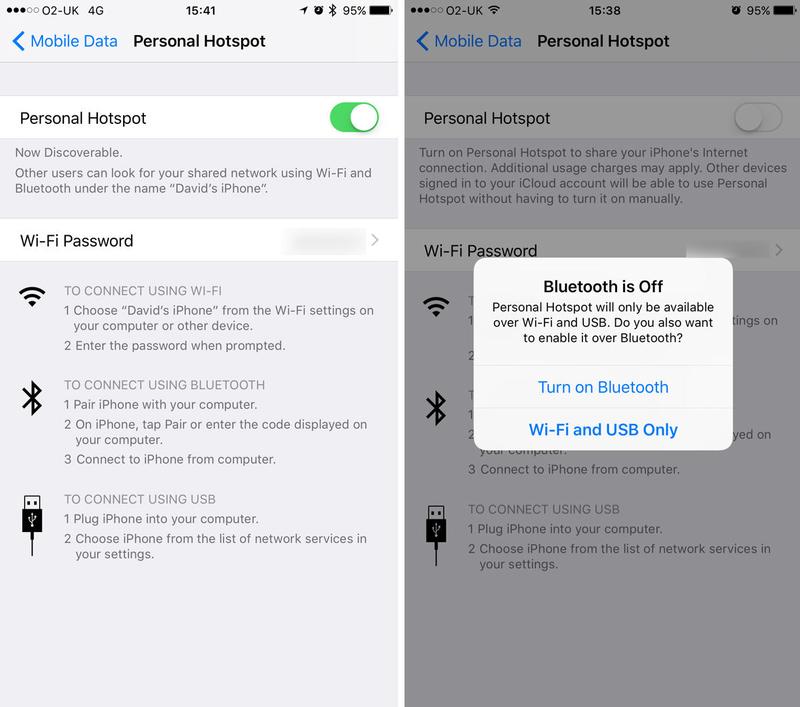
Using Your Iphone as a Modem
If you want to use your iPhone as a modem to connect other devices to the internet, follow these steps:
- Go to Settings: Tap on the “Settings” icon.
- Tap on Personal Hotspot: Select “Personal Hotspot” from the list of options.
- Turn On Personal Hotspot: Toggle the switch next to “Personal Hotspot” to turn it on.
- Choose Your Connection Method: Choose how you want to connect devices (via Wi-Fi, Bluetooth, or cable).
Connecting Your Iphone to a PC
To connect your iPhone to a PC using Wi-Fi, follow these steps:
- Go to Settings: Tap on the “Settings” icon.
- Tap on General: Select “General” from the list of options.
- Tap on About: Select “About” from the list of options.
- Tap on Share My Connection: Select “Share My Connection” from the list of options.
- Configure Your Pc’s Hotspot: Configure your PC’s hotspot settings to share your internet connection.
Conclusion
Connecting your iPhone to the internet is a straightforward process that can be completed in just a few steps. Whether you’re using Wi-Fi, cellular data, or even a PC, we’ve got you covered. Remember to always configure advanced settings and customize your network preferences for optimal performance.
Frequently Asked Questions (FAQs)
- Q: How do I Connect my Iphone to The Internet?
A: To connect your iPhone to the internet, go to Settings > Wi-Fi or Cellular. - Q: What is The Difference Between Wi-fi And Cellular Data?
A: Wi-Fi is a wireless network that uses radio waves to connect devices, while cellular data uses mobile networks (3G/4G/LTE) to connect devices. - Q: How do I Configure Advanced Wi-fi Settings on my Iphone?
A: Go to Settings > Wi-Fi and tap the “i” icon next to your network’s name to adjust settings such as DNS, IP address, and more. - Q: Can I Use my Iphone as a Modem to Connect Other Devices to The Internet?
A: Yes, you can use your iPhone as a modem by enabling Personal Hotspot in Settings > Cellular. - Q: How do I Connect my Iphone to a PC Using Wi-fi?
A: Go to Settings > General > About and tap on Share My Connection to configure your PC’s hotspot settings. - Q: What is The Maximum Number of Devices That Can be Connected to my Iphone’s Personal Hotspot?
A: Up to 5 devices can be connected to your iPhone’s Personal Hotspot. - Q: Can I Use my Iphone as a Modem With Macos or Ios 8.1 Or Later?
A: Yes, you can use your iPhone as a modem with macOS or iOS 8.1 Or later. - Q: How do I Enable Personal Hotspot on my Iphone?
A: Go to Settings > Cellular and toggle the switch next to “Personal Hotspot” to turn it on.
Note: The information provided in this article is accurate at the time of writing, but may be subject to change as new iOS or macOS versions are released. Always refer to Apple’s official documentation for the most up-to-date information.


