
Transforming Wma to Mp3 With Itunes: A Step-by-step Guide
Are you tired of dealing with incompatible audio formats on your computer? Do you want to convert WMA files to MP3 format using the popular media player, iTunes? Look no further! In this article, we’ll guide you through a simple and straightforward process to transform WMA to MP3 with iTunes.
What is Wma And Why Convert It?
WMA (Windows Media Audio) is a proprietary audio format developed by Microsoft. While it’s widely used on PCs, it may not be compatible with other devices or media players. Converting WMA files to MP3 format ensures that they can be played on a broader range of devices and platforms.
Why Use Itunes?
ITunes is a popular media player that comes pre-installed on Macs. While it’s not the only software capable of converting audio formats, its user-friendly interface makes it an ideal choice for this task.
Transforming Wma to Mp3 With Itunes on PC
If you’re using a PC and have installed iTunes, follow these steps:
Step 1: Open Itunes
- Click on the Start menu and type “iTunes” in the search bar.
- Select iTunes from the list of results.
- Alternatively, double-click on the iTunes icon on your desktop.
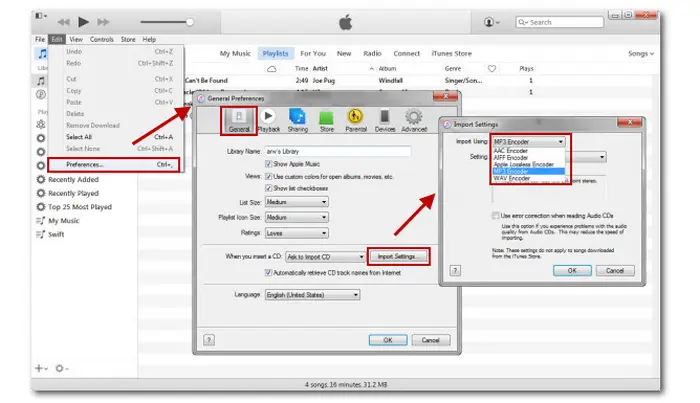
Step 2: Access Preferences
- In the top-left corner of the iTunes window, click on the “Edit” menu.
- Select “Preferences” from the dropdown list.
- Click on the “General” tab and then select the “Settings…” Button.
Step 3: Choose Mp3 as Output Format
- In the “Settings for Importing” section, choose MP3 as the output format.
- Select the desired quality settings for your converted files.
Step 4: Add Wma Files to Itunes
- Click on the “Music” tab in the top navigation bar.
- Select the “Add File to Library…” Option from the dropdown list.
- Choose the WMA file you want to convert and click “Open.”
Step 5: Convert Wma to Mp3
- Right-click (or Ctrl+click) on the added WMA file.
- From the context menu, select “Create MP3 Version.”
- ITunes will start converting the WMA file to MP3 format.
Transforming Wma to Mp3 With Itunes on Mac
If you’re using a Mac and have installed iTunes, follow these steps:
Step 1: Download Mediahuman Audio Converter
- Visit the MediaHuman website and download the free audio converter software.
- Follow the installation instructions to install the software on your Mac.
Step 2: Convert Wma to Mp3 With Mediahuman Audio Converter
- Open MediaHuman Audio Converter and drag the WMA file you want to convert into the application window.
- In the “Format” dropdown menu, select MP3 as the output format.
- Choose the desired quality settings for your converted files.
Step 3: Import Converted Files to Itunes
- Once the conversion process is complete, click on the “iTunes” icon in the top-left corner of the MediaHuman Audio Converter window.
- Select “Import songs into iTunes…” From the dropdown list.
- Choose the converted MP3 file and click “Open.”
Step 4: Add Converted Files to Itunes Library
- Click on the “Music” tab in the top navigation bar.
- Select the “Add File to Library…” Option from the dropdown list.
- Choose the converted MP3 file and click “Open.”
Conclusion
Converting WMA files to MP3 format with iTunes is a straightforward process that ensures compatibility with a broader range of devices and platforms. By following these step-by-step instructions, you can easily transform your WMA files into MP3 format using either PC or Mac.
Frequently Asked Questions (FAQs)
- What is The Difference Between Wma And Mp3 Formats?
WMA (Windows Media Audio) is a proprietary audio format developed by Microsoft, while MP3 (MPEG Audio Layer 3) is an open-standard audio format widely used on various devices.
- Why Convert Wma Files to Mp3 Format?
Converting WMA files to MP3 format ensures compatibility with a broader range of devices and platforms, making it easier to share and play your audio files.
- Can I Use Other Software to Convert Wma Files?
Yes, there are other software options available for converting WMA files to MP3 format, such as MediaHuman Audio Converter or online conversion tools.
- How do I Ensure The Quality of my Converted Files?
Choose the desired quality settings when converting your WMA files to MP3 format using iTunes or MediaHuman Audio Converter to ensure high-quality output.
- Can I Convert Multiple Wma Files at Once?
Yes, you can convert multiple WMA files at once by selecting them in the iTunes or MediaHuman Audio Converter window and following the conversion process.
- How Long Does The Conversion Process Take?
The conversion time depends on the size of your WMA file and the processing power of your computer. Generally, converting a single WMA file takes around 1-2 minutes.
- Can I Convert Wma Files to Other Formats Besides Mp3?
Yes, you can convert WMA files to other audio formats using iTunes or MediaHuman Audio Converter, such as AAC or WAV.
- Is There Any Risk of Data Loss During The Conversion Process?
No, the conversion process should not result in any data loss. However, it’s always a good idea to make sure that you have backed up your files before converting them.


