
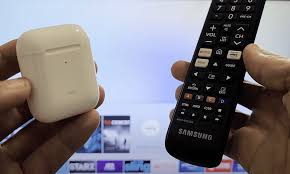
How to Connect Airpods to Your Tv: A Step-by-step Guide
Are you tired of using separate speakers or headphones while watching your favorite shows or movies on TV? Do you want to experience immersive audio without the hassle of cables? Look no further! Connecting your AirPods to your TV is a simple and convenient way to enjoy high-quality sound. In this article, we’ll guide you through the process of connecting your AirPods to your TV, whether it’s a Smart TV or an Apple TV.
Information Preliminaries
Before we dive into the instructions, let’s make sure you’re aware of some essential information. AirPods are designed to work seamlessly with Apple devices, such as iPhones and iPads. When connected to these devices, AirPods can take advantage of their advanced features and integration with the operating system. However, when using AirPods with non-Apple devices, such as TVs, you may need to manually configure the settings.
Connecting Airpods to a Smart TV
If you want to connect your AirPods to a Smart TV, follow these steps:
- Ensure Your Smart TV Supports Bluetooth: Not all Smart TVs have built-in Bluetooth capabilities. Check your TV’s specifications or manual to confirm if it has this feature.
- Put Your Airpods in Pairing Mode: Open the case of your AirPods and press the small button on the back until the light flashes white. This indicates that your AirPods are ready for pairing.
- Select Bluetooth Settings on Your TV: Go to your Smart TV’s menu and look for the Bluetooth settings. Select this option and follow the prompts to enable Bluetooth.
- Search For Available Devices: Your TV should now search for nearby Bluetooth devices. When it finds your AirPods, select them from the list of available devices.
- Complete The Pairing Process: Follow the on-screen instructions to complete the pairing process. This may involve entering a code or confirming the connection.
Connecting Airpods to an Apple TV
If you have an Apple TV and want to connect your AirPods directly to it, follow these steps:
- Pair Your Airpods With Your Apple Device: Make sure your AirPods are paired with one of your Apple devices, such as an iPhone or iPad.
- Set up Your Apple TV: Ensure that your Apple TV is set up and configured with the same Apple ID as your other Apple devices.
- Enable Bluetooth on Your Apple TV: Go to Settings > Remotes and Devices > Bluetooth on your Apple TV and enable it.
- Search For Available Devices: Your Apple TV should now search for nearby Bluetooth devices. When it finds your AirPods, select them from the list of available devices.
- Complete The Pairing Process: Follow the on-screen instructions to complete the pairing process.
Alternative Solutions
If you don’t have a Smart TV or an Apple TV, there are other options to consider:
- Use a Bluetooth Adapter: You can purchase a Bluetooth adapter that connects to your TV’s audio jack and allows you to connect your AirPods wirelessly.
- Employ a Streaming Device: Consider using a streaming device like an Amazon Fire TV Stick or Google Chromecast, which often have built-in support for wireless audio connections.
Troubleshooting Tips
If you encounter any issues during the pairing process, try the following:
- Restart Your Devices: Restart both your AirPods and your TV to ensure that they are in a clean state.
- Check Compatibility: Verify that your AirPods and TV are compatible with each other.
- Update Software: Ensure that your TV’s software is up-to-date.
Conclusion
Connecting your AirPods to your TV is a straightforward process that can enhance your viewing experience. By following these steps, you’ll be able to enjoy high-quality audio without the hassle of cables or separate speakers. Whether you’re using a Smart TV, Apple TV, or alternative solutions, our guide has got you covered.
Frequently Asked Questions (FAQs)
- Can I Connect my Airpods to Any Tv?
Answer: No, not all TVs have built-in Bluetooth capabilities. Check your TV’s specifications or manual to confirm if it supports Bluetooth. - Do I Need to Pair my Airpods With my Apple Device First?
Answer: Yes, make sure your AirPods are paired with one of your Apple devices before attempting to connect them to an Apple TV. - Can I Use a Bluetooth Adapter With my Non-apple Tv?
Answer: Yes, you can purchase a Bluetooth adapter that connects to your TV’s audio jack and allows you to connect your AirPods wirelessly. - Why Won’t my Airpods Connect to my Tv?
Answer: Try restarting both devices, checking compatibility, or updating software if you encounter issues during the pairing process.
Hope this guide has helped you in connecting your AirPods to your TV!


