
How to Update Drivers on Windows 10, Mac, And More: A Comprehensive Guide
Are you tired of dealing with malfunctioning PC components? Do you want to ensure that your devices are running smoothly without breaking the bank? Look no further! In this article, we’ll delve into the world of driver updates, exploring how to update drivers on Windows 10, Mac, and other operating systems.
What Are Drivers, Anyway?
Before we dive in, let’s quickly define what drivers are. A driver is a software component that allows your operating system to communicate with hardware components, such as graphics cards, sound cards, and printers. Think of it like a translator between the OS and the device.
Why Update Drivers?
Updating drivers can solve various problems associated with PC hardware, including:
- Malfunctioning devices
- Slow performance
- Crashes or freezes
Update Drivers on Windows 10: A Step-by-step Guide
To update drivers on Windows 10, follow these steps:
Method 1: Using Windows Update
- Click the Start button and type “Windows Update” in the search bar.
- Open the Windows Update app.
- Click on the “Check for updates” button.
- If any updates are available, click on the “Download and install now” button.
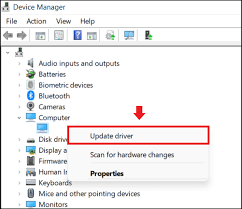
Method 2: Using Device Manager
- Press the Windows key + X to open the Quick Link menu.
- Select Device Manager from the list.
- Find the device you want to update in the list.
- Right-click on the device and select “Update driver.”
- Follow the prompts to search for updates.
Update Drivers on Mac: A Simple Guide
To update drivers on a Mac, follow these steps:
- Click the Apple menu and select System Preferences.
- Click on Software Update.
- If any updates are available, click on the “Update Now” button.
Other Ways to Update Drivers
- Using Manufacturer’s Website: Visit the website of your device manufacturer for official driver updates.
- Third-party Driver Update Tools: Utilize third-party tools like Driver Talent or Driver Booster to scan and update drivers.
How to Know When Your Drivers Need an Update?
To determine if your drivers need an update, look out for these signs:
- Slow performance
- Crashes or freezes
- Malfunctioning devices
Tips And Tricks
- Regularly check for driver updates.
- Only download driver updates from official sources to avoid malware risks.
- Consider using a third-party driver update tool for added convenience.
Conclusion
Updating drivers can be a straightforward process, and it’s essential to keep your PC hardware components up-to-date to ensure smooth performance. By following the steps outlined in this article, you’ll be able to update drivers on Windows 10, Mac, and other operating systems with ease. Happy updating!
Frequently Asked Questions (FAQs)
-
What Happens if I Don’t Update my Drivers?
Upgrading your driver is an essential part of maintaining the health and efficiency of your computer, and failing to do so can result in decreased performance and increased risks.
-
How Often Should I Update my Drivers?
It’s recommended to check for updates regularly, ideally once a week or once a month, depending on how often you use your computer.
-
Can Updating Drivers Improve Performance?
Updating drivers can indeed enhance the overall performance of your system by ensuring that all hardware components are functioning properly and efficiently.
-
Will I Lose Any Data if I Update my Drivers?
Upgrading your driver will not result in any loss of data, provided you follow the proper procedures and only install updates from trusted sources.
-
Are There Risks Associated With Updating Drivers?
As long as you download updates from reputable websites and follow the instructions carefully, the risk is minimal.


