
How to Create Eye-catching Flyers on Mac: A Step-by-step Guide
Are you looking for ways to promote your business or event without breaking the bank? Creating eye-catching flyers can be an effective way to reach your target audience, and with a Mac, you have access to a range of user-friendly software options. In this article, we’ll show you how to create professional-looking flyers on Mac using free and paid programs.
Why Create Flyers on Mac?
Creating flyers on Mac offers several advantages:
- Ease of Use: Most Mac users are familiar with the operating system and can quickly get started with creating flyers.
- Accessibility: Macs have a wide range of software options available, including free and paid programs.
- Print Quality: Macs can produce high-quality prints, making your flyers stand out.
Best Programs For Creating Flyers on Mac
Here are some of the best programs for creating flyers on Mac:
1. Pages
Pages is a free word processing and desktop publishing application that comes pre-installed on Macs. It’s an excellent option for creating flyers due to its user-friendly interface and range of templates.
To create a flyer using Pages, follow these steps:
- Open Pages and click on the “New Document” button.
- Select the “Flyer” template from the list of available options.
- Customize your flyer by adding text, images, and other design elements.
- Save and print your flyer.
2. Libreoffice
LibreOffice is a free and open-source office suite that includes a range of applications, including word processing, spreadsheet, and presentation software. It’s another great option for creating flyers on Mac.
To create a flyer using LibreOffice, follow these steps:
- Open LibreOffice and select the “Draw” application.
- Choose a template or start from scratch to design your flyer.
- Customize your flyer by adding text, images, and other design elements.
- Save and print your flyer.
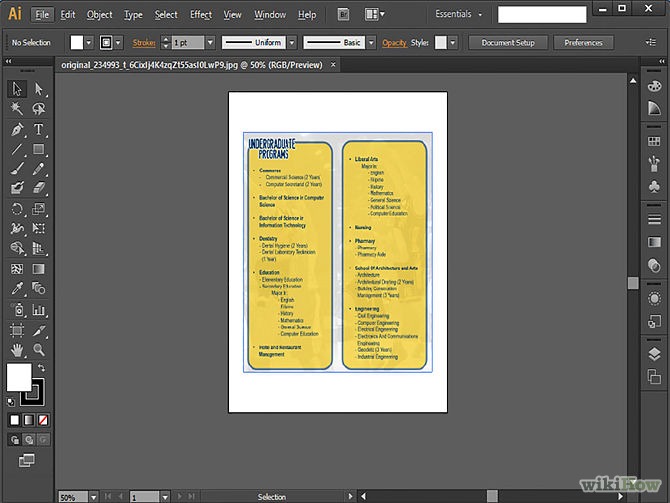
3. Adobe Illustrator
Adobe Illustrator is a professional-grade vector graphics editor that’s popular among designers and artists. It’s not free, but it offers advanced features for creating complex designs.
To create a flyer using Adobe Illustrator, follow these steps:
- Open Adobe Illustrator and select the “New Document” button.
- Choose a template or start from scratch to design your flyer.
- Customize your flyer by adding text, images, and other design elements.
- Save and print your flyer.
4. Canva
Canva is a popular online graphic design platform that’s user-friendly and free. It offers a range of templates and design tools for creating flyers, brochures, and other marketing materials.
To create a flyer using Canva, follow these steps:
- Open Canva and select the “Flyer” template from the list of available options.
- Customize your flyer by adding text, images, and other design elements.
- Save and print your flyer.
Tips For Creating Effective Flyers
Here are some tips to keep in mind when creating flyers on Mac:
- Keep it Simple: Use a clear and concise message that’s easy to read.
- Use Eye-catching Visuals: Add high-quality images or graphics to grab attention.
- Make it Interactive: Consider adding QR codes, links, or other interactive elements.
- Print Quality Matters: Ensure your prints are high-resolution and vibrant.
Conclusion
Creating effective flyers on Mac can be a great way to promote your business or event. With the right software options and design tips, you can produce eye-catching flyers that engage your target audience. Try out Pages, LibreOffice, Adobe Illustrator, Canva, or other programs to find the one that suits your needs.
Frequently Asked Questions
Here are some frequently asked questions about creating flyers on Mac:
Q: What’s the best program for creating flyers on Mac?
A: The best program for creating flyers on Mac depends on your specific needs and preferences. Pages, LibreOffice, Adobe Illustrator, and Canva are all excellent options.
Q: How do I customize my flyer design?
A: You can customize your flyer design by adding text, images, and other design elements using the software of your choice. Experiment with different templates, colors, and fonts to create a unique look.
Q: Can I print multiple copies of my flyer?
A: Yes, most programs allow you to print multiple copies of your flyer at once.
Q: What’s the best way to distribute my flyer?
A: The best way to distribute your flyer depends on your target audience. Consider handing them out in public areas, posting them online, or using direct mail marketing tactics.
Q: Can I use a Mac to create flyers for a PC?
A: Yes, most programs are compatible with both Mac and PC operating systems.
Q: What’s the best way to save my flyer design?
A: The best way to save your flyer design depends on your software options. Consider saving it as a PDF or JPEG file to ensure compatibility across different devices.
Common Issues When Creating Flyers
Here are some common issues you might encounter when creating flyers on Mac:
- Resolution Problems: Ensure your prints are high-resolution and vibrant by adjusting the resolution settings in your software.
- Color Inconsistencies: Use consistent color schemes throughout your design to avoid confusion.
- Font Issues: Experiment with different fonts to find the one that suits your needs.
By following these tips, you can create effective flyers on Mac that engage your target audience.


