
How to Transfer Whatsapp Conversations From One Phone to Another: A Step-by-step Guide
Are you switching to a new smartphone or replacing your old one? Do you want to transfer your WhatsApp conversations to the new device without losing any data? Look no further! In this article, we will guide you through the process of transferring WhatsApp conversations from one phone to another, whether it’s an Android to Android, iPhone to iPhone, or even across different operating systems.
Why Transfer Whatsapp Conversations?
Transferring your WhatsApp conversations to a new device can be beneficial in several ways. Firstly, you won’t have to recreate conversations with contacts and groups that you’ve already saved on the old phone. Secondly, transferring data is an efficient way to ensure that you don’t lose any messages or media files.
Transfer Whatsapp Conversations From Android to Android
If you’re switching between two Android devices, there are a couple of methods you can use to transfer your WhatsApp conversations:
-
Method 1: Use Google Drive Backup
- On the old device, go to Settings > Chats > Backup chats.
- Create a new backup by tapping on “Execute backup” and wait for the process to complete.
- On the new device, install WhatsApp and follow the initial setup process.
- When prompted to restore from Google Drive, tap on “Restore” and enter your old phone number to begin the restoration process.
-
Method 2: Use Local Backup
- On the old device, navigate to the folder \Home\WhatsApp\Databases (or sdcard\WhatsApp\Databases if your device supports memory expansion).
- Find the file msgstore.Db.Crypt14 and copy it to the same folder on the new device.
- Rename the backup file from the old device to match the name of the current backup file on the new device (e.G., Msgstore–[current backup].Db.Crypt14).
- Install WhatsApp on the new device and follow the initial setup process.
- When prompted to restore, tap on “Restore” and enter your old phone number to begin the restoration process.
Transfer Whatsapp Conversations From Iphone to Iphone
If you’re switching between two iPhones, you can use the built-in backup feature:
- On the old device, go to Settings > Chats > Backup chats.
- Create a new backup by tapping on “Execute backup” and wait for the process to complete.
- On the new device, install WhatsApp and follow the initial setup process.
- When prompted to restore from iCloud, tap on “Restore” and enter your old phone number to begin the restoration process.
Transfer Whatsapp Conversations From Android to Iphone
If you’re switching from an Android device to an iPhone, there’s a native feature called Move to iOS that can help transfer your WhatsApp conversations:
-
Method 1: Use Move to Ios App
- On your Android device, download and install the Move to iOS app.
- Follow the on-screen instructions to set up your new iPhone.
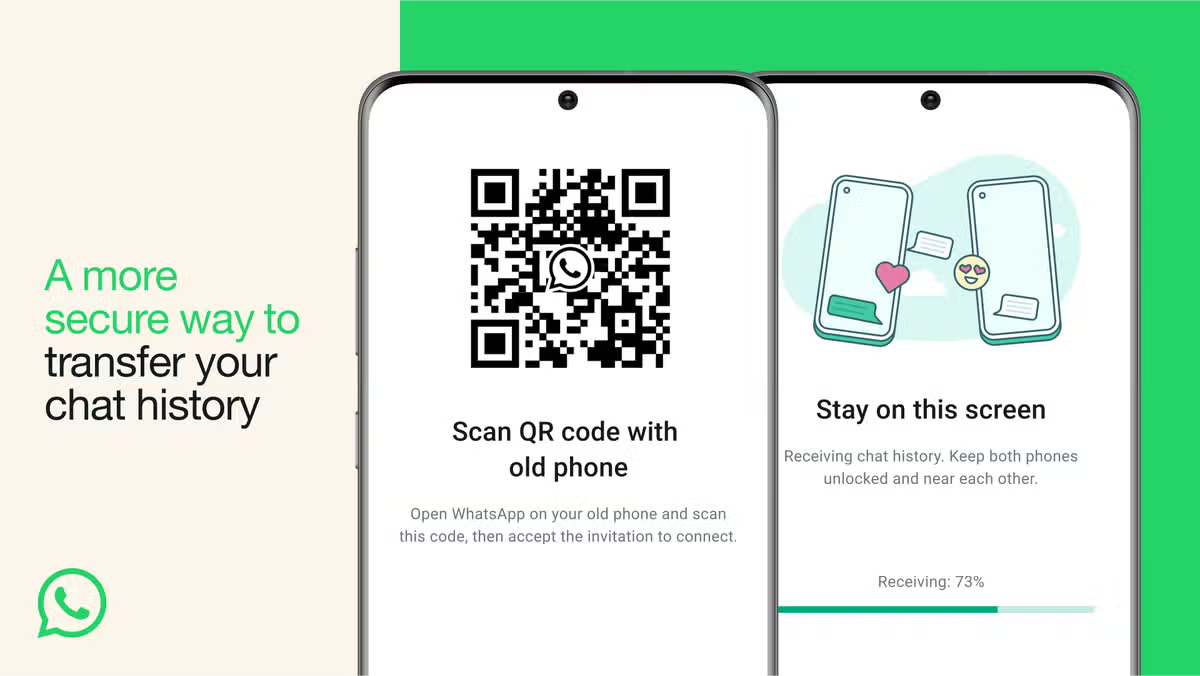
- When prompted, tap on “Move Data from Android” and scan the QR code displayed on your new iPhone using your Android device’s camera.
- On your Android device, tap on “Next” and then select WhatsApp as one of the apps to transfer data from.
-
Method 2: Use Google Drive Backup
- On your old Android device, go to Settings > Chats > Backup chats.
- Create a new backup by tapping on “Execute backup” and wait for the process to complete.
- On your new iPhone, install WhatsApp and follow the initial setup process.
- When prompted to restore from Google Drive, tap on “Restore” and enter your old phone number to begin the restoration process.
Transfer Whatsapp Conversations From Iphone to Android
If you’re switching from an iPhone to an Android device, there’s a native feature called Move to Android that can help transfer your WhatsApp conversations:
-
Method 1: Use Move to Android App
- On your iPhone, download and install the Move to Android app.
- Follow the on-screen instructions to set up your new Android device.
- When prompted, tap on “Move Data from iOS” and scan the QR code displayed on your new Android device using your iPhone’s camera.
- On your iPhone, tap on “Next” and then select WhatsApp as one of the apps to transfer data from.
-
Method 2: Use Google Drive Backup
- On your old iPhone, go to Settings > Chats > Backup chats.
- Create a new backup by tapping on “Execute backup” and wait for the process to complete.
- On your new Android device, install WhatsApp and follow the initial setup process.
- When prompted to restore from Google Drive, tap on “Restore” and enter your old phone number to begin the restoration process.
Troubleshooting Tips
If you encounter any issues during the transfer process, don’t worry! Here are some troubleshooting tips:
- Check That Whatsapp is Installed Correctly: Ensure that WhatsApp is installed on both devices and that it’s set up with your correct phone number.
- Verify Backup Availability: Make sure that a backup exists for the old device before attempting to restore data on the new device.
- Confirm Phone Number Compatibility: Verify that the same phone number is used on both devices to ensure seamless transfer.
Faqs
Here are some frequently asked questions about transferring WhatsApp conversations:
- Q: Can I transfer my WhatsApp conversations to a new device without losing any data?
A: Yes, you can use either Google Drive backup or local backup methods to transfer your WhatsApp conversations. - Q: What if I’m switching from an iPhone to an Android device?
A: You can use the Move to Android app or Google Drive backup method to transfer your WhatsApp conversations. - Q: How do I troubleshoot issues during the transfer process?
A: Check that WhatsApp is installed correctly, verify backup availability, and confirm phone number compatibility.
In conclusion, transferring WhatsApp conversations from one device to another can be a straightforward process with the right guidance. Whether you’re switching between two Android devices or making the transition from an iPhone to an Android device, we’ve provided you with clear steps to follow.


