
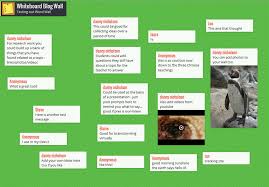
Padlet: The Ultimate Tool For Creating Interactive Presentations
Are you tired of using traditional methods to create presentations? Do you want to make your content more engaging and interactive? Look no further than Padlet! In this article, we’ll explore the world of Padlet and show you how to use it to create stunning presentations.
What is Padlet?
Padlet is a digital tool that allows users to create interactive boards where they can collect, organize, and present information. It’s like a virtual corkboard, but with a lot more features! With Padlet, you can add text, images, videos, and even live updates from other users.
How to Use Padlet
Using Padlet is easy peasy! Here’s a step-by-step guide:
- Download And Install: First, download and install the Padlet app on your device. It’s available for PC, Mac, Android, iPhone, and iPad.
- Configure: Once installed, configure your account by logging in with your Apple ID, Google account, or Microsoft account. You can also create a new account if you don’t have one.
- Choose Your Template: Select the type of Padlet you want to create: Personal blueprint, student, teacher, or team.
- Start Creating: Click on the “Start” button and begin adding content to your Padlet. You can add text, images, videos, and even live updates from other users.
Features of Padlet
Padlet has a plethora of features that make it an ideal tool for creating interactive presentations. Here are some of its key features:
- Private or Public: Choose whether you want your Padlet to be private or public.
- Collaboration: Invite others to collaborate on your Padlet, and get live updates from them.
- Notifications: Set up notifications to alert you when someone comments or votes on your content.
- Integration With Microsoft Teams: Integrate your Padlet with Microsoft Teams for seamless collaboration.
Benefits of Using Padlet
Using Padlet has numerous benefits, including:
- Improved Engagement: Make your presentations more engaging and interactive.
- Increased Collaboration: Collaborate with others in real-time and get live updates.
- Enhanced Productivity: Save time by using Padlet’s features to streamline your workflow.
Tips For Using Padlet Effectively
Here are some tips to help you use Padlet effectively:
- Keep it Simple: Don’t overcomplicate things. Keep your content concise and easy to read.
- Use Visuals: Use images, videos, and other visual aids to make your content more engaging.
- Collaborate With Others: Invite others to collaborate on your Padlet and get live updates.
Conclusion
Padlet is an incredible tool for creating interactive presentations. With its ease of use and plethora of features, it’s the perfect solution for anyone looking to take their presentations to the next level. By following the steps outlined in this article, you’ll be able to create stunning presentations that engage and interact with your audience.
Frequently Asked Questions (FAQs)
- What is Padlet?
- Padlet is a digital tool that allows users to create interactive boards where they can collect, organize, and present information.
- How do I Download And Install Padlet?
- Download the Padlet app on your device from the relevant app store (e.G., Apple App Store or Google Play Store).
- Can I Use Padlet For Free?
- Yes, you can use Padlet for free with some limitations.
- How do I Collaborate With Others on Padlet?
- Invite others to collaborate on your Padlet and get live updates from them.
- What Are The System Requirements For Using Padlet?
- Padlet is available on PC, Mac, Android, iPhone, and iPad devices.
- Can I Integrate my Padlet With Microsoft Teams?
- Yes, you can integrate your Padlet with Microsoft Teams for seamless collaboration.
- How do I Get Notifications on Padlet?
- Set up notifications to alert you when someone comments or votes on your content.
I hope this article has been informative and helpful in introducing you to the world of Padlet!


