
How to Set Google as Default Search Engine Across All Browsers
Are you tired of switching between different search engines every time you open a new tab? Do you wish there was a way to set Google as your default search engine across all browsers? Well, wish no more! In this guide, we’ll show you how to set Google as your default search engine on various browsers, including Edge, Chrome, Internet Explorer, Safari, Android, and iPhone.
Why Set Google as Default Search Engine?
Google is the most popular search engine in the world, and for good reason. Its powerful algorithm provides accurate and relevant results, making it an essential tool for anyone looking to find information online. By setting Google as your default search engine, you’ll save time and effort every time you open a new tab.
How to Set Google as Default Search Engine on Edge
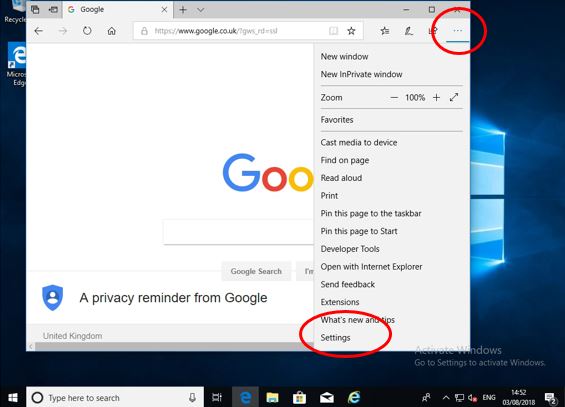
If you’re using Microsoft Edge as your browser, setting Google as your default search engine is easy peasy! Here’s how:
- Open Edge and click on the three dots in the top right corner.
- Click on “Settings” from the dropdown menu.
- Scroll down to the “Privacy, search, and services” section.
- Click on “Services”.
- Under “Bar of addresses and enquiry”, select Google from the list.
How to Set Google as Default Search Engine on Chrome
Setting Google as your default search engine on Chrome is also a breeze!
- Open Chrome and click on the three dots in the top right corner.
- Click on “Settings” from the dropdown menu.
- Scroll down to the “Search engine” section.
- Select Google from the list.
How to Set Google as Default Search Engine on Internet Explorer
If you’re still using Internet Explorer, don’t worry! Setting Google as your default search engine is still possible:
- Open Internet Explorer and click on the gear icon in the top right corner.
- Click on “Internet options”.
- Go to the “Programs” tab.
- Under “Default search engine”, select Google.
How to Set Google as Default Search Engine on Safari
Setting Google as your default search engine on Safari is a straightforward process:
- Open Safari and click on “Safari” in the top left corner.
- Click on “Preferences”.
- Go to the “Search” section.
- Select Google from the list.
How to Set Google as Default Search Engine on Android
If you’re using an Android device, setting Google as your default search engine is a simple process:
- Open Chrome on your Android device and tap on the three dots in the top right corner.
- Tap on “Settings”.
- Scroll down to the “Search engine” section.
- Select Google from the list.
How to Set Google as Default Search Engine on Iphone
Setting Google as your default search engine on an iPhone is also easy:
- Open Safari on your iPhone and tap on “Safari” in the bottom left corner.
- Tap on “Settings”.
- Scroll down to the “Search engine” section.
- Select Google from the list.
Frequently Asked Questions
- Q: Why Should I Set Google as my Default Search Engine?
A: Setting Google as your default search engine provides accurate and relevant results, saving you time and effort. - Q: Which Browsers Support Setting Google as Default Search Engine?
A: Most popular browsers, including Edge, Chrome, Internet Explorer, Safari, Android, and iPhone, support setting Google as default search engine. - Q: How do I Set Google as Default Search Engine on Edge?
A: Open Edge, click on the three dots in the top right corner, select “Settings”, scroll down to the “Privacy, search, and services” section, and click on “Services”. - Q: Can I Set Google as Default Search Engine on Android?
A: Yes! Simply open Chrome, tap on the three dots in the top right corner, select “Settings”, scroll down to the “Search engine” section, and choose Google.
By following these simple steps, you’ll be able to set Google as your default search engine across all browsers. Happy searching!


