
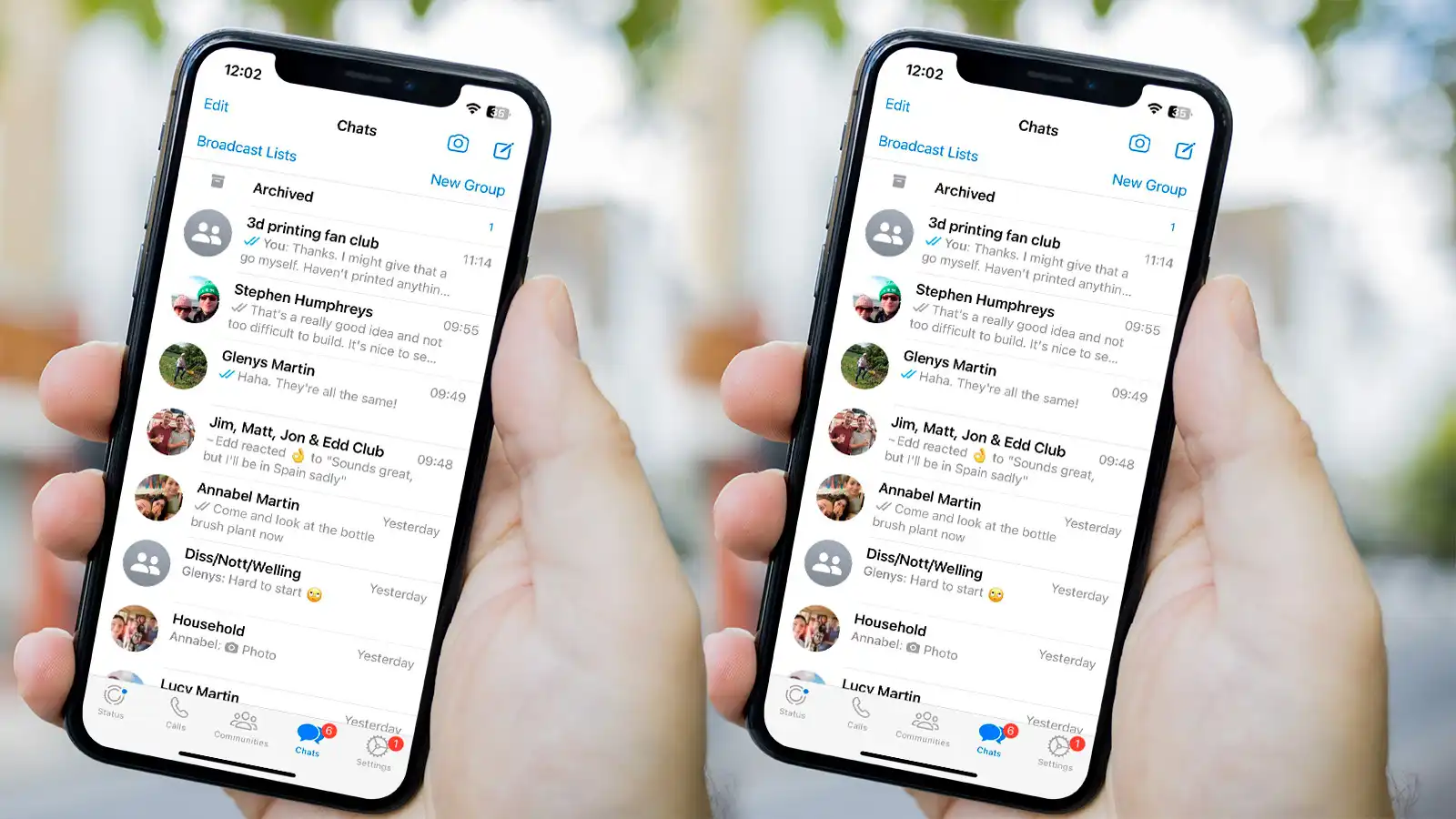
Using Whatsapp: A Step-by-step Guide
Are you interested in learning how to use WhatsApp? Look no further! This article will guide you through the process of downloading, installing, and using this popular messaging app.
Downloading Whatsapp on Your Smartphone
To start using WhatsApp, you need to download it from the App Store (for iOS devices) or Google Play Store (for Android devices). Here’s how:
- On an iPhone:
- Open the App Store.
- Tap on “Search” in the bottom bar.
- Type “WhatsApp” in the search field and tap on the magnifying glass icon.
- Tap on the WhatsApp app from the search results.
- Tap on “Get” to download and install the app.
- On an Android device:
- Open the Google Play Store.
- Tap on the search bar at the top of the screen.
- Type “WhatsApp” in the search field and tap on the magnifying glass icon.
- Select WhatsApp from the search results.
- Tap on “Install” to download and install the app.
Creating a Whatsapp Account
After downloading WhatsApp, you need to create an account. Here’s how:
- Open WhatsApp on your smartphone.
- Tap on the “Accept” button to accept the terms of service.
- Enter your phone number in the “Phone Number” field.
- Tap on the “Next” button.
- Follow the prompts to verify your phone number.
Using Whatsapp on Your Smartphone
Now that you have a WhatsApp account, here’s how to use it:
- To send messages:
- Open WhatsApp and tap on the chat icon in the top left corner of the screen.
- Select the contact you want to message from your contacts list.
- Type your message in the text field at the bottom of the screen.
- Tap on the “Send” button to send the message.
- To make voice or video calls:
- Open WhatsApp and tap on the call icon in the top left corner of the screen.
- Select the contact you want to call from your contacts list.
- Tap on the “Call” button to initiate a call.
Using Whatsapp on Your Computer
You can also use WhatsApp on your computer by downloading the desktop app. Here’s how:
- On Windows:
- Open the Microsoft Store and search for WhatsApp.
- Select WhatsApp from the search results.
- Tap on “Get” to download and install the app.
- On macOS:
- Open the App Store and search for WhatsApp.
- Select WhatsApp from the search results.
- Tap on “Get” to download and install the app.
Using Whatsapp Web
If you don’t have a compatible smartphone or prefer not to use the desktop app, you can also use WhatsApp Web:
- Open WhatsApp on your smartphone.
- Tap on the three dots icon in the top right corner of the screen.
- Select “WhatsApp Web” from the menu.
- Scan the QR code displayed on your computer with your smartphone’s camera.
- Log in to your WhatsApp account on your computer.
Using Whatsapp on Your Ipad
Unfortunately, WhatsApp is not available on iPads. However, you can use WhatsApp Web on your iPad:
- Open Safari on your iPad and go to the WhatsApp Web page.
- Scan the QR code displayed on your iPad with your smartphone’s camera.
- Log in to your WhatsApp account on your iPad.
Using Whatsapp Business
WhatsApp Business is a commercial version of WhatsApp designed for businesses. Here’s how to use it:
- Download and install WhatsApp Business on your smartphone.
- Tap on “Accept” to accept the terms of service.
- Enter your phone number and verify it by receiving an SMS code.
- Create a business profile and add a category.
- Use WhatsApp Business to communicate with customers.
Using Dual Sim on Whatsapp
If you have a dual-SIM smartphone, you can use both numbers simultaneously:
- Open WhatsApp and tap on the three dots icon in the top right corner of the screen.
- Select “Settings” from the menu.
- Tap on “Dual SIM settings.”
- Enable dual-SIM mode.
Using Whatsapp Anonymously
Unfortunately, WhatsApp does not have an anonymous mode. However, you can use a SIM card specifically for WhatsApp and create an account without revealing your identity.
I hope this article has been helpful in learning how to use WhatsApp!


