
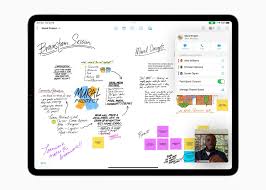
Unlocking The Power of Freeform: A Comprehensive Guide
Are you curious about how to harness the full potential of Apple’s innovative app, Freeform? Look no further! In this in-depth guide, we’ll delve into the world of brainstorming and collaboration with Freeform on your iPhone, iPad, and Mac. Get ready to discover a whole new way to create, share, and work with others like never before!
What is Freeform?
Freeform is an app designed by Apple for brainstorming, note-taking, and collaborative work. With its user-friendly interface and robust features, it’s the perfect tool for individuals and teams to create, discuss, and finalize ideas.
Getting Started With Freeform on Iphone And Ipad
To begin your Freeform journey, start by opening the app from your Home screen or searching for it in the App Store. If you’re new to Freeform, tap “Continue” to access the welcome page. For those familiar with the app, simply tap on the icon of the pencil on the top-right corner to access your workspace.
Navigating The Interface
The Freeform interface is clean and straightforward, featuring a blackboard-like layout where you can add various elements using the provided icons. On iPhone, these icons are located at the bottom, while on iPad, they’re situated at the top.
- Post-it: Tap this icon to insert grades or sticky notes onto your blackboard.
- Square Ring: Use this symbol to add arrows, geometric shapes, symbols, icons, and other visual aids.
- To: Tap this icon to create boxes for text input.
- Pen: This icon allows you to draw or write directly on the board using an Apple Pencil (available only on iPad).
- Postcard: Use this icon to add images, videos, documents, and links from your Gallery or other sources.
Working With Elements
Let’s dive deeper into working with the various elements in Freeform:
- Post-it: Tap on the Post-it icon, then two-finger tap on the desired location to create a new grade. You can resize and reposition this element by dragging its blue handles.
- Square Ring: Select an item from the menu, then tap it on the board to add it. Use the blue handles to resize or move the item around. If there’s a green handle, use it to modify an item’s properties, like its texture.
- To: Tap twice on the box of text that appears, and start typing your content. To format your text, tap on it, then select from the menu options (font, alignment, size, etc.).
- Pen: Use the Apple Pencil to draw directly onto the board. Alternatively, you can type and design using the pen icon.
- Postcard: Tap this icon, then choose an image or video source. You can also scan documents or add links to web pages.
Sharing Your Work
When you’re done with your blueprint, tap on its name (on iPad) or the three dots at the top-right corner (on iPhone). Select “Share” to export your work as a PDF file or print it directly.
Collaborating With Others
Freeform allows for real-time collaboration with up to 100 participants. To invite others, open the Messages app and share your blackboard link within a conversation. Invited users can join automatically and begin collaborating right away. As collaborators make changes, their updates will appear at the top of the conversation.
Getting Started With Freeform on Mac
Using Freeform on Mac is similar to its mobile counterparts. Simply open the app from your Applications folder or Dock, and you’ll find a familiar interface. The main difference lies in using the mouse instead of fingers or Apple Pencil for interactions.
Tips And Tricks
- Collaboration: To enable collaboration mode, tap the icon with an arrow pointing to the square (on iPhone) or click on it with your mouse (on Mac).
- Contextual Menus: On both devices, right-click on elements to access additional menu options.
- Menu Management: Manage shared blackboard settings and invite others using the collaboration menu.
Conclusion
Freeform is an innovative tool for brainstorming, note-taking, and collaborative work. By mastering its features and capabilities, you’ll unlock a new world of creative possibilities. Whether working alone or with team members, Freeform provides an intuitive interface to share ideas and bring projects to life.


