
How to Read And Modify Pdf With Updf: A Comprehensive Guide
Are you tired of dealing with PDF files that are difficult to modify or read? Look no further than UPDF, the ultimate PDF editor! In this article, we will take a comprehensive look at how to use UPDF to read and modify your PDF files.
What is Updf?
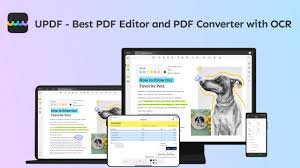
UPDF is a powerful and versatile PDF editor that allows you to not only view and edit PDFs but also convert them into various formats. It’s compatible with Windows, macOS, and mobile devices (Android and iOS/iPadOS), making it an excellent choice for users across different platforms.
Key Features of Updf
Before we dive into the steps on how to use UPDF, let’s take a look at some of its key features:
- Viewing And Editing Pdfs: UPDF allows you to view and edit PDF files with ease. You can add annotations, fill out forms, and even convert scanned documents into editable text.
- Conversion to Other Formats: With UPDF, you can convert your PDFs into various formats like Word, PowerPoint, Excel, CSV, RTF, Text, Image, XML, and HTML.
- Password Protection: You can protect your PDFs with passwords to prevent unauthorized access or modification.
- Sharing Options: UPDF provides multiple sharing options, including emailing the PDF directly from the app.
How to Use Updf: A Step-by-step Guide
Now that we’ve covered some of the key features of UPDF, let’s move on to a step-by-step guide on how to use it:
Downloading And Installing Updf
To start using UPDF, follow these steps:
- Go to the official website of UPDF and click on the download button.
- If you’re using Windows, initiate the installation process by running the
.Exefile. Answer yes to any prompts that appear on your screen, and the software will automatically install itself. - If you’re using a Mac, open the downloaded
.Dmgfile, drag the UPDF icon into the Applications folder, and then run the program.
Creating an Account
Before you can start using UPDF’s full range of features, you’ll need to create an account. Here’s how:
- Once you’ve installed UPDF, open the app and click on the “Create Account” button.
- Fill in your email address and password details, then click on the “Sign Up” button.
- You will receive a confirmation email from UPDF. Click on the link provided to verify your account.
Viewing And Editing Pdfs
Now that you have an account set up, let’s take a look at how to view and edit your PDF files:
- Open UPDF and click on the “Open” button.
- Select the PDF file you want to view or edit from your computer.
- You can now scroll through the document, search for specific words or phrases, and even add annotations using the toolbar.
Adding Annotations
To add annotations to a PDF, follow these steps:
- Open UPDF and select the PDF file you want to annotate.
- Click on the “Comment” button in the toolbar.
- Choose the type of annotation you want to make (e.G., Highlight, underline, or add a comment).
- Select the text or image you want to annotate using your mouse.
Converting Pdfs
If you need to convert a PDF into another format, here’s how:
- Open UPDF and select the PDF file you want to convert.
- Click on the “Export” button in the toolbar.
- Choose the format you want to convert your PDF into (e.G., Word, PowerPoint, Excel, etc.).
Signing Pdfs
To sign a PDF using UPDF, follow these steps:
- Open UPDF and select the PDF file you want to sign.
- Click on the “Comment” button in the toolbar.
- Select the “Signature” option from the dropdown menu.
- Create your signature by drawing or typing it into the text box.
Encrypting Pdfs
To encrypt a PDF using UPDF, follow these steps:
- Open UPDF and select the PDF file you want to encrypt.
- Click on the “Protect with Password” button in the toolbar.
- Set up your password details, then click on the “Apply” button.
Sharing Pdfs
To share a PDF using UPDF, follow these steps:
- Open UPDF and select the PDF file you want to share.
- Click on the sharing icon in the toolbar.
- Choose how you want to share your PDF (e.G., Via email or by creating a link).
Organizing Pdfs
To organize your PDF files using UPDF, follow these steps:
- Open UPDF and select the PDF file you want to organize.
- Click on the “Organize Pages” button in the toolbar.
- Use the various tools provided to reorder, delete, or add new pages.
Conclusion
UPDF is an incredibly versatile and user-friendly PDF editor that offers a wide range of features for viewing, editing, converting, signing, encrypting, sharing, and organizing your PDF files. Whether you’re a student, business owner, or simply someone who wants to make the most out of their digital documents, UPDF is definitely worth checking out.
Frequently Asked Questions
Here are some frequently asked questions about UPDF:
- Q: Is Updf Free?
A: Yes, UPDF offers a free version that allows you to view and edit PDFs. However, there are some limitations on the number of conversions and the presence of a watermark. - Q: What Are The System Requirements For Updf?
A: UPDF is compatible with Windows 10/8/7, macOS High Sierra or later, Android 4.1 Or later, and iOS/iPadOS 11 or later. - Q: Can I Convert a Pdf Into Another Format Using Updf?
A: Yes, you can convert your PDF files into various formats like Word, PowerPoint, Excel, CSV, RTF, Text, Image, XML, and HTML. - Q: How do I Sign a Pdf Using Updf?
A: To sign a PDF using UPDF, select the “Comment” option from the toolbar, then choose the “Signature” option. You can create your signature by drawing or typing it into the text box. - Q: Can I Encrypt a Pdf Using Updf?
A: Yes, you can encrypt a PDF using UPDF to prevent unauthorized access or modification.
Conclusion
UPDF is an excellent choice for anyone looking to enhance their productivity and efficiency when dealing with digital documents. Its user-friendly interface, powerful features, and reasonable pricing make it an attractive option for both personal and professional use. Whether you’re a student, business owner, or simply someone who wants to stay organized, UPDF is definitely worth exploring.
Hope that you liked the content


